Summary
This article will walk you through creating the credentials in the Square back office that you'll need to connect OpenPath to Square.
Walk-through
| Login | Login to your Square Payments Application account using the following link: https://developer.squareup.com/apps Use your standard Square credentials to login to the Application Portal. |
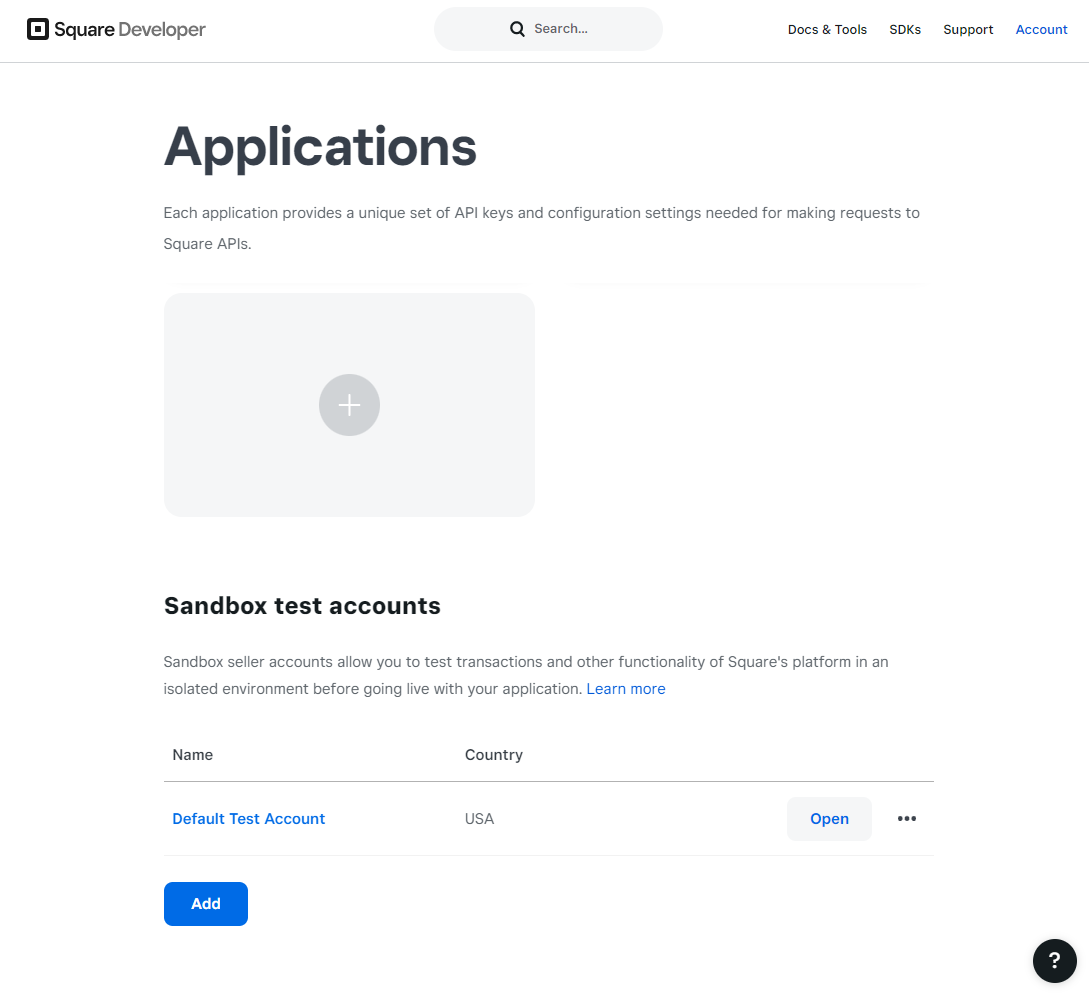
| Create App | Once logged in the, under Applications click on the grey box with a plus sign [+] in it to create a new App. |
 | |
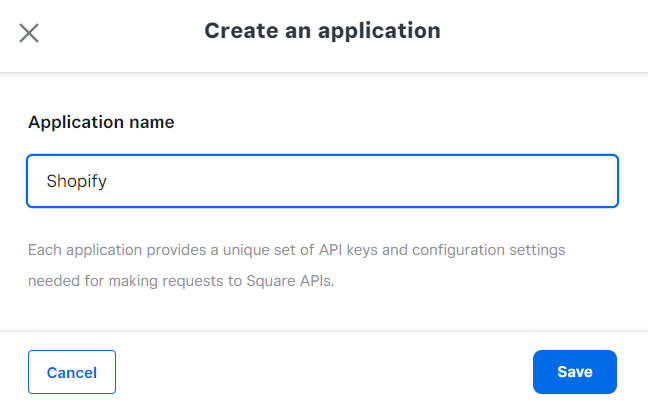
| Name App | When you click on the Add Application button a pop-up window will be displayed asking for you to name the Application, this can be anything, we suggest you name it after the platform you are connecting to. For example, Shopify, OpenPath, WooCommerce and so on. |
 | |
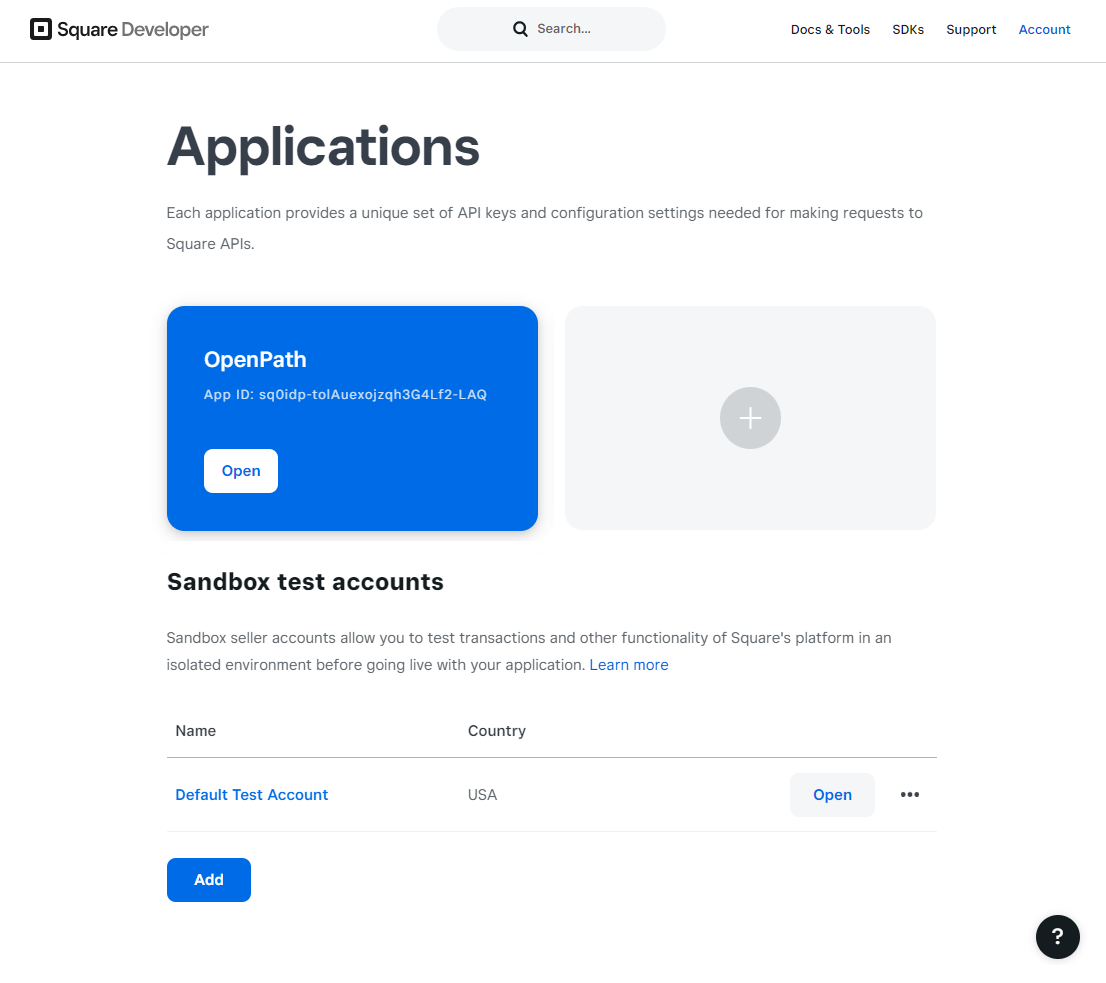
| Select App | Once you have named the app and clicked Save, you will find a new App in your Applications section, find the App you just created and click the Open button. |
 | |
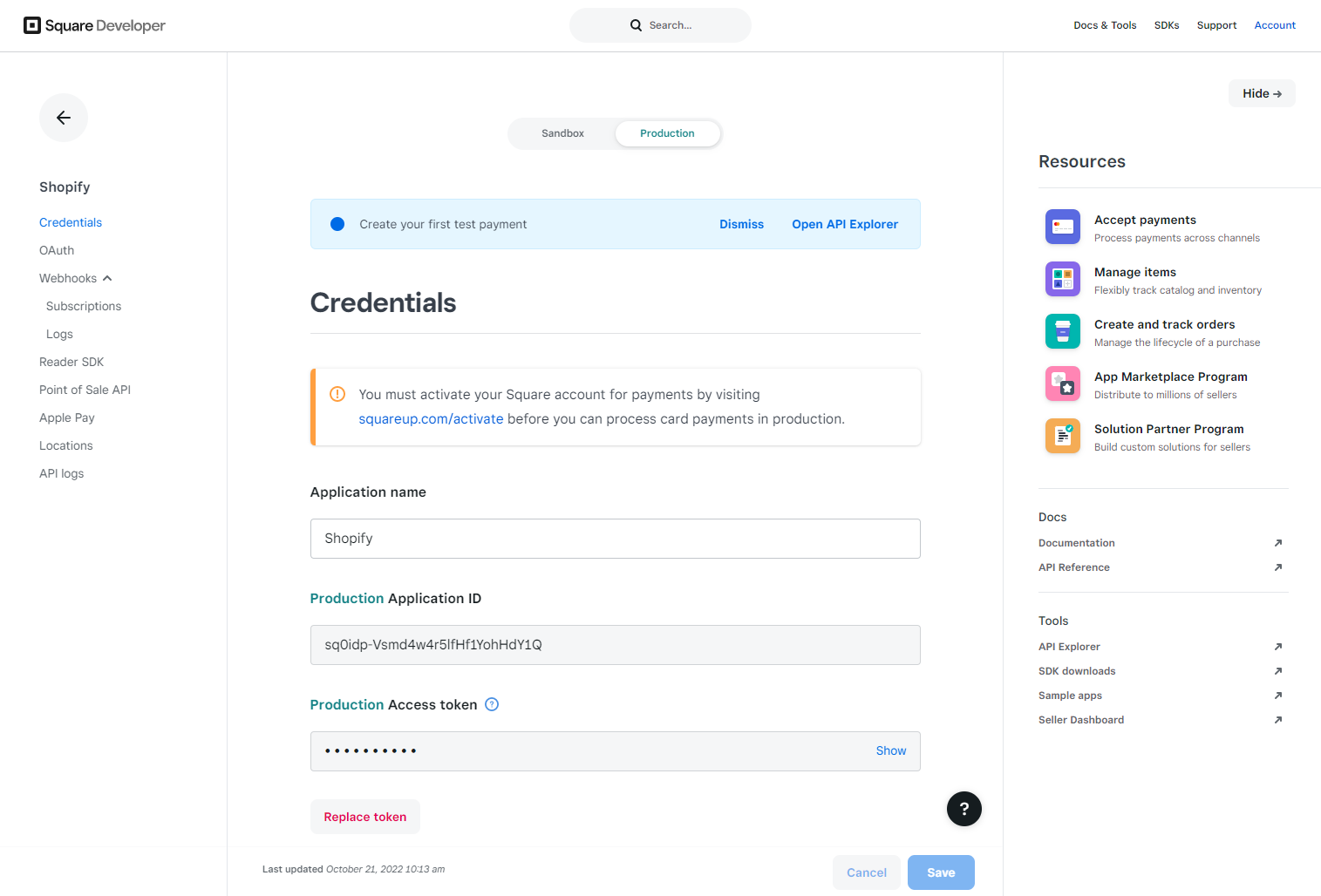
| Get Credentials | Once you open the new App you will see a toggle button near the top for Sandbox and Production, switch the toggle to Production. Now you will find your Application ID and Access Tokens, securely copy and store these credentials for use in your new configuration. |
 | |
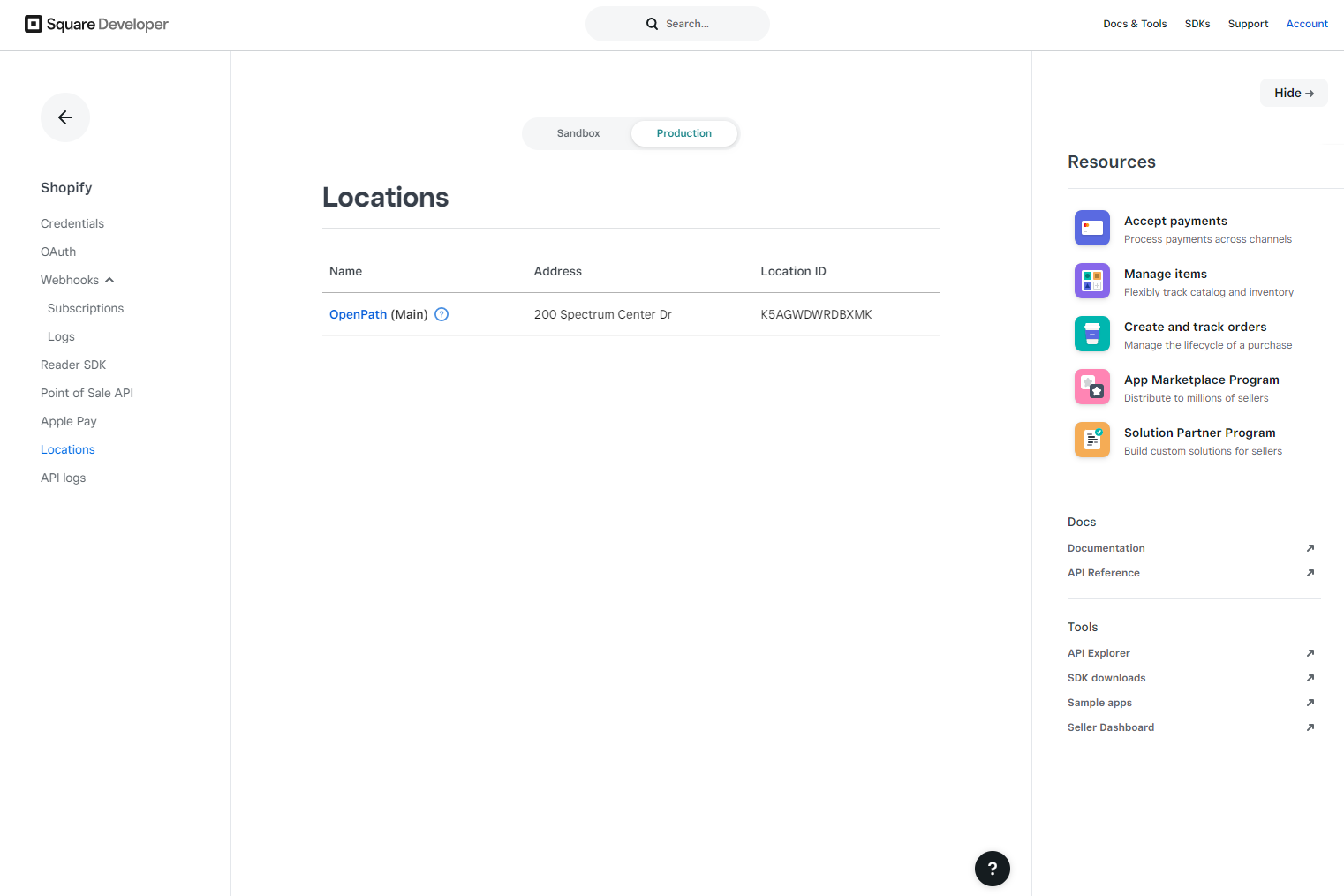
| Get Location ID | Finally in the left-hand menu, select the Location menu item and securely copy and store the Location ID. |
 |
Was this article helpful?
That’s Great!
Thank you for your feedback
Sorry! We couldn't be helpful
Thank you for your feedback
Feedback sent
We appreciate your effort and will try to fix the article