Summary
This guide will take you through the steps of connecting your BigCommerce eCommerce store to OpenPath. It is recommended that you already have an OpenPath account before continuing this installation process.
If you do not have an OpenPath account, please feel free to sign up with the link below, it will only take a minute to activate and begin testing transactions in Sandbox mode for free.
OpenPath - Create FREE Account
Installing
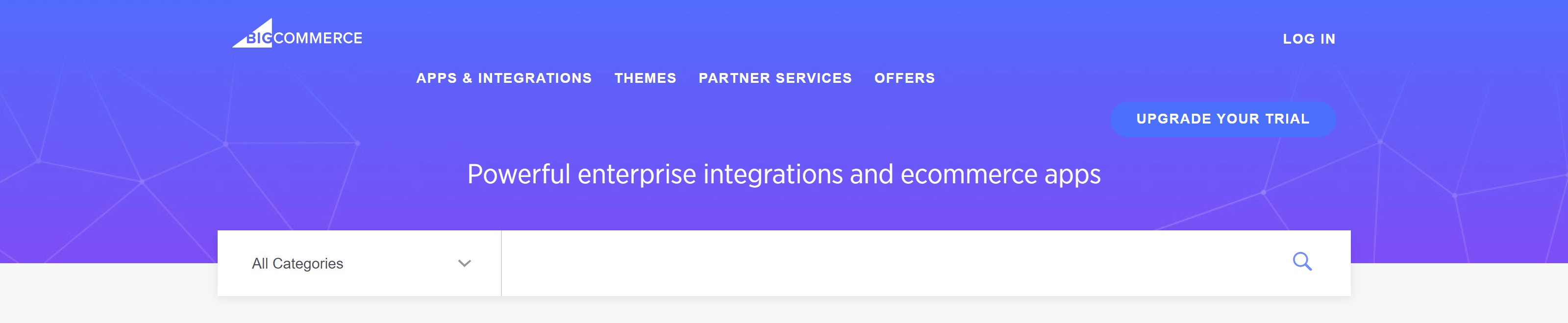
1 | Go to the BigCommerce Marketplace for Apps at Ecommerce for a New Era | BigCommerce |
 | |
2 | In the search box search for OpenPath |
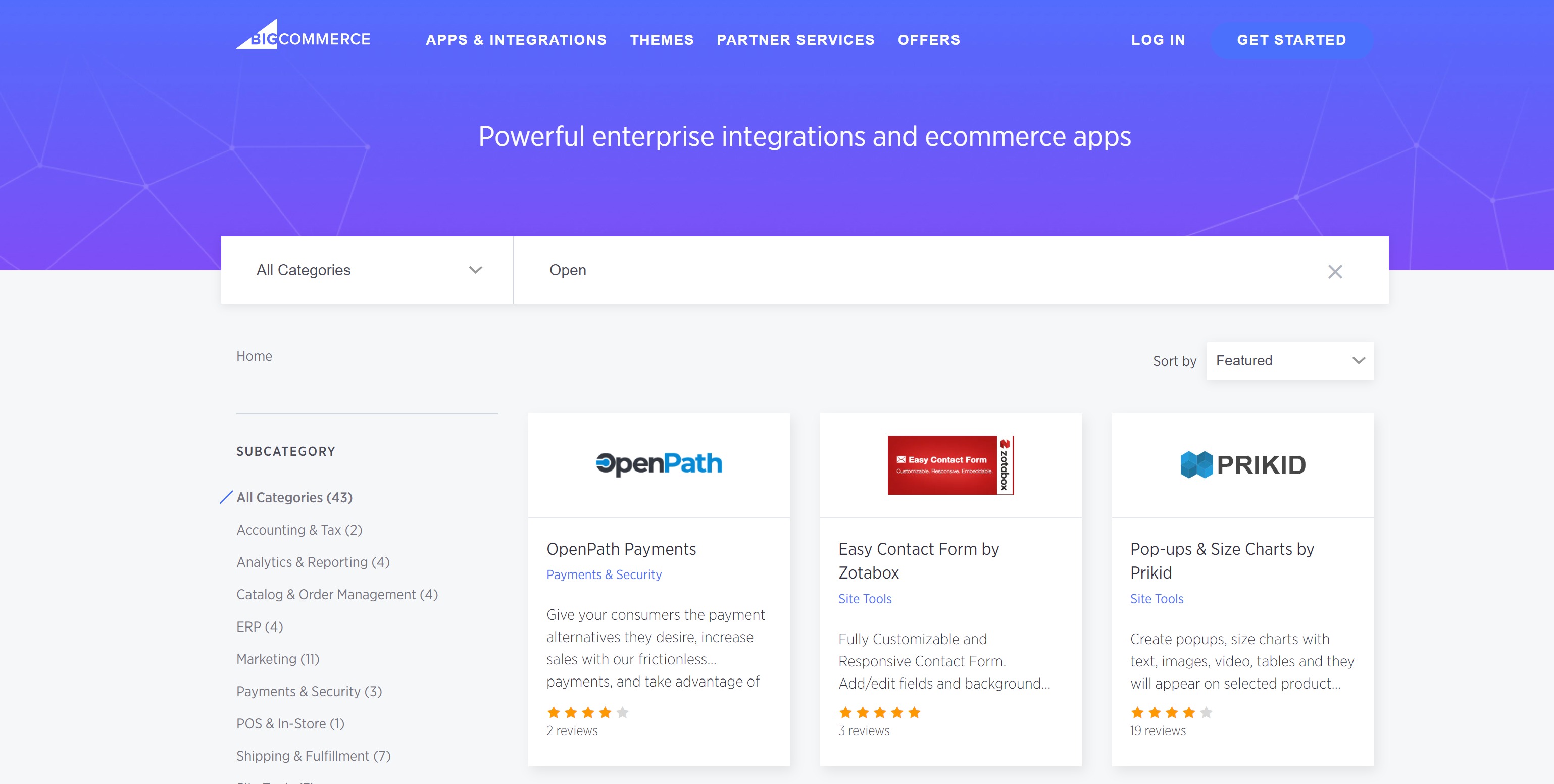 | |
3 | Select the OpenPath Payments box |
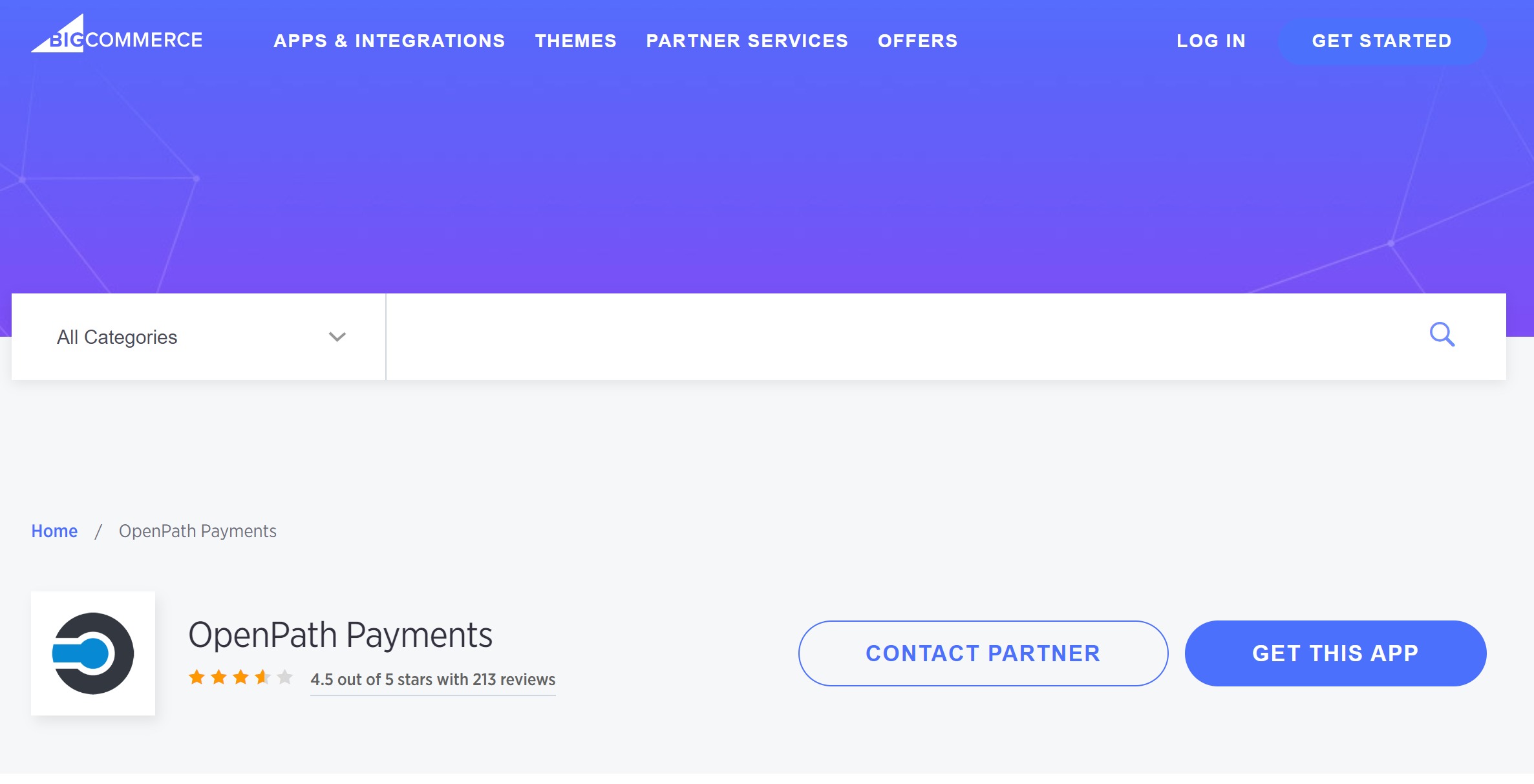
4 | Next click on "GET THIS APP" |
 | |
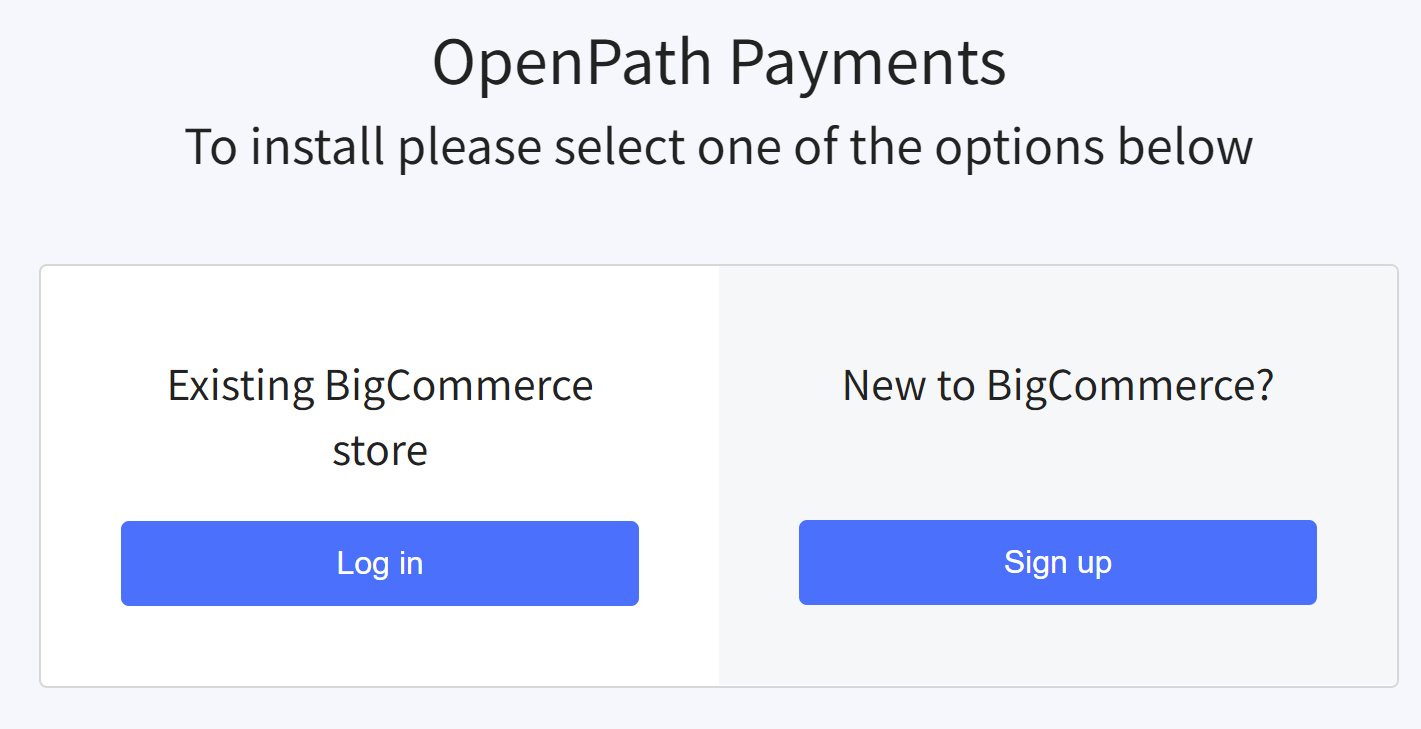
5 | Follow the instructions for logging in to your BigCommerce account, this may be a few steps before you get into your store and presented with the install step |
 | |
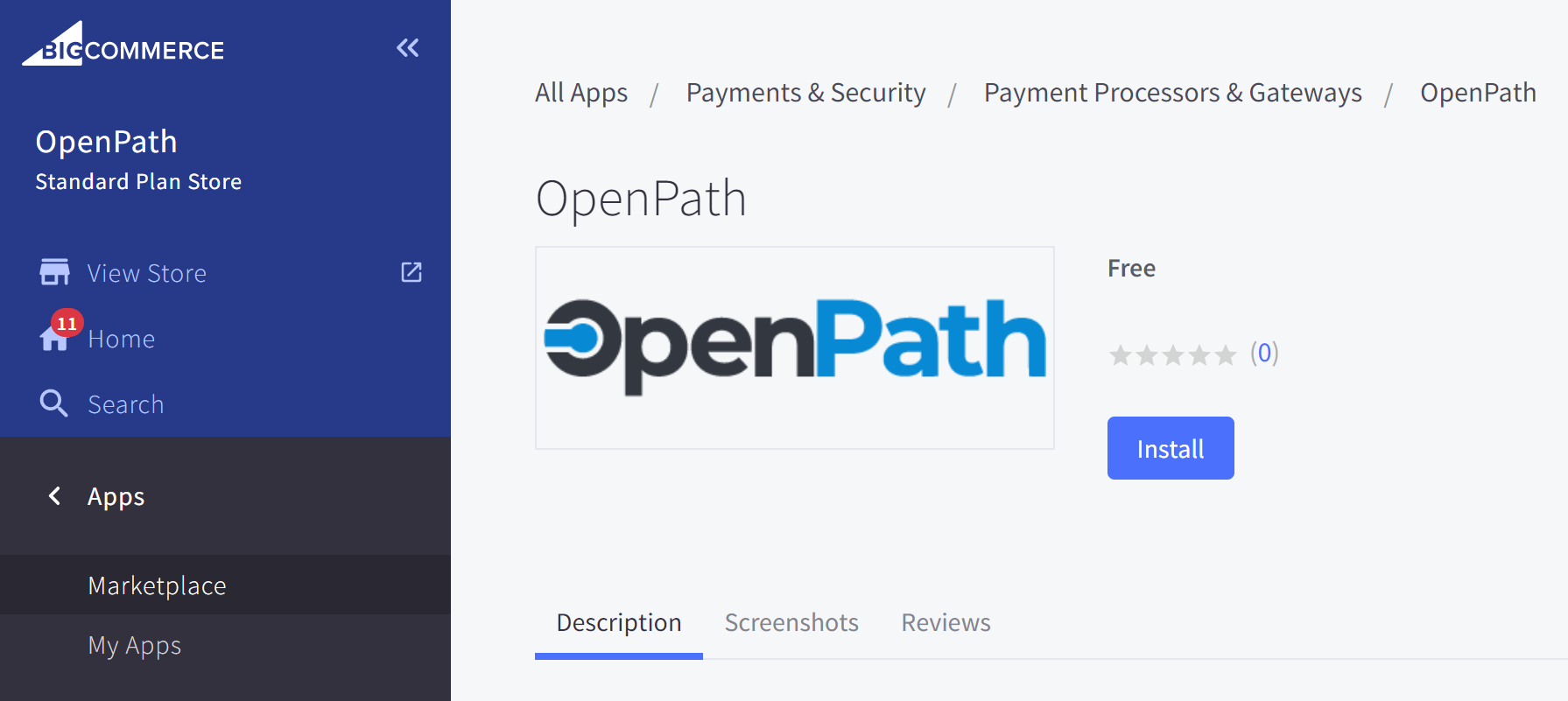
6 | Once you've completed logging in you will be presented with the Install screen, from there select the Install button to continue. |
 | |
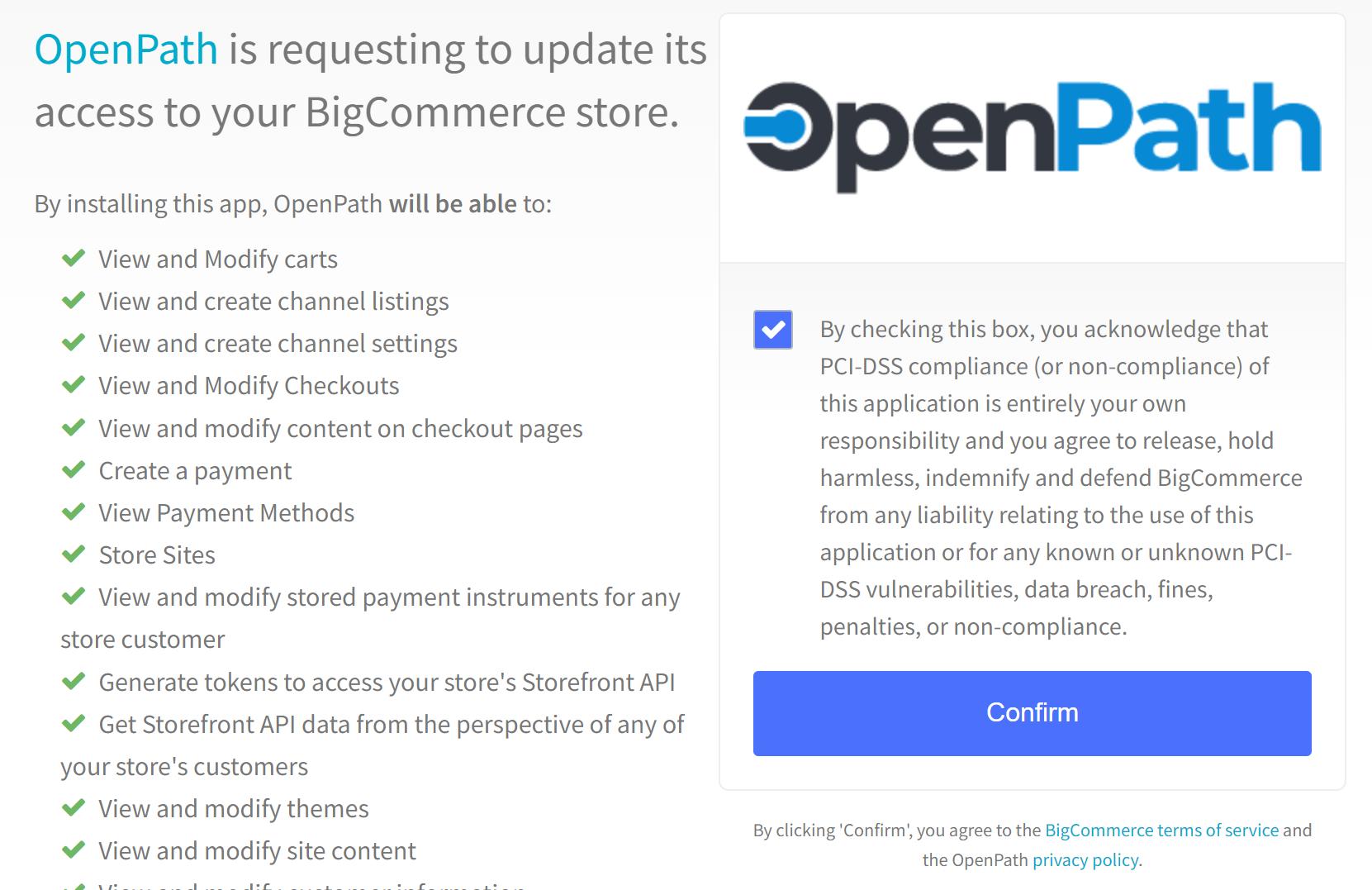
7 | The next screen will present you with the security rights OpenPath is requesting and to acknowledge the BigCommerce PCI-DSS disclaimer where they are saying they do not check if we are PCI-DSS compliant. But for the record, we are fully PCI-DSS compliant. Please check this box and select Confirm. |
 | |
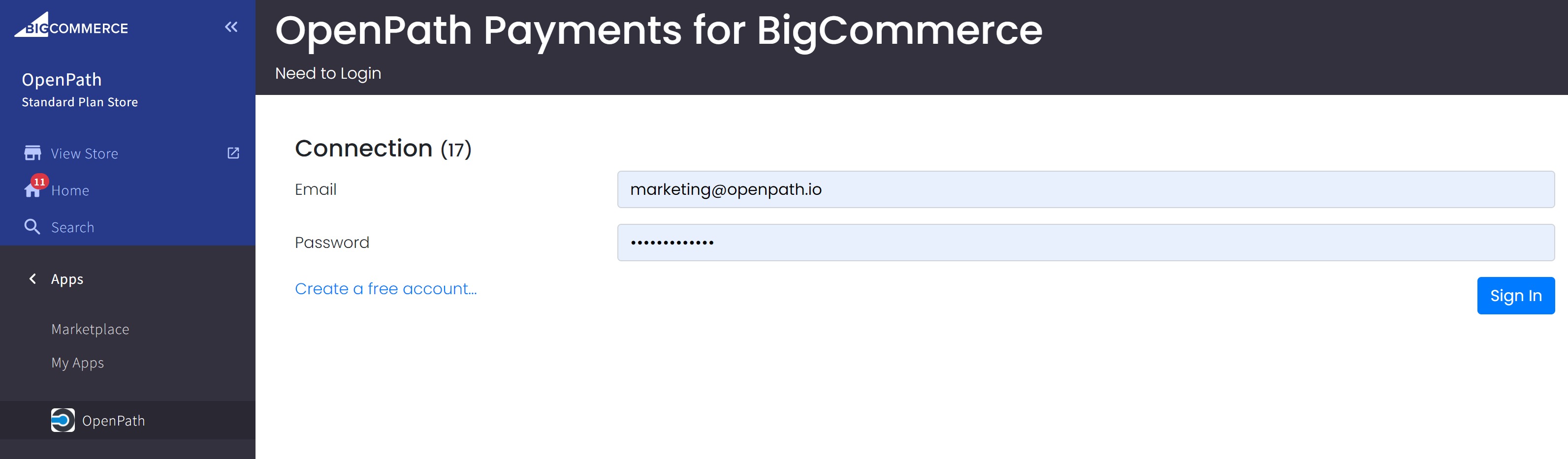
8 | You will now be prompted with entering your OpenPath Sign In credentials, which are your Email and Password for OpenPath. Enter these credentials and click Sign In. If you do not have an OpenPath account, click on the link to Create a free account |
 | |
9 | Once you've signed in you will need to name your Integration (e.g. BigCommerce) |
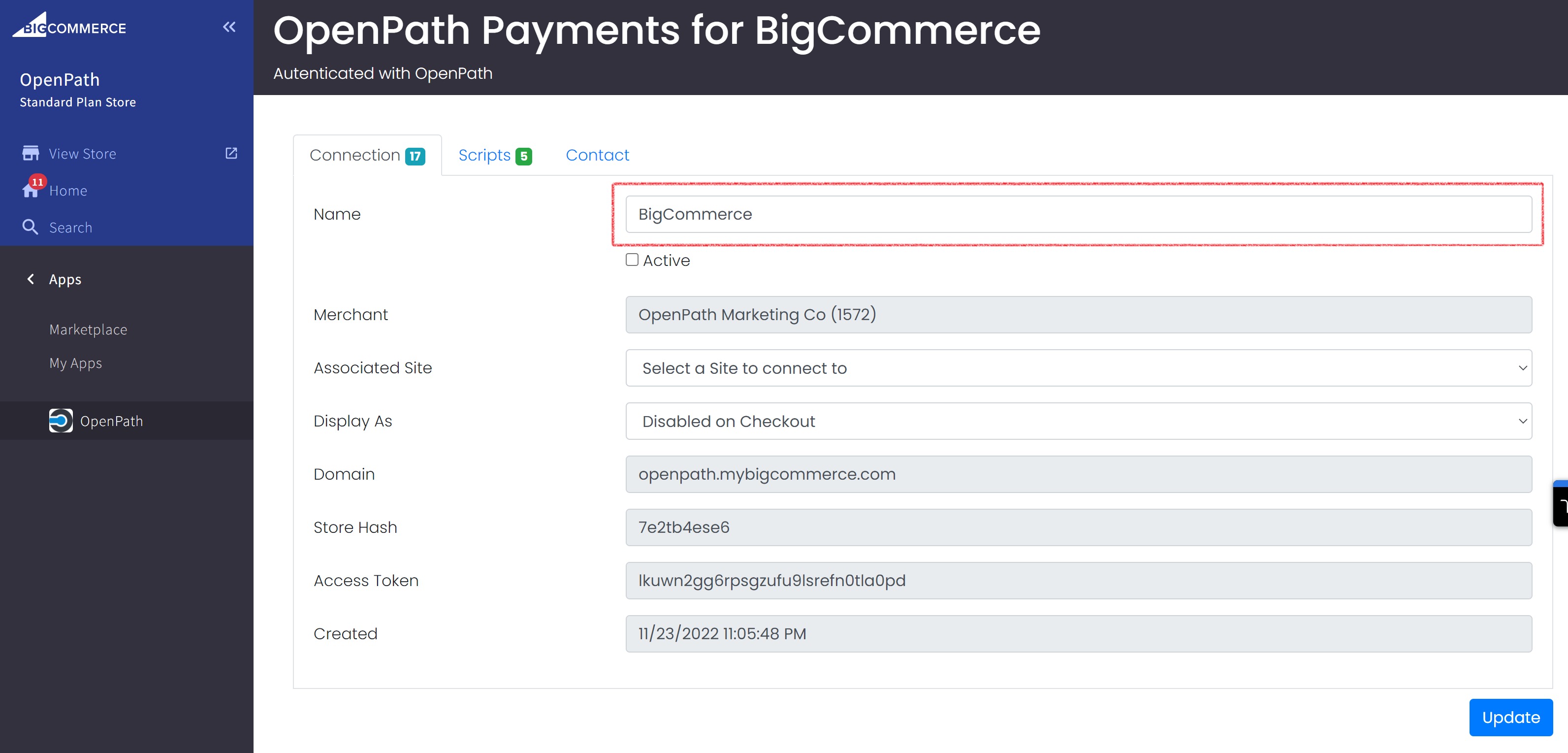 | |
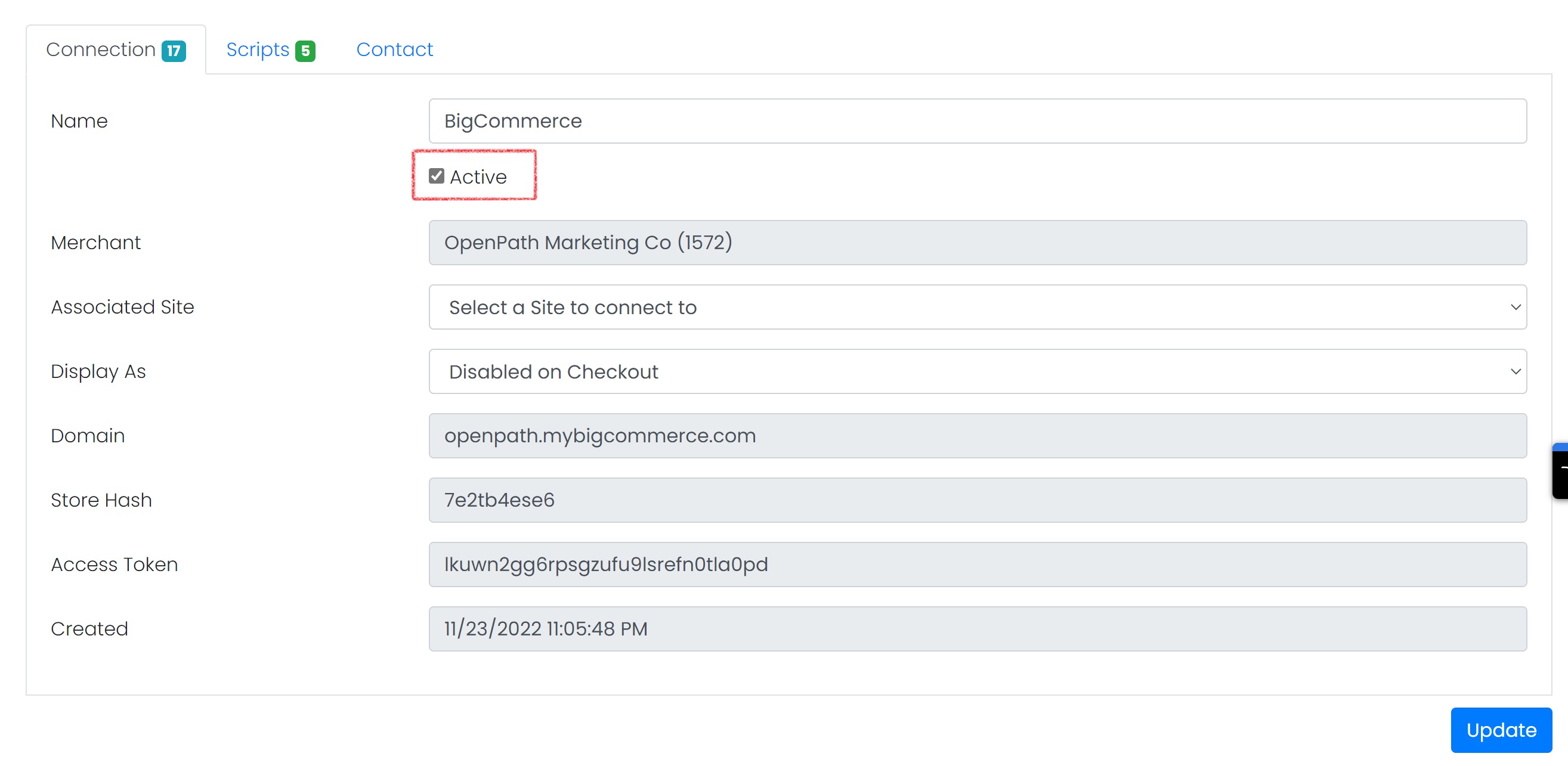
10 | Activate your Integration by checking the Active checkbox |
 | |
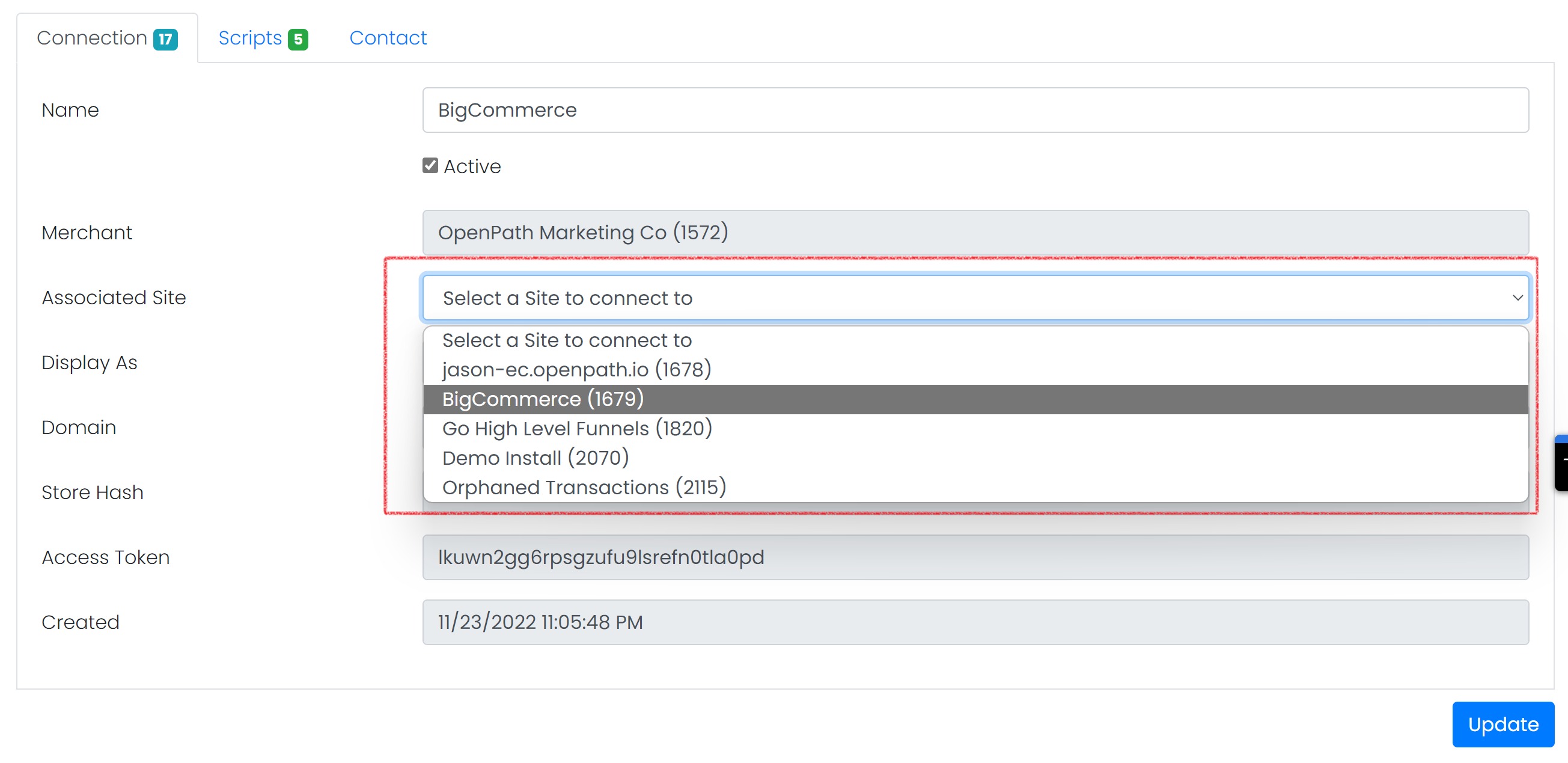
11 | Associate this BigCommerce with one of your OpenPath Sites |
 | |
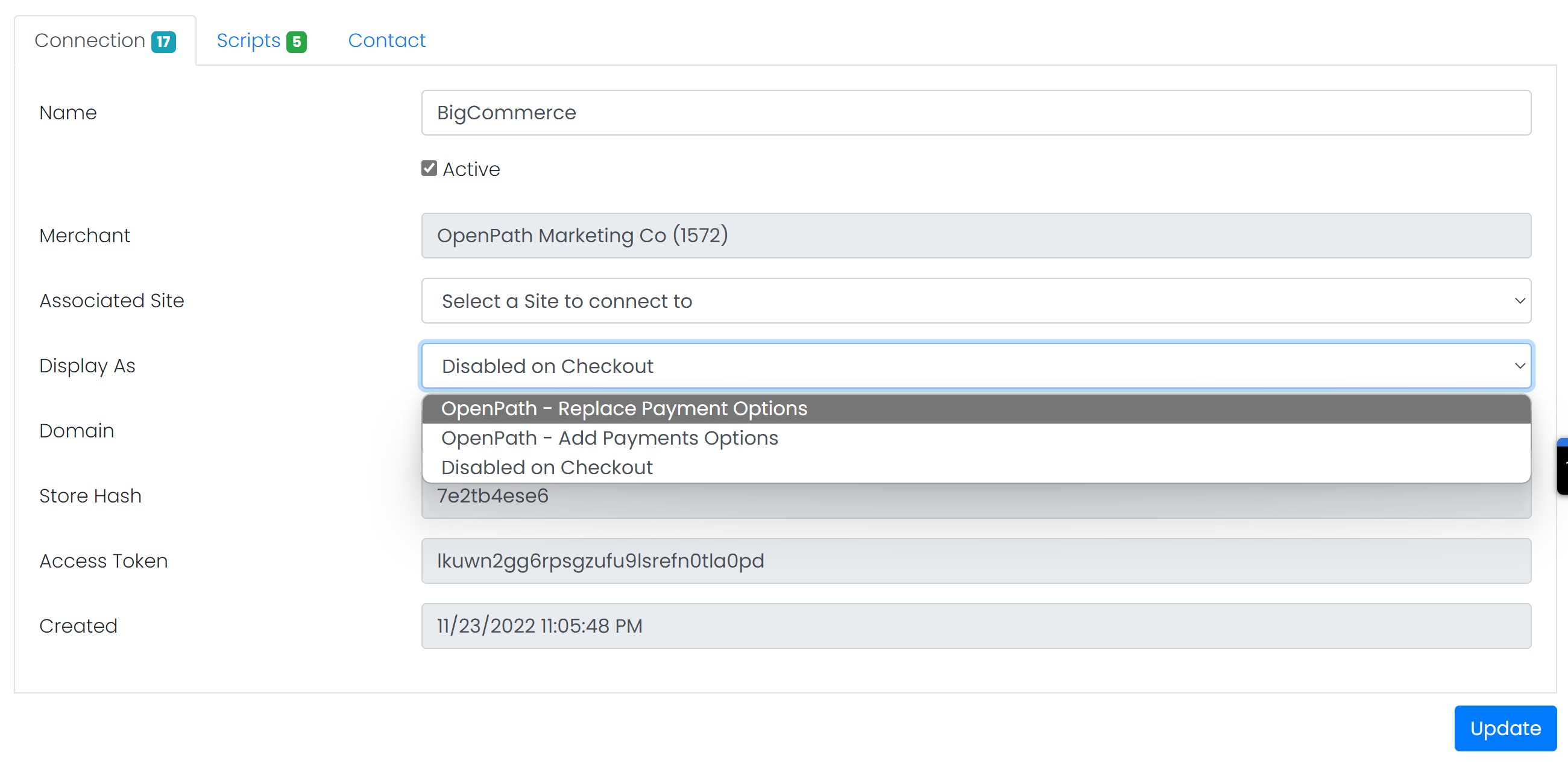
12 | Finally select if you want OpenPath as an additional Payment Option or to replace all your Payment Options and click on Update |
 | |
13 | Now you are ready to test, go to your store and checkout with an item. Follow the checkout process |
Was this article helpful?
That’s Great!
Thank you for your feedback
Sorry! We couldn't be helpful
Thank you for your feedback
Feedback sent
We appreciate your effort and will try to fix the article