Abstract
To use OpenPath with Shopify you must first install and then setup the OpenPath Payment app for Shopify. This article will take you through the steps to install OpenPath on your Shopify store.
Installation
There are two ways to start the Shopify OpenPath Payment app installation, 1) install the app from the OpenPath back office or 2) install the app from your Shopify store back office. There is no advantage from one over the other, so the choice is yours.
(Option 1) Install from OpenPath
| Step | Description |
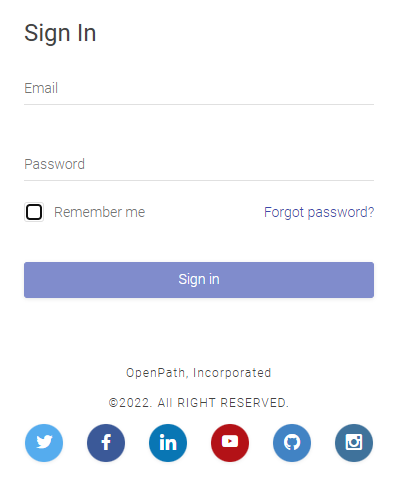
1 | Login | Login to your OpenPath account at: https://client.openpath.io |
 | |
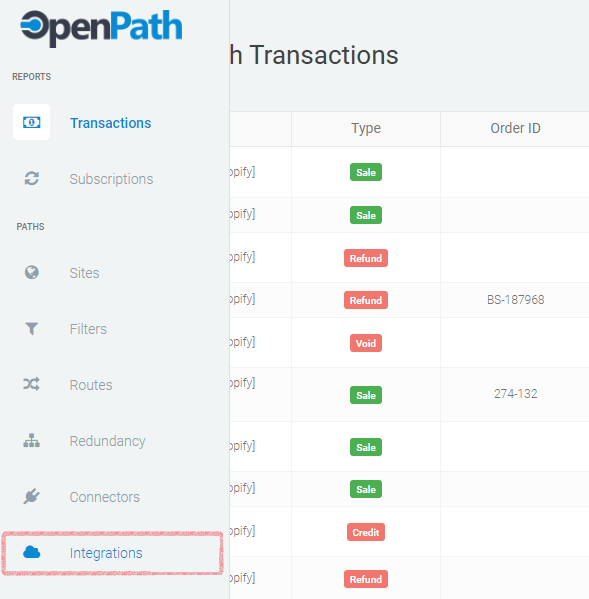
2 | Integrations | From the transaction page go to the OpenPath Integrations |
 | |
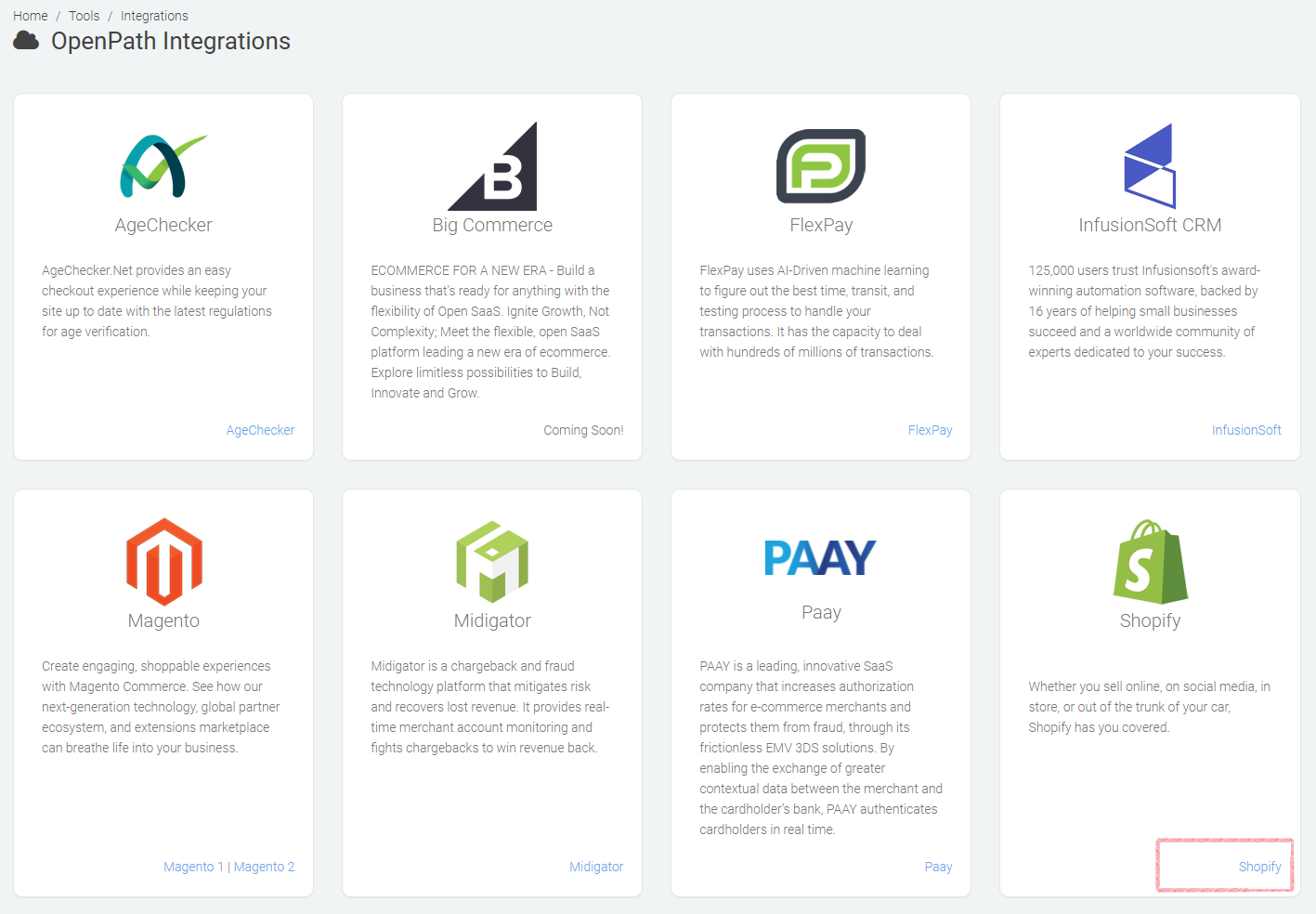
3 | Shopify | From the OpenPath Integrations page go to the Shopify Integration |
 | |
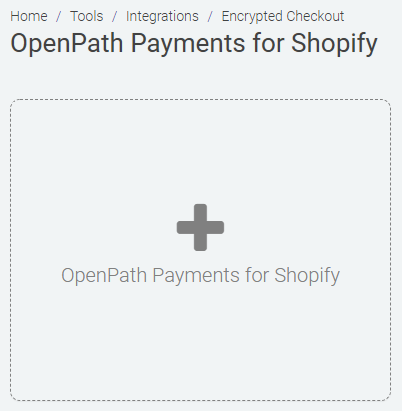
4 | Add Shopify | From the Shopify screen click the (+) plus to add a Shopify Integration |
 | |
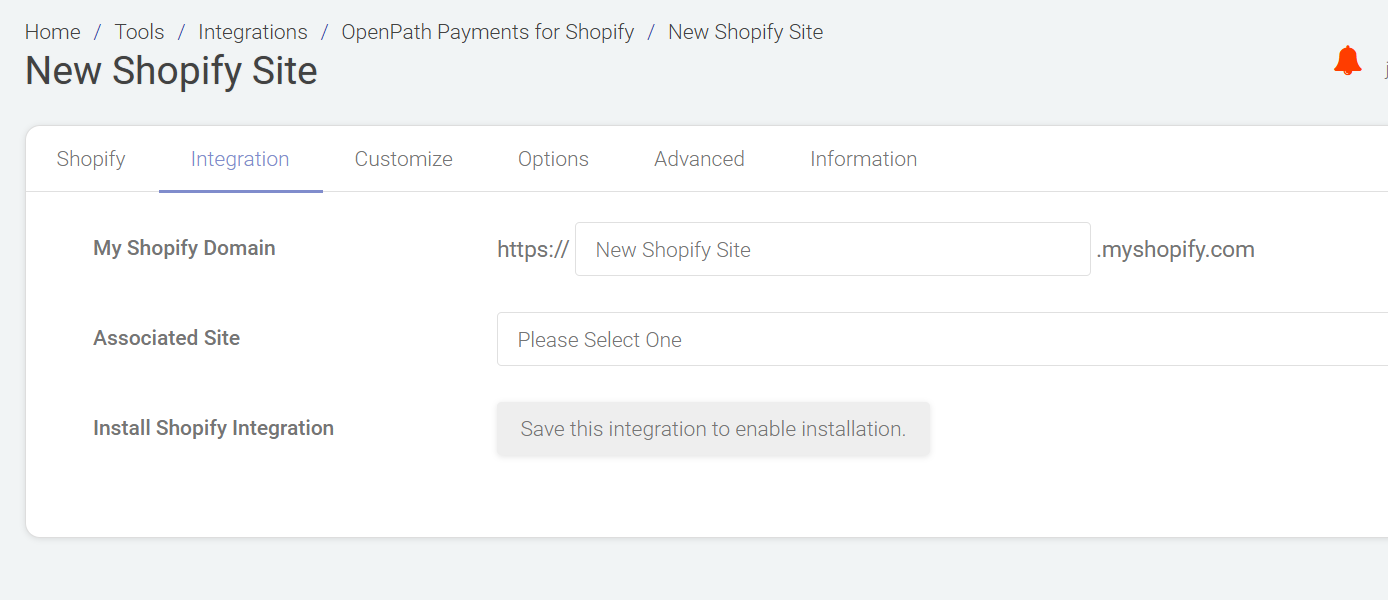
5 | Details | Enter the required details to create the OpenPath Integration |
My Shopify Domain: Enter you the sub domain assigned to your store by Shopify which will be in your browsers URL after the https:// and before the myshopify.com. NOTE: If you copy the whole URL from Shopify and paste it in the text box, the Interface will remove the extra information. | |
Associated Site: The OpenPath Site you want to associate your Shopify store with. | |
Click Save | Not Save & Close | |
| |
| |
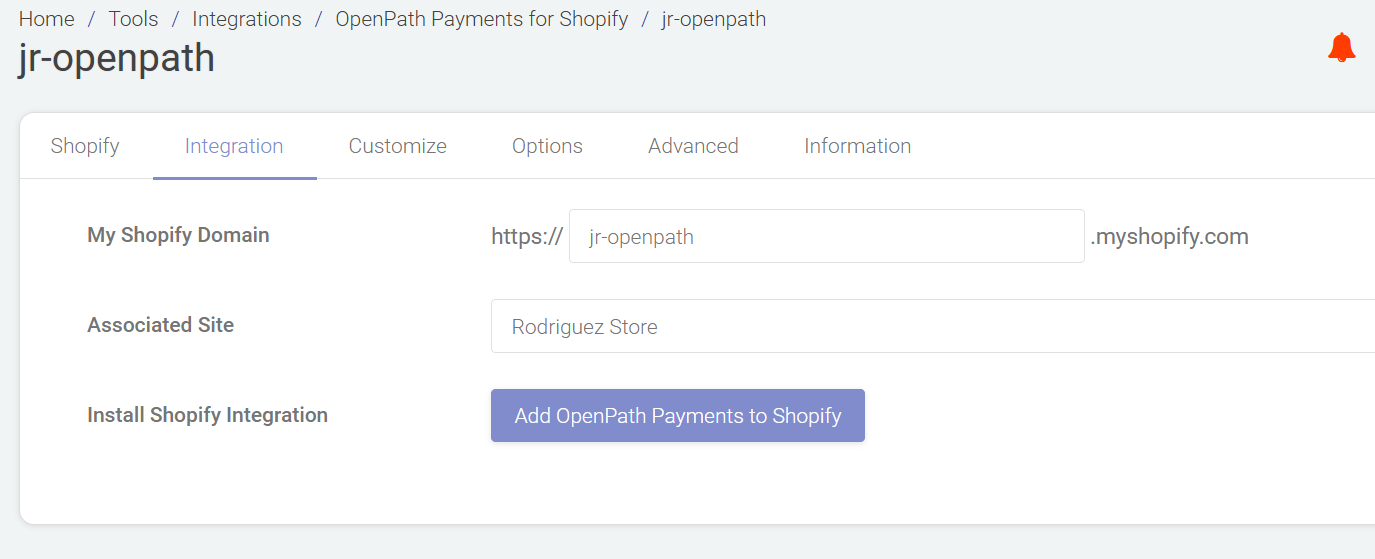
6 | Start App Install | Click on the Add OpenPath Payments to Shopify which will open a new tab or window and load the Shopify installation process. |
| |
| |
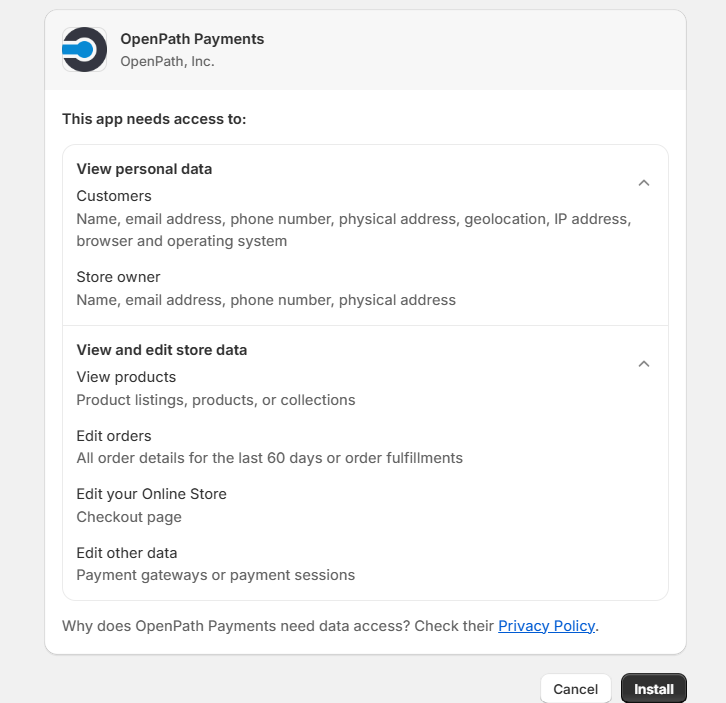
7 | Add Shopify App | You will be redirected in another window to install the OpenPath Payments app into Shopify, please note you may need to login to Shopify first before seeing the next screen. When this screen is loaded, click on the Install app button. |
| |
| |
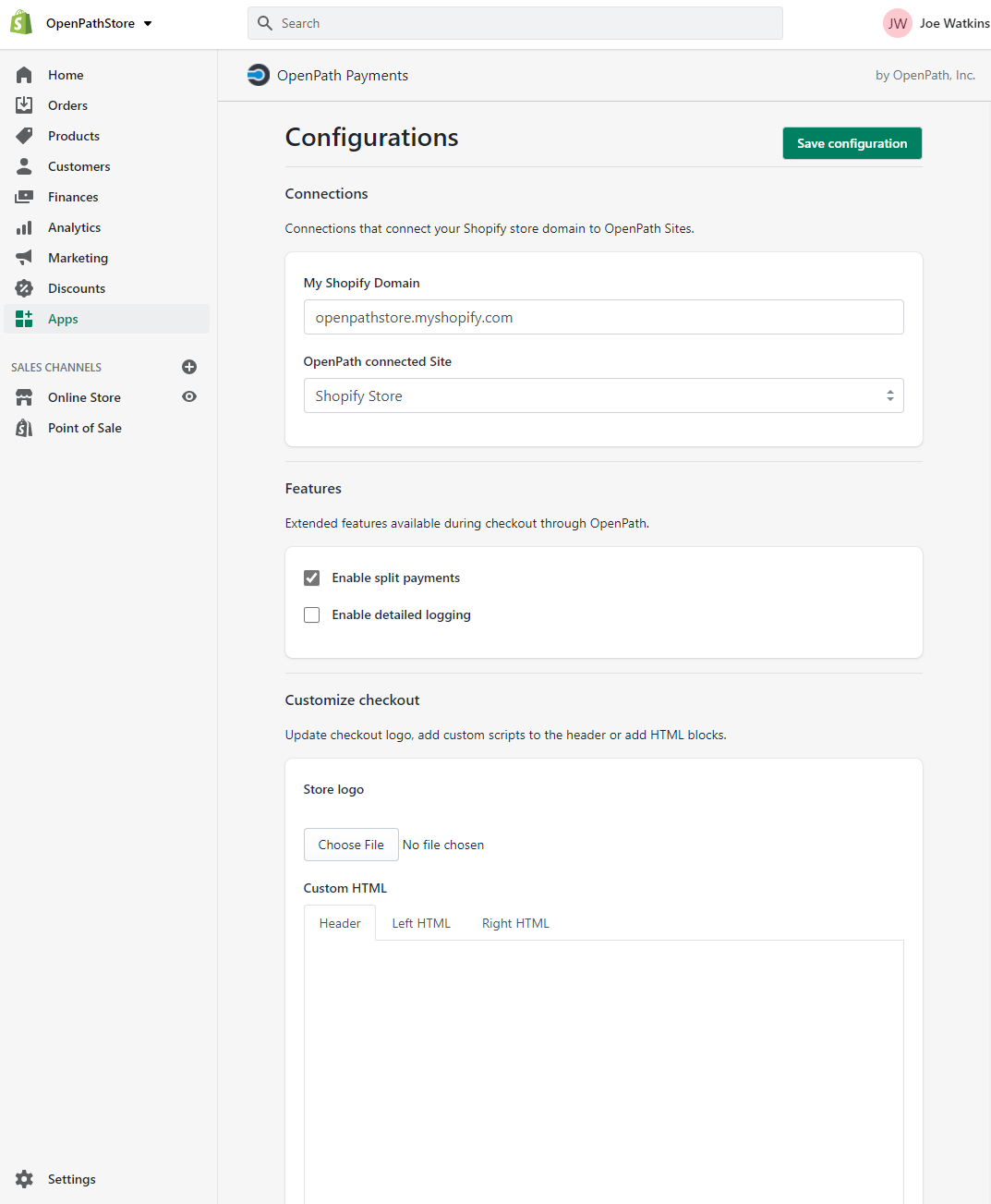
8 | App Configuration | Once the app has been installed you will be taken to the OpenPath Payments App Configuration in Shopify; however, you still need to activate the App in your payments section of Shopify. |
| |
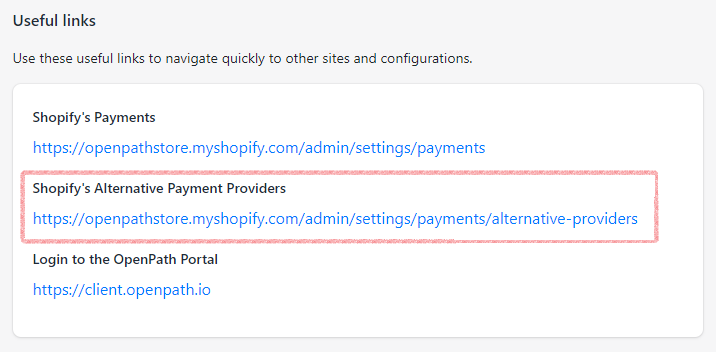
Scroll to the bottom of the page to the Useful links section and click on the link labeled Shopify's Alternative Payment Providers | |
| |
| |
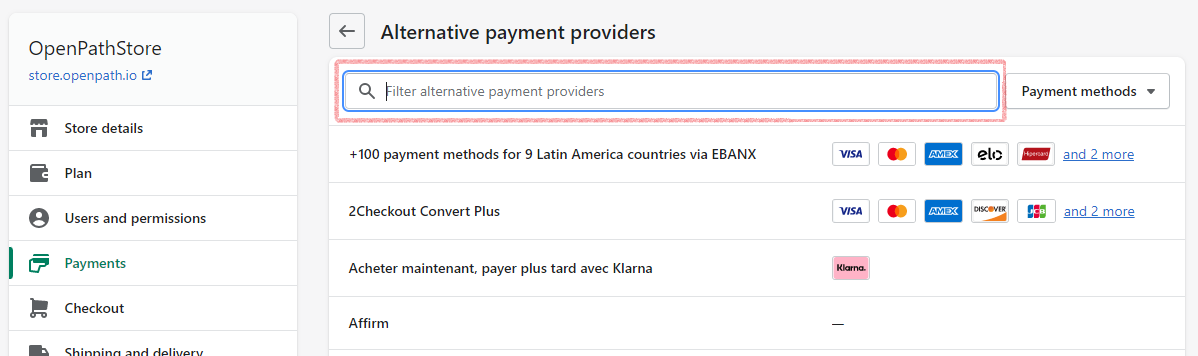
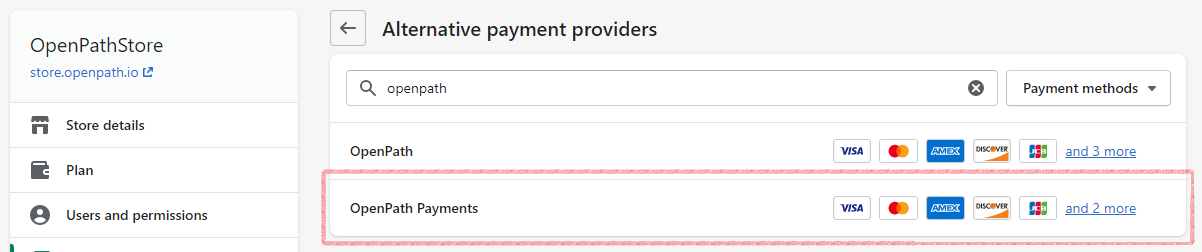
9 | Filter Payments | In the Filter alternative payment providers sections at the top of the screen type OpenPath. |
| |
| |
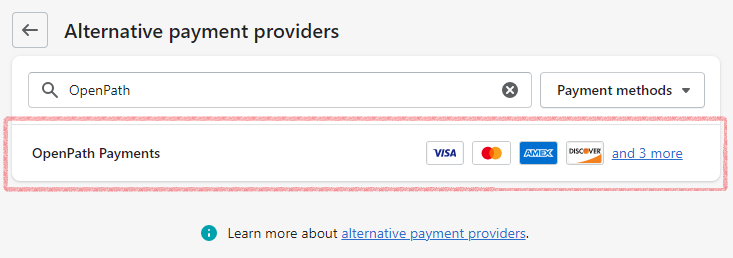
10 | Select Payment | Select OpenPath Payments. |
| |
| |
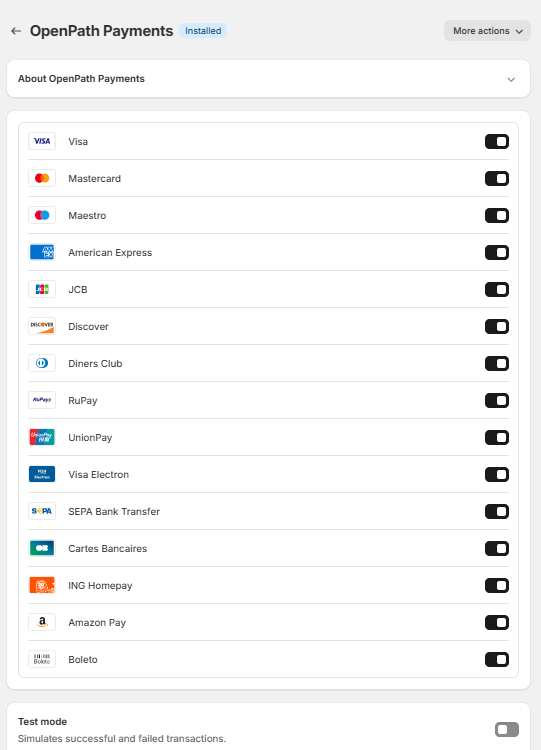
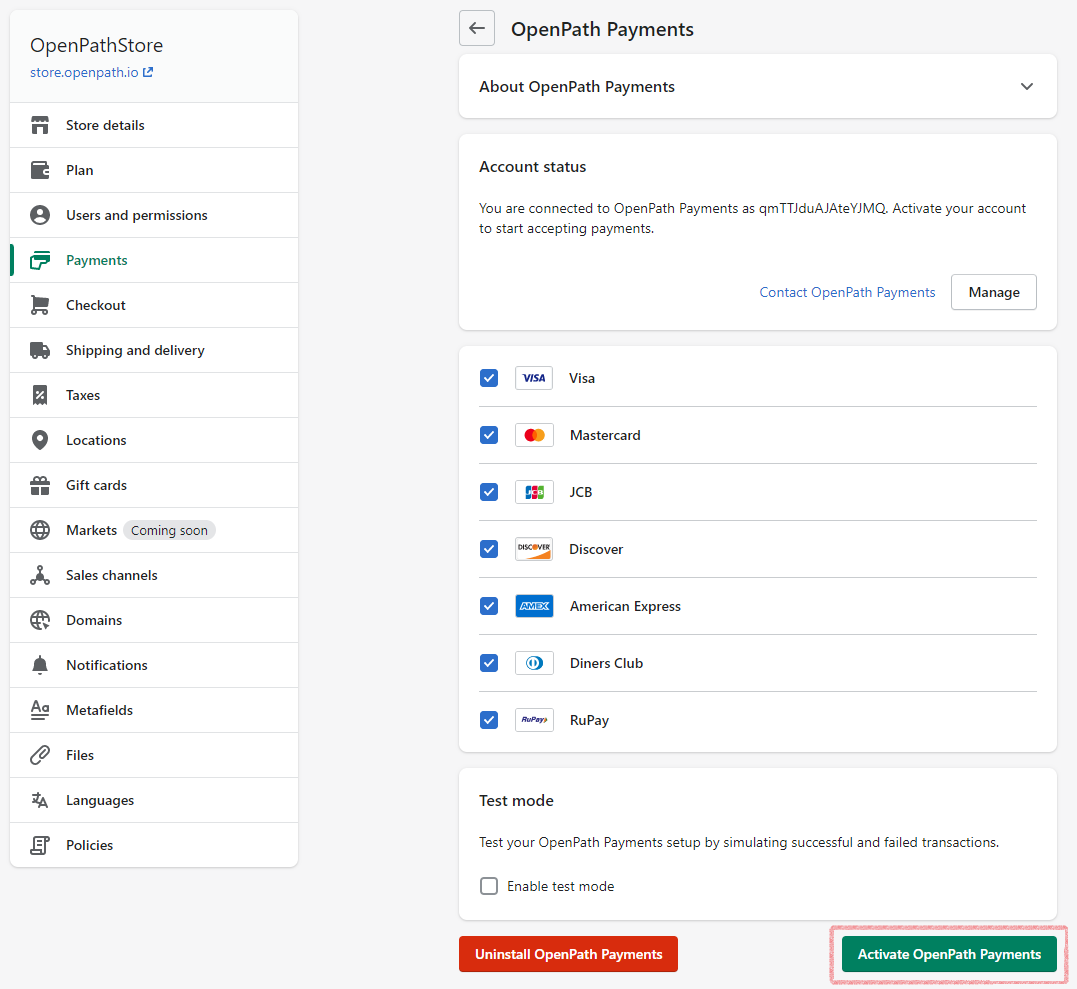
14 | Activate | To activate OpenPath for Payments click on the Activate OpenPath Payments button. |
| |
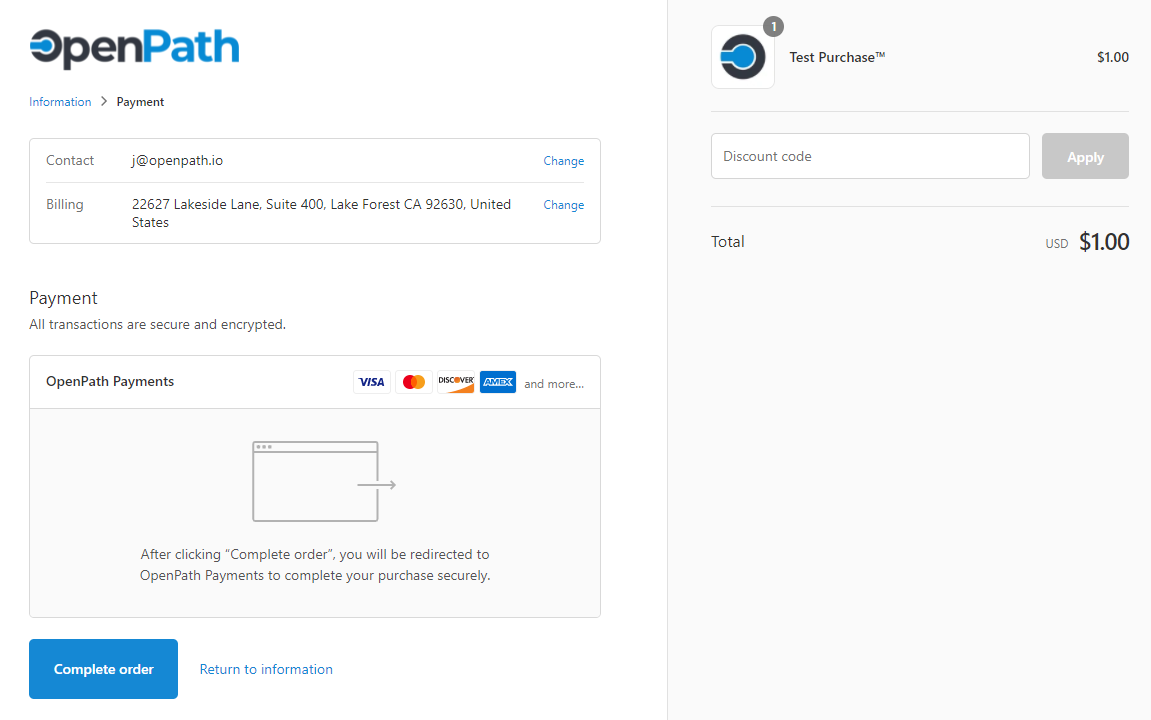
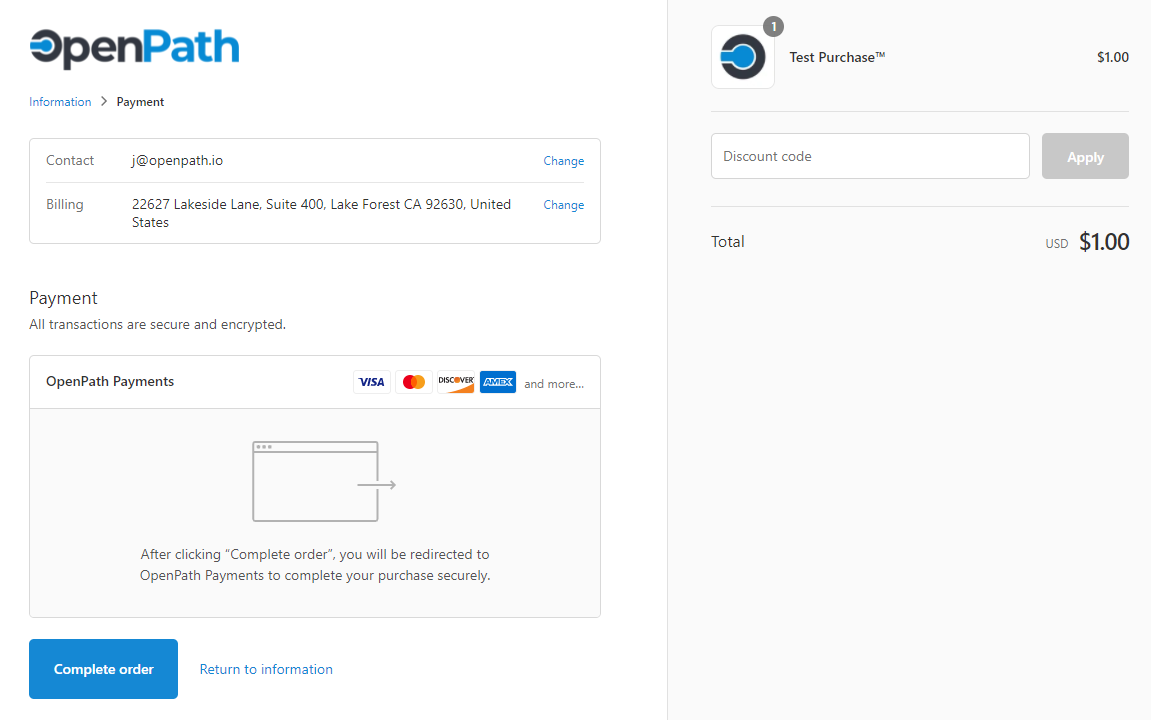
15 | Update other Payment Options | If you are adding OpenPath to your existing accepted payments, you are done and OpenPath will now be another payment option when your customers checkout. If you are using OpenPath to replace an existing Payment method, go back to Payments and remove that Payment Option. |
|
(Option 2) Install from Shopify
Please note that this installation process is still in Beta and may cause unexpected results during install, please use the Install from OpenPath directions instead.
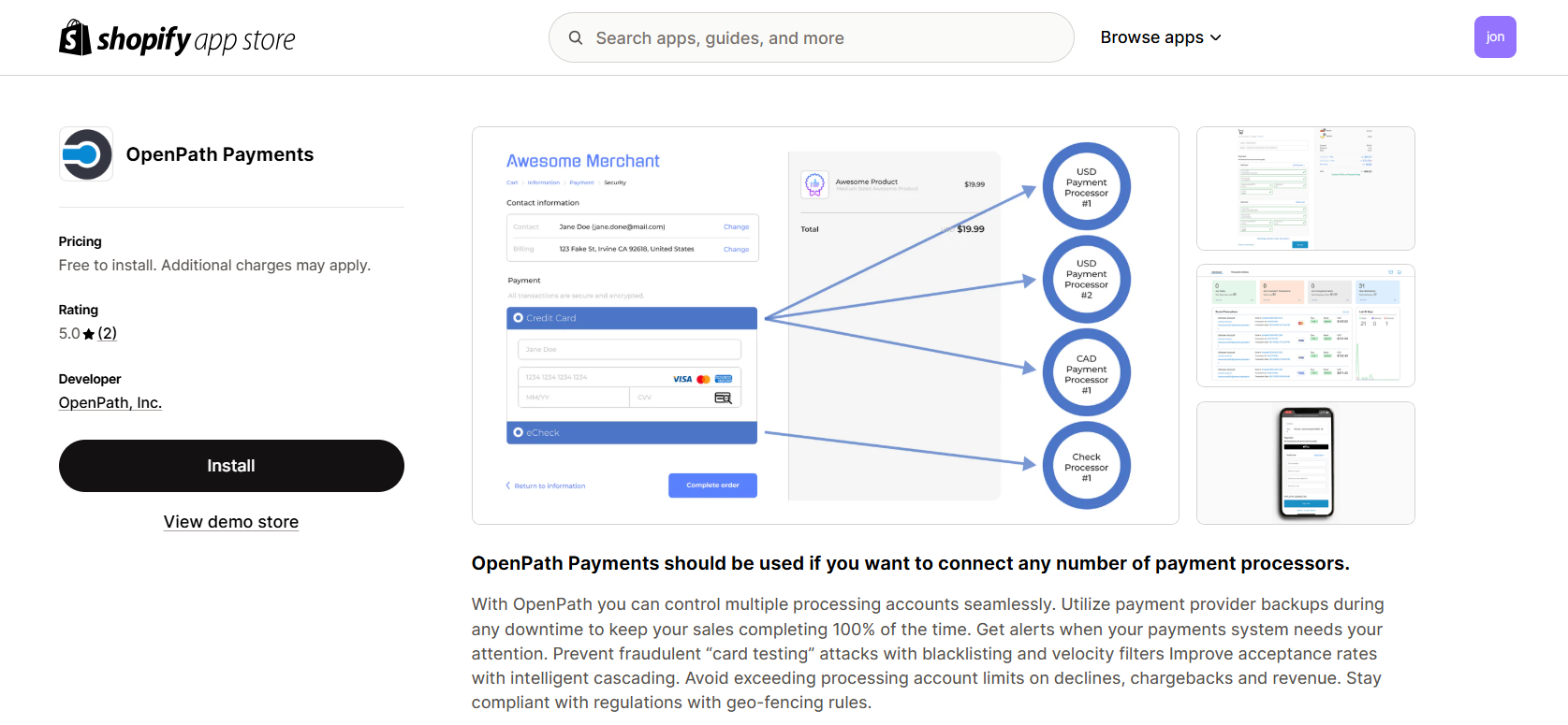
1 | Goto App | Navigate to the following website: ...and click on the Add app button. |
 | |
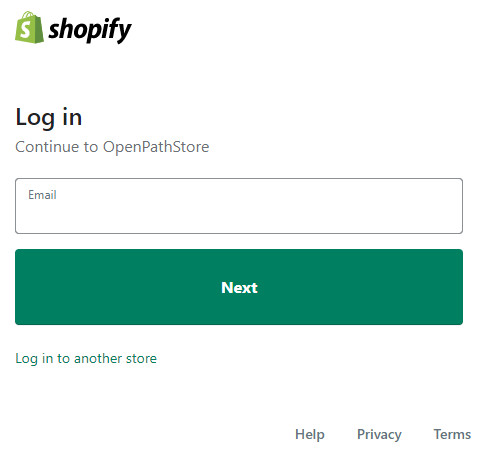
2 | Login | (Step will be skipped if you are already logged in) Login to your Shopify account with your Shopify credentials if not already logged in. |
 | |
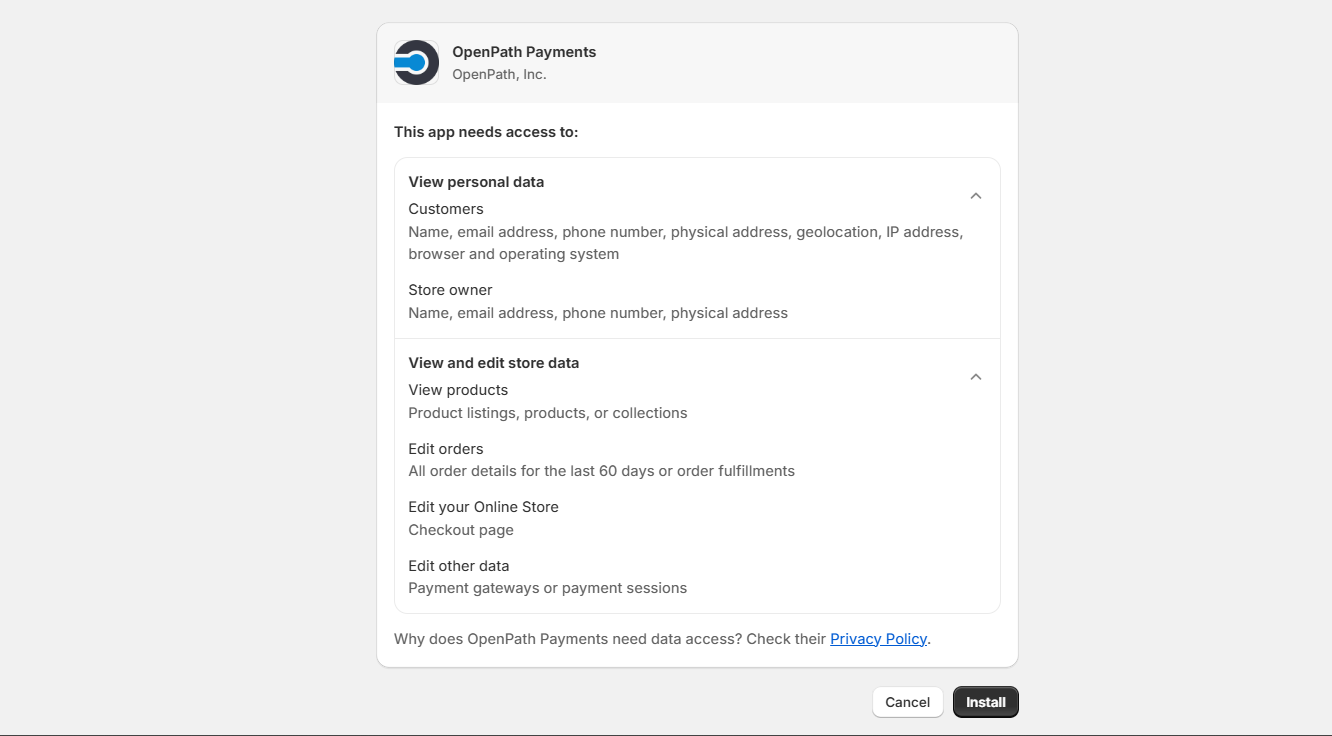
3 | Install App | Click the Install app button. |
 | |
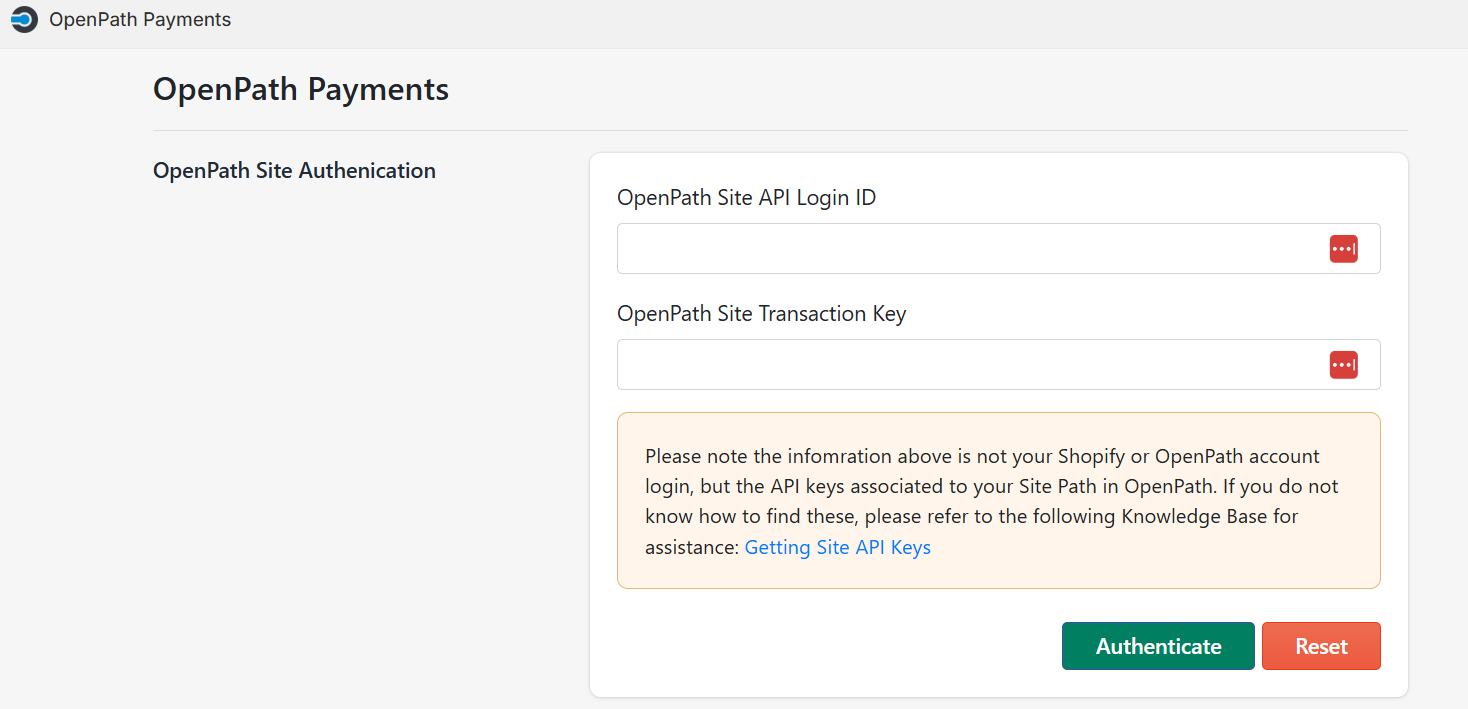
4 | Enter Site Keys | If you have your OpenPath Site keys, skip to step 8 If you don't have keys, but you have an OpenPath login, continue to the next step to collect Site keys. If you have neither, please contact OpenPath support - support@openpath.io |
 | |
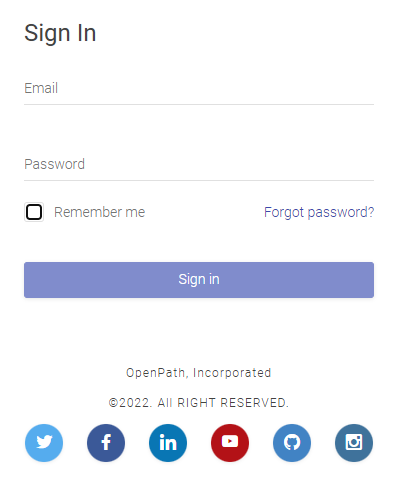
5 | Login to OpenPath | Open a new browser tab or window and Login to your OpenPath account at: https://client.openpath.io |
 | |
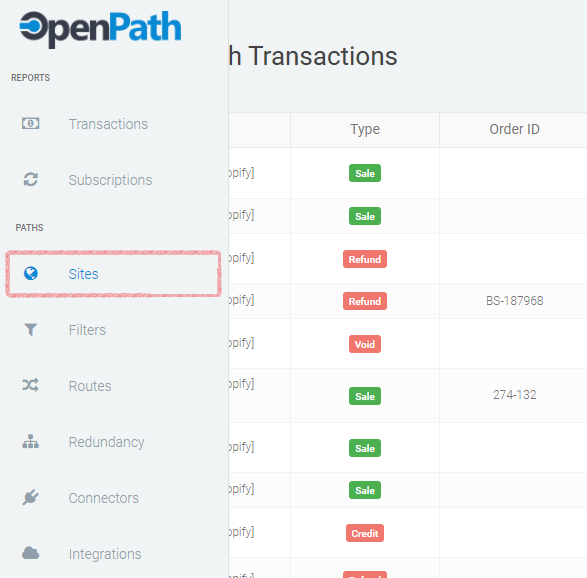
6 | Goto Sites | From the transaction page go to Sites. |
 | |
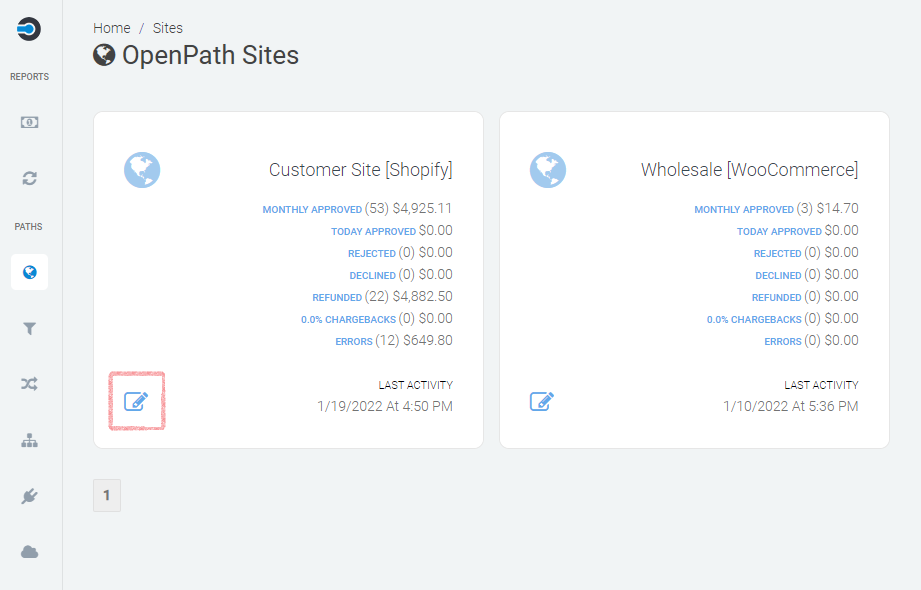
7 | Select Site | Select the site you want to associate your Shopify site with. |
 | |
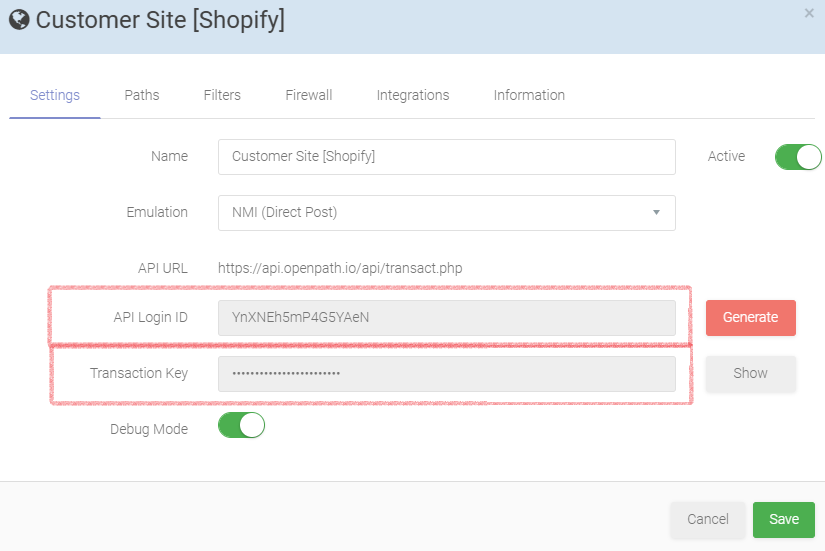
8 | Copy | Copy the API Login ID to the Site Username in Shopify and the Transaction Key into the Site Password in Shopify. HINT: Clicking on the fields in OpenPath will automatically copy the values to the Clipboard. |
 | |
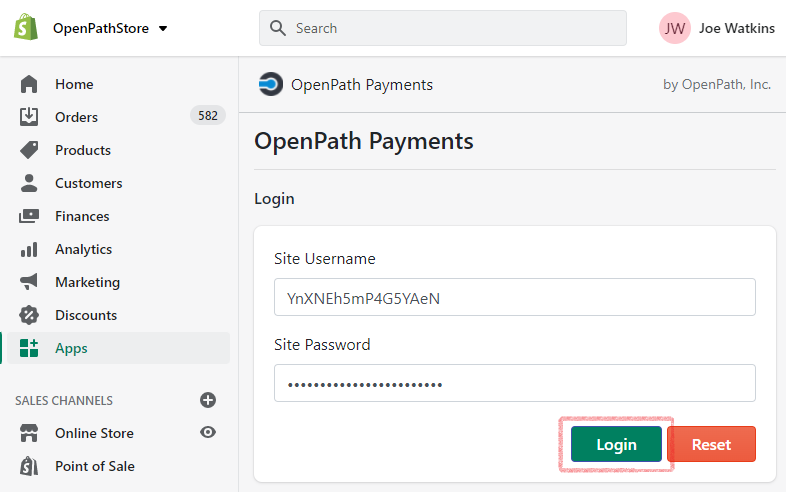
9 | Paste | Paste the above fields into your Shopify app installation and click Login. |
 | |
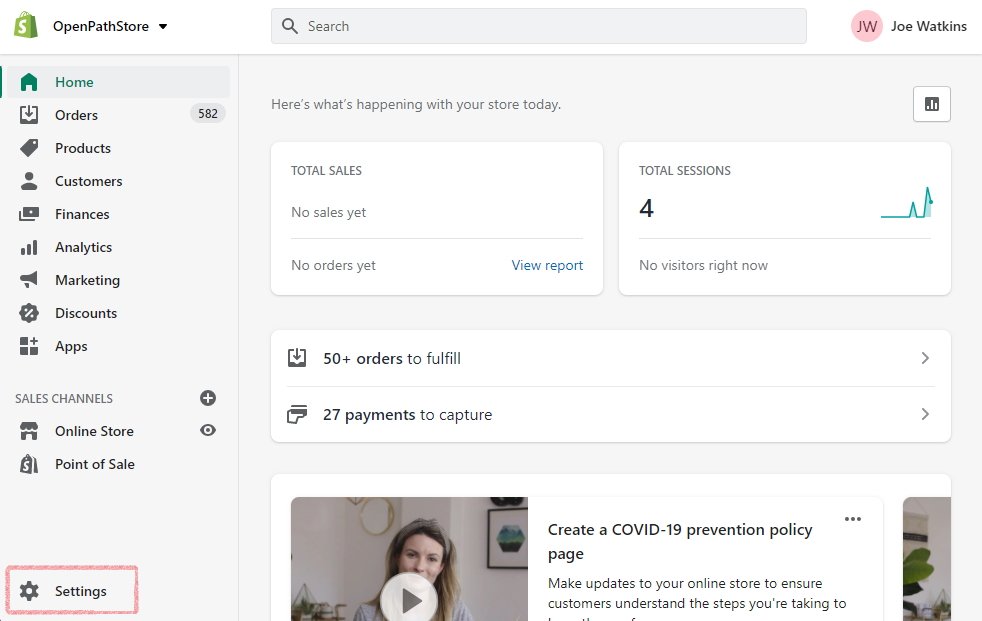
10 | Shopify Settings | Goto Shopify settings. |
| |
| |
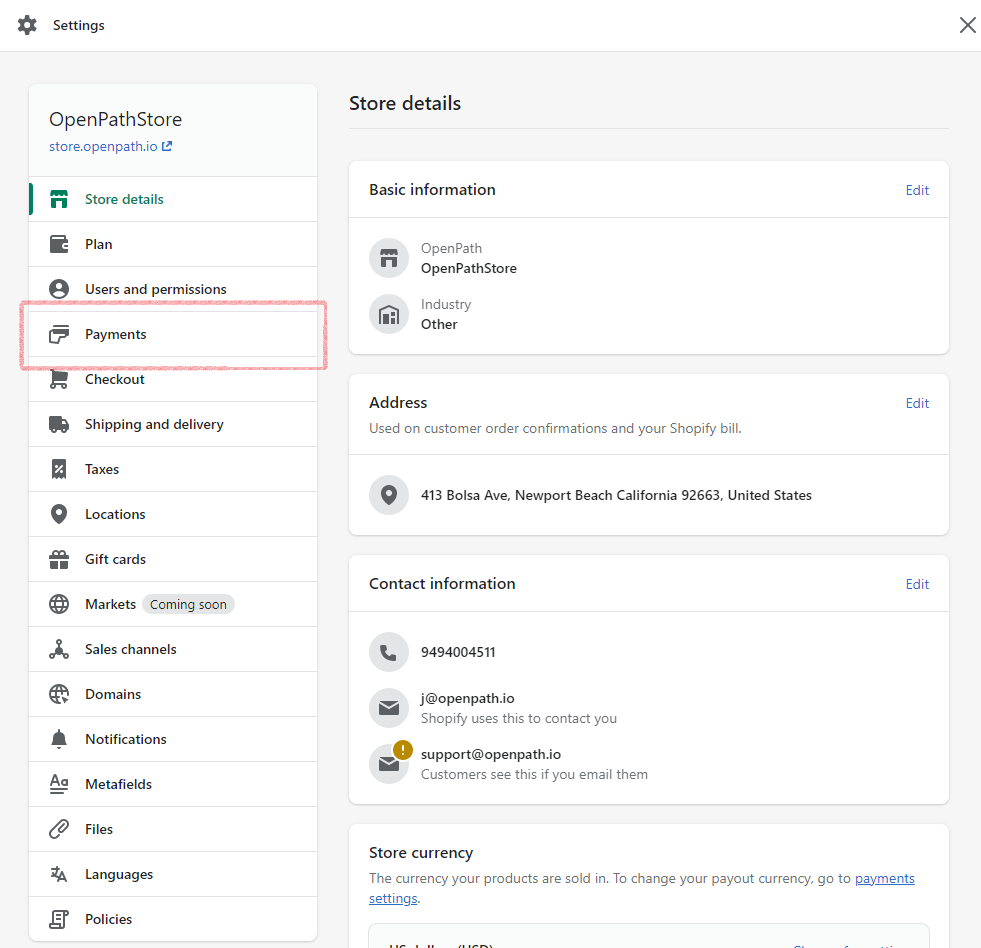
11 | Payment Settings | Select Payments |
| |
| |
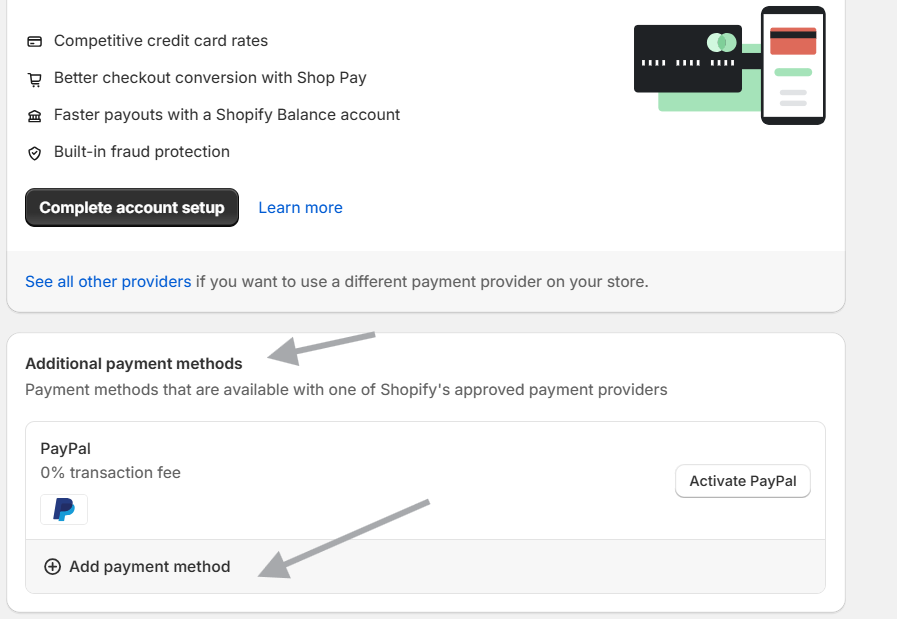
12 | Goto Alternative Payments | Scroll down to Addiotional payment methods and click Choose alternative payment. |
| |
| |
13 | Filter Payments | In the Filter alternative payment providers sections at the top of the screen type OpenPath. |
| |
| |
14 | Select Payment | Select OpenPath Payments. |
| |
| |
15 | Activate | To activate OpenPath for Payments click on the Activate OpenPath Payments button. |
| |
| |
16 | Update other Payment Options | If you are adding OpenPath to your existing accepted payments you are done and OpenPath will now be another payment option when your customers checkout.
If you are using OpenPath to replace an existing Payment method, go back to Payments and remove that Payment Option. |
|
Was this article helpful?
That’s Great!
Thank you for your feedback
Sorry! We couldn't be helpful
Thank you for your feedback
Feedback sent
We appreciate your effort and will try to fix the article
