Summary
OpenPath allows you to setup serval client payment options on your Shopify checkout besides Credit Cards, such as Check, eCheck and ACH. The following article will guide your through doing this in the OpenPath portal.
WARNING: You must have a payment provider setup in your connectors that accepts check payments for this feature to work on your store.
Instructions
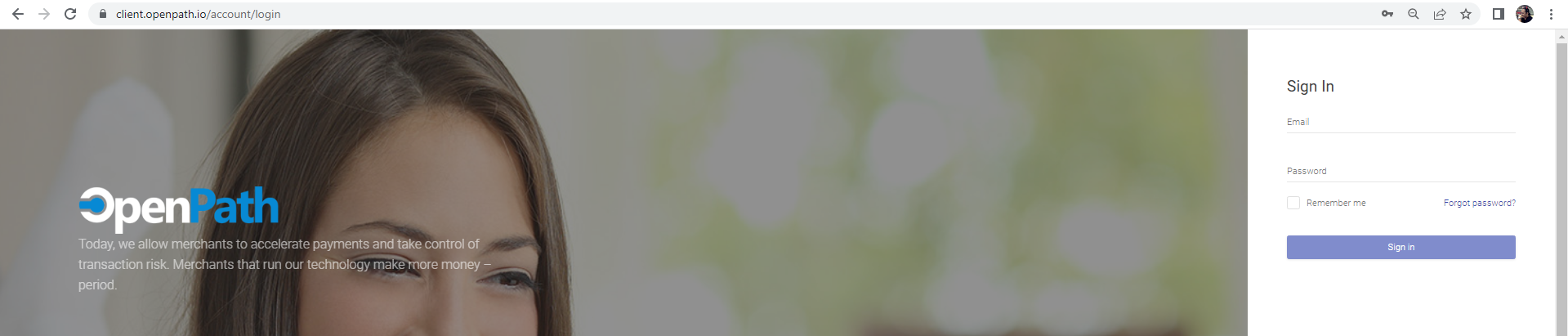
| 1 | Login | Login to the OpenPath Admin Portalathttps://client.openpath.io/and input your username and password and click Sign In. |
 | ||
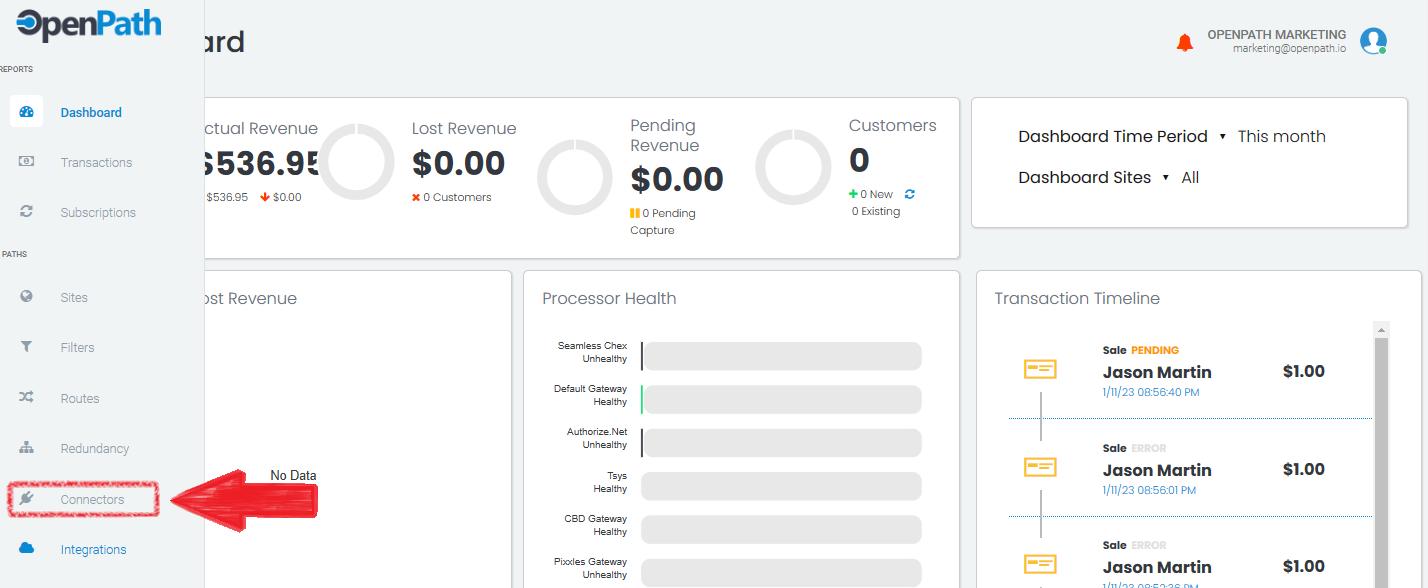
| 2 | Integrations | Navigate to the Left Menu and choose Integrations. |
 | ||
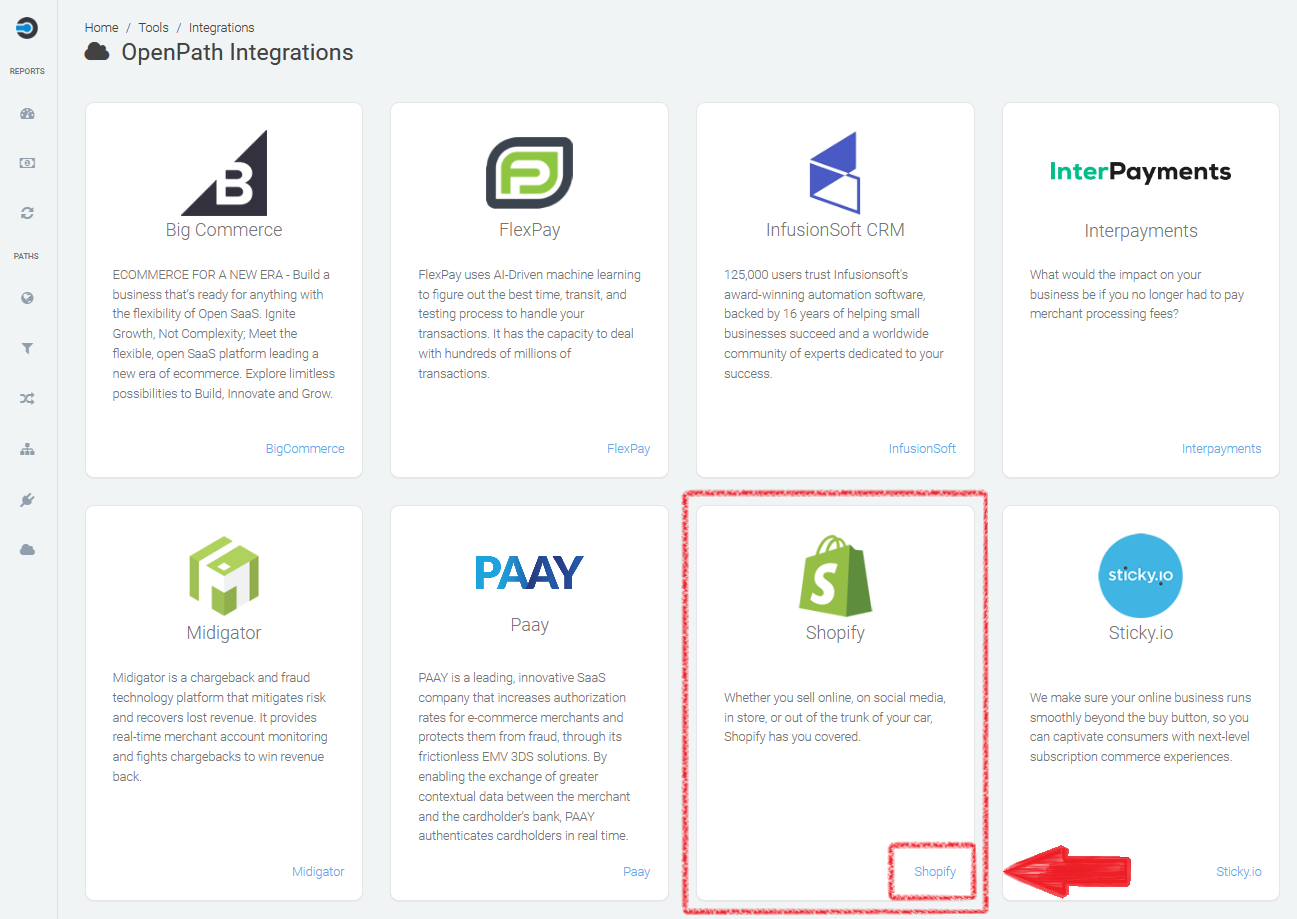
| 3 | Stores | In order to access your Shopify store, find the Shopify Integration and click on the Shopify link in the Integration box. |
 | ||
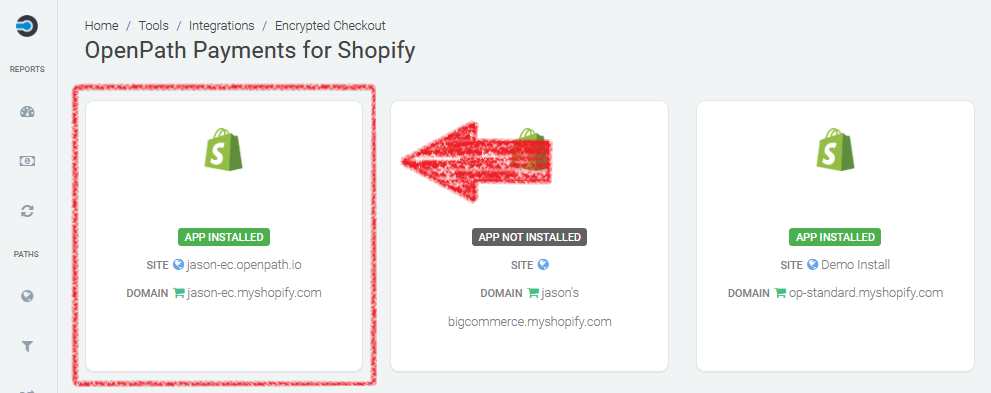
| 4 | Settings | Find the card the contains the Shopify Integration where you want to change the payment settings. |
 | ||
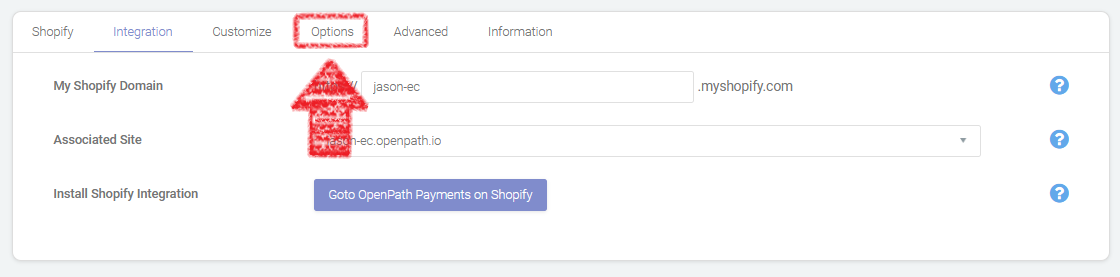
| 5 | Options | Next locate the Options tab and click on that. |
 | ||
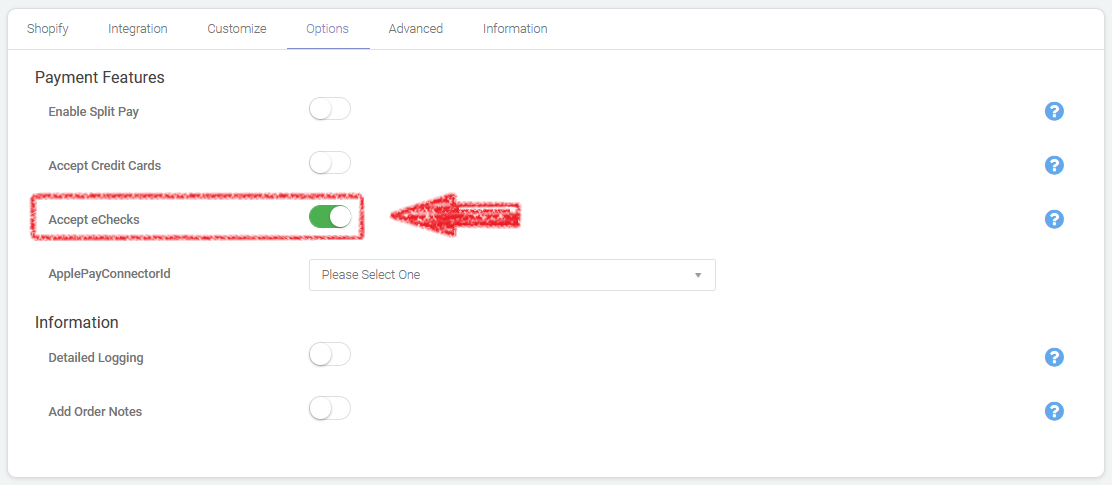
| 6 | Enable | Finally, locate the Accept eChecks toggle switch and switch it to green. Please note that you can select as many options as you would like, so you can accept Credit Cards (if you have a Credit Card Connector setup) and Checks, or you can just enable Checks. |
 | ||
| 7 | Save | Once you've updated your settings, click on the Save & Close button to commit your change to your Shopify store. |
Was this article helpful?
That’s Great!
Thank you for your feedback
Sorry! We couldn't be helpful
Thank you for your feedback
Feedback sent
We appreciate your effort and will try to fix the article
