Introduction
There are a few steps to complete to install the OpenPath payment processing connection into your Shopify store. The following instructions will guide you through the process.
Complete all five steps to begin using your new Shopify payment option.
Step 1: Log into OpenPath Account
You should have an OpenPath account created. You can log into your OpenPath account at the following link: https://client.openpath.io
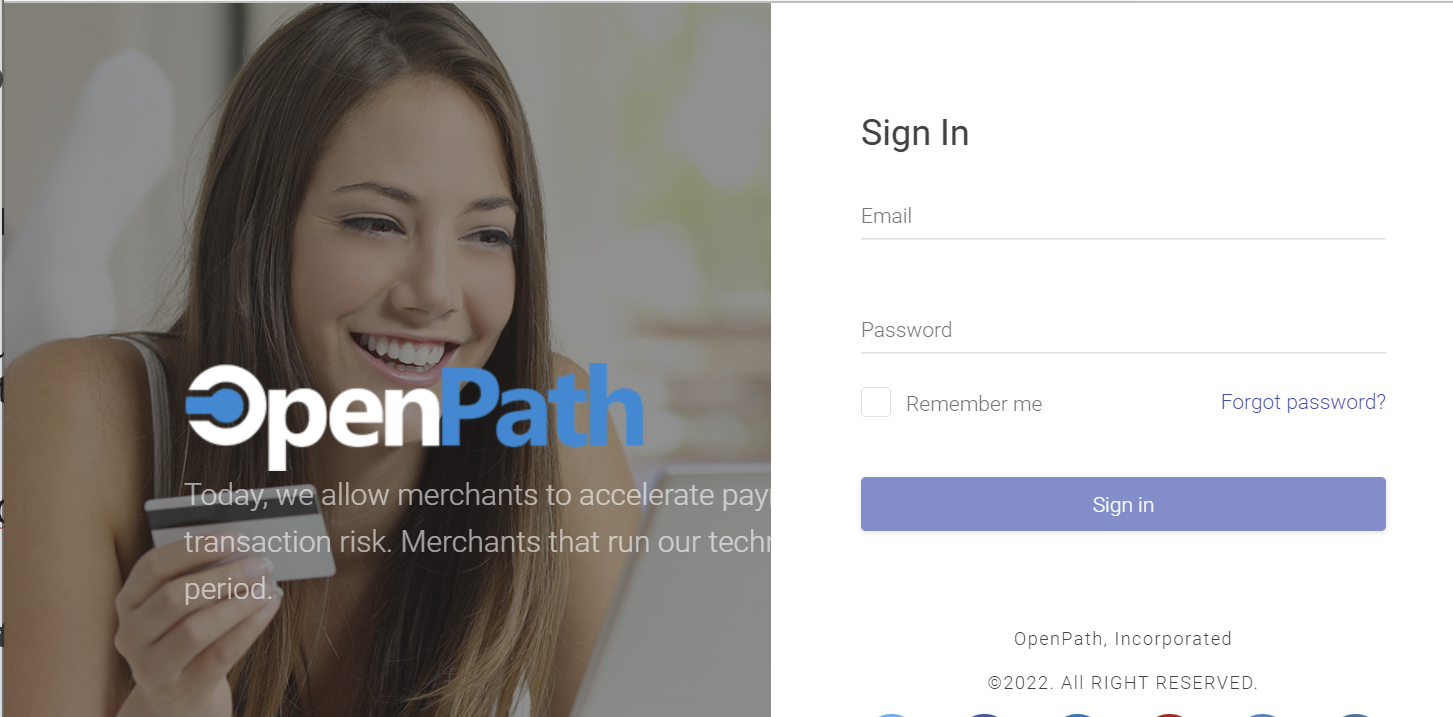
NOTE: If you do not have an OpenPath account yet, please contact your payment service provider, or OpenPath support.
Step 2: Activate Your Account
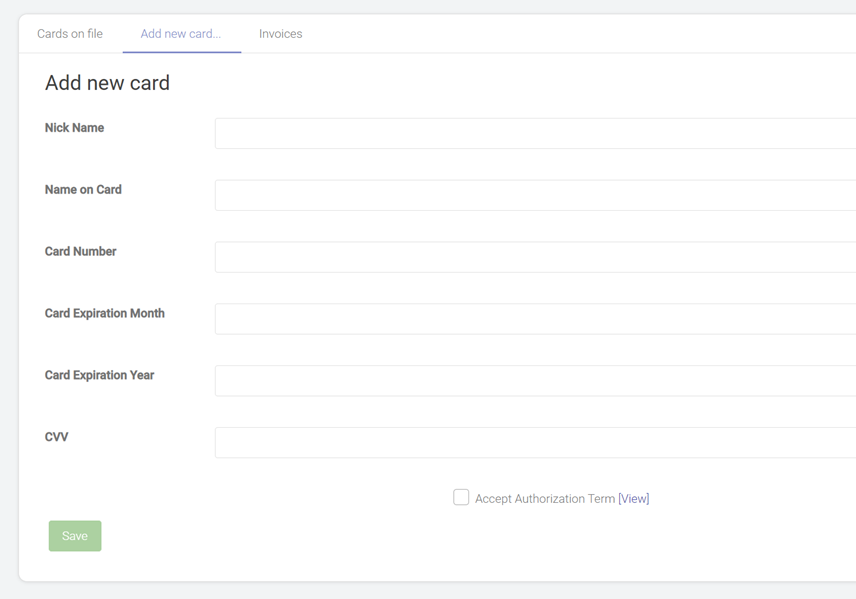
Your OpenPath account needs a payment method on filet to be used with a live payment gateway. Follow the instructions at the following link to activate your account:
Link: Activating Your Account for Live Use
Step 3: Configure Your Payment Gateway
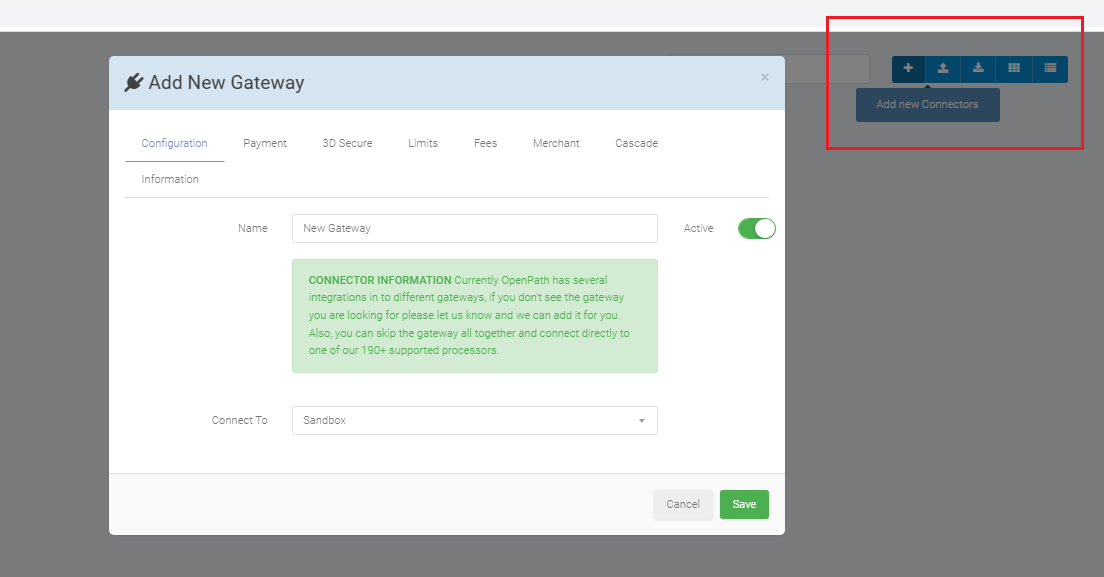
In the Connector section configure your payment gateway by following the instructions at this link:
Link: Setting Up a Connector
NOTE: If a Connector exists in your account, simply configure that one rather than creating a new one.
Step 4: Add OpenPath Into Your Shopify Store
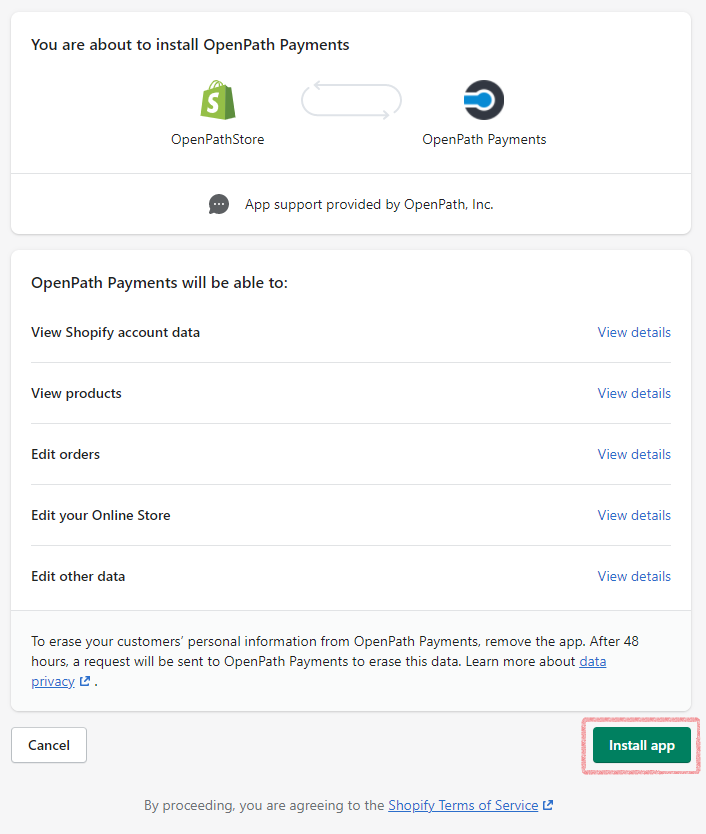
You will need to add the OpenPath app to your Shopify store, configure to connect to your OpenPath account and add as the payment type. Follow the instructions in the link:
Link: Installing OpenPath on Shopify
Step 5: Customize Your Checkout Page
To get the best customer experience, you can adjust your payment page to match your style. Use this guide to help configure:
Link: Customizing your Shopify Payment Page
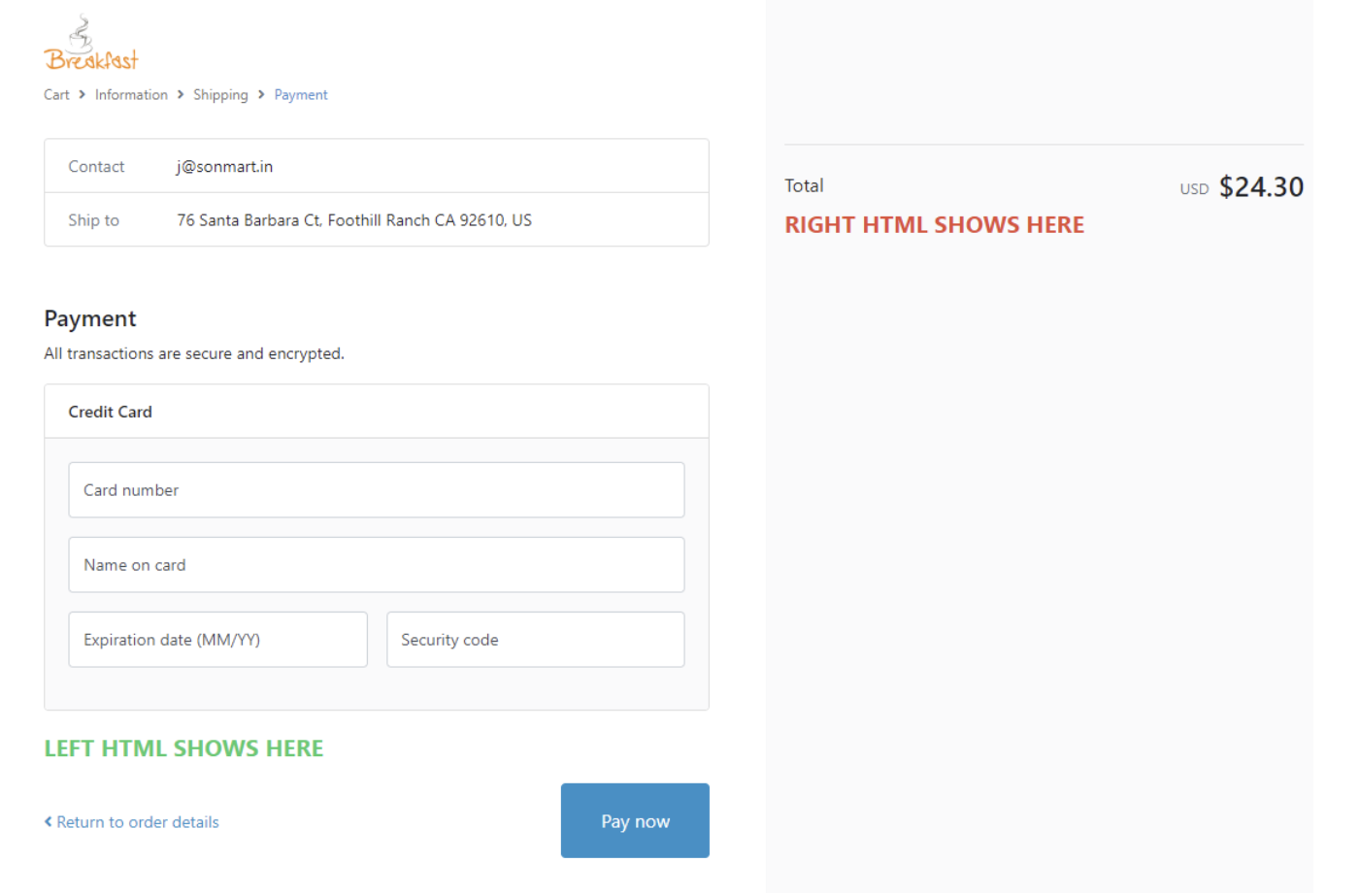
Success
If you have completed all steps, your Shopify store will now have the OpenPath payments option at checkout.
If you have any questions, please contact OpenPath support.
Was this article helpful?
That’s Great!
Thank you for your feedback
Sorry! We couldn't be helpful
Thank you for your feedback
Feedback sent
We appreciate your effort and will try to fix the article
