To use your new gateway with Shopify you must first install and then configure a payments app for Shopify (OpenPath). This article will take you through the steps to install the app on your Shopify store.
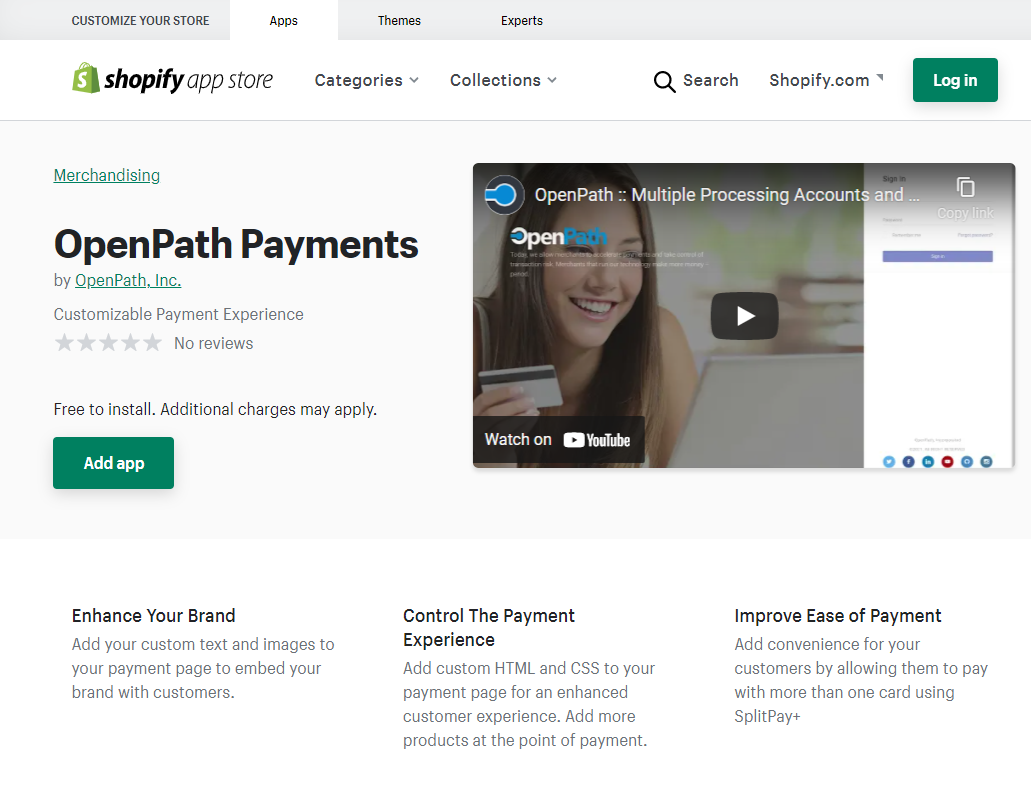
1. Navigate to the following link: https://apps.shopify.com/openpath-payments
...and click on the Add app button.
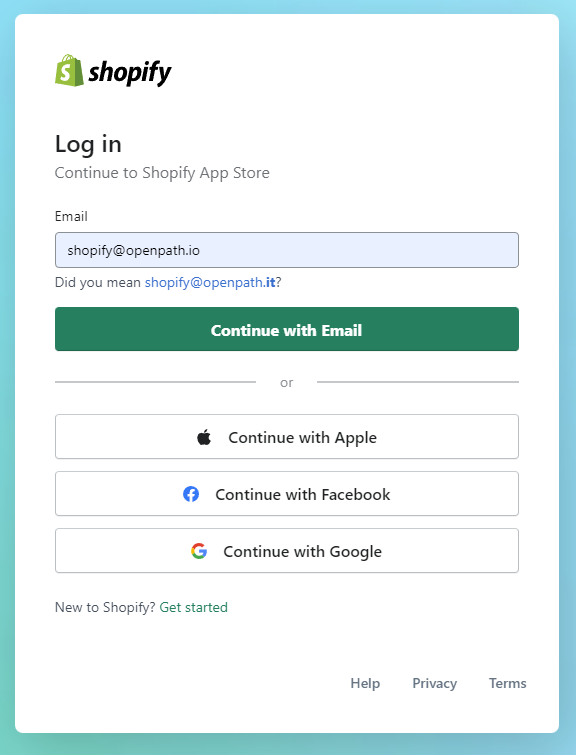
2. [If not already logged in] Login to your Shopify Admin account. Please note that you will need Store Owner Access to make changes on the Payment Settings.
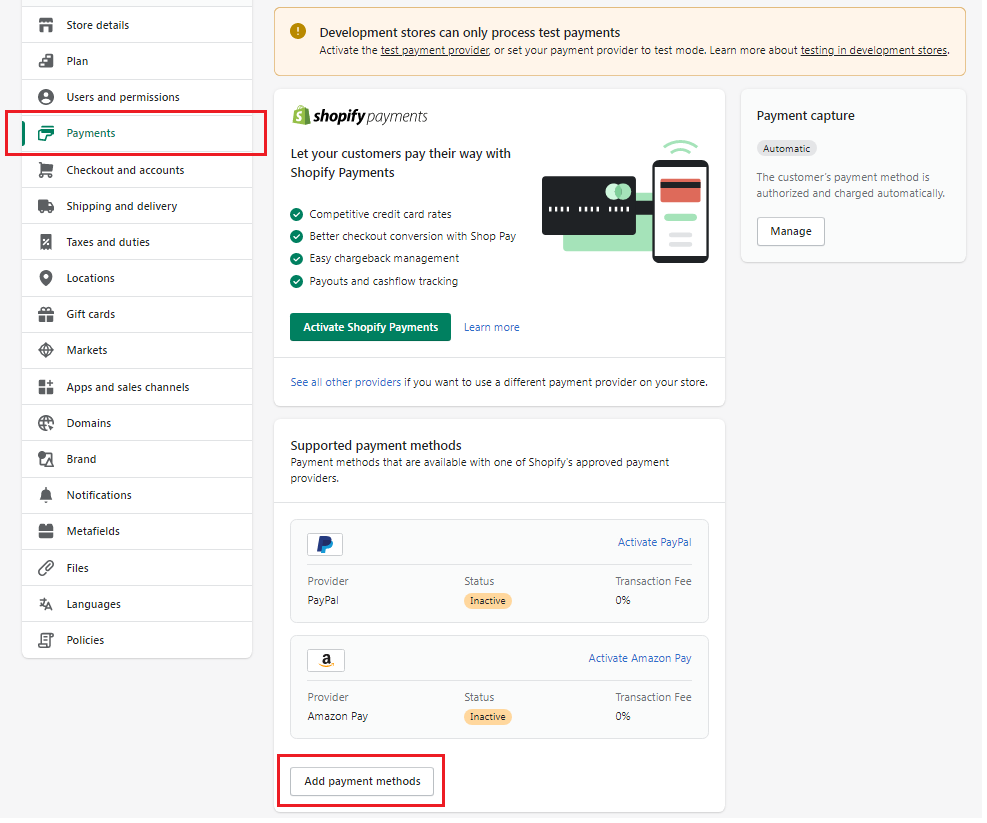
3. Click on Settings on the lower left hand side and a new screen will popup. navigate to Payments, scroll down and click on Add Payment Methods.
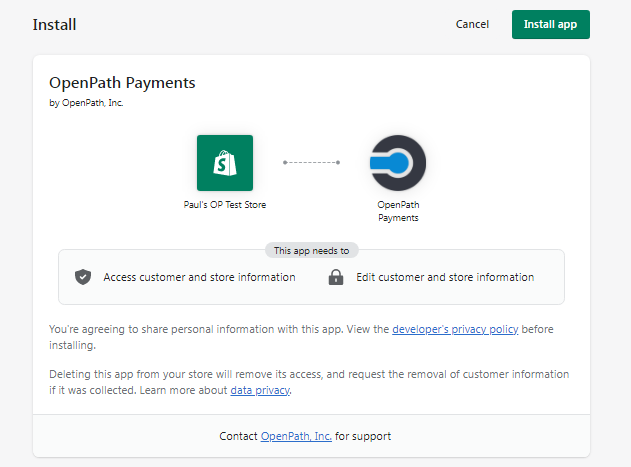
4. Click on Install App.
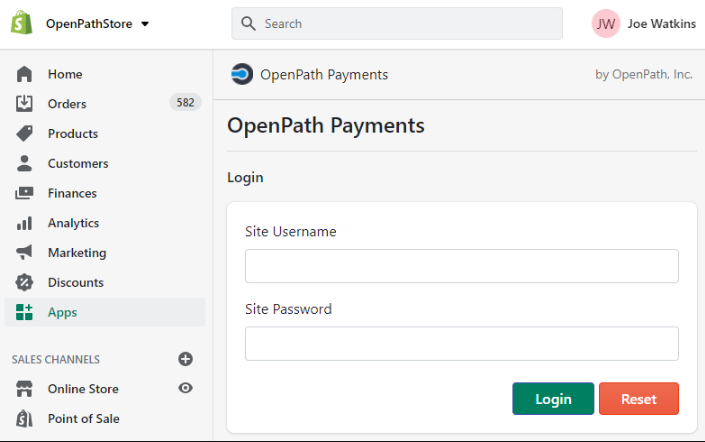
5. You will be prompted to enter the site credentials. The Site Username and Site Password will be provided by your Processor.
Click Login
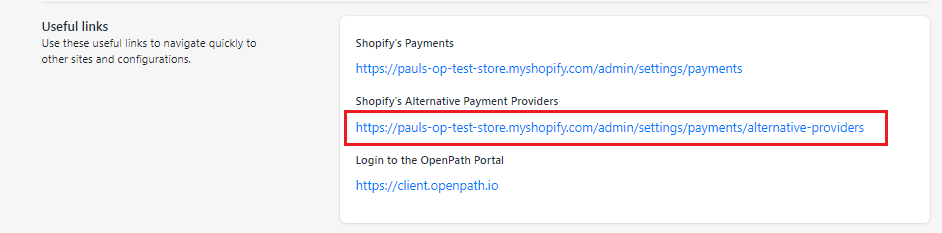
6. On the Configurations page, scroll all the way down until you see the Useful Links section. Click on the second link.
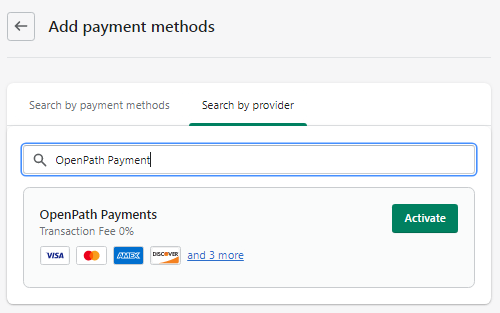
7. You'll be taken to the Add Payment Methods page.
Select Serach by Provider tab, and type OpenPath Payments.
Select OpenPath Payments from the dropdown.
(** There is a known bug in Shopify - if nothing appears in the dropdown you may need to refreash the page once or twice from the browser)
Click Activate
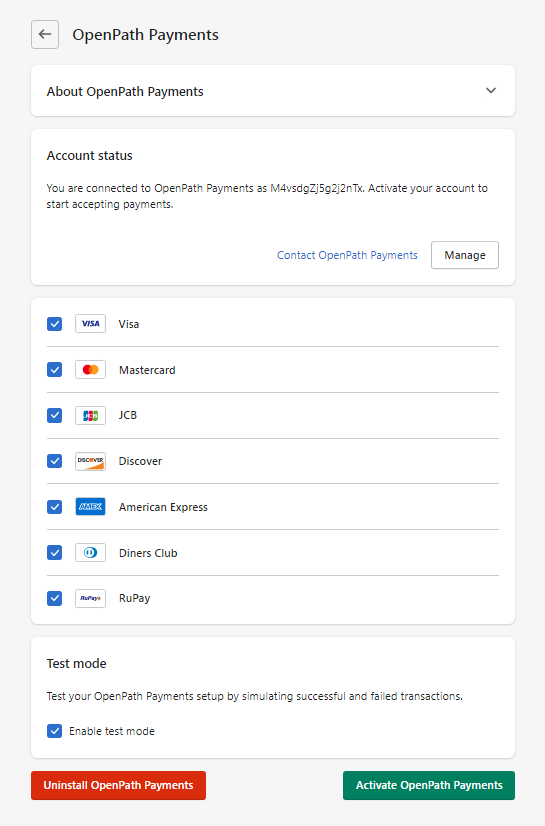
8. Click on Activate OpenPath Payments at the bottom of the page.
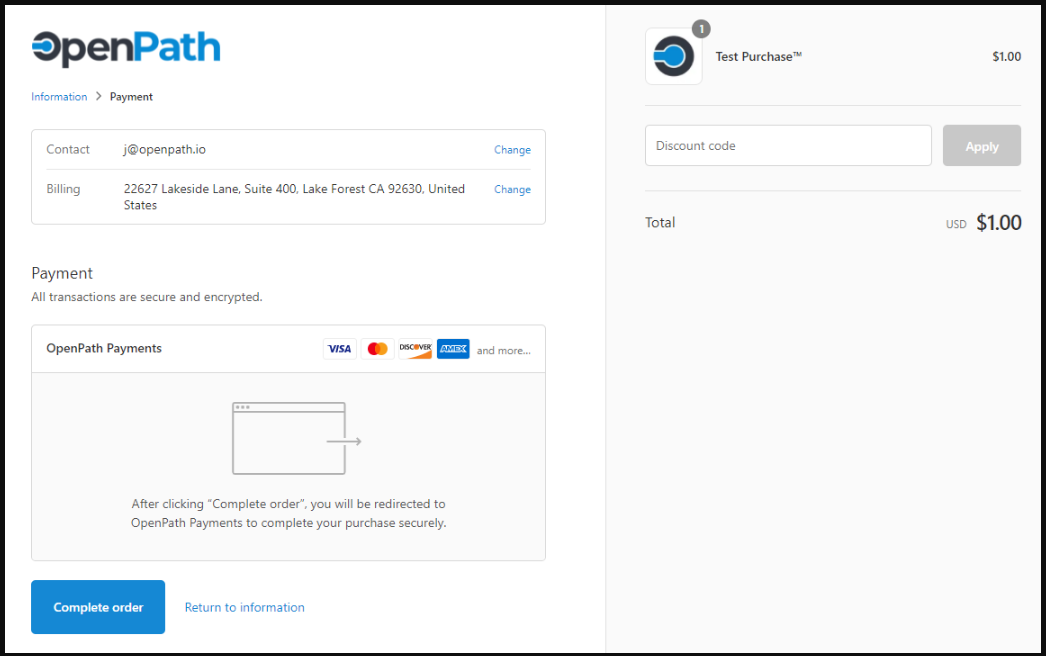
9. Go to your website and do a regular checkout process. If installation is successful, you will see the OpenPath Payments option on your Shopify Checkout Payment page.
Note:
If you are Adding to your existing accepted payments, you are done and OpenPath Payments will be another payment option when your customers checkout.
If you are trying to Replace an existing Payment method, you will need to go back to Payments and remove the other Payment Options.
Was this article helpful?
That’s Great!
Thank you for your feedback
Sorry! We couldn't be helpful
Thank you for your feedback
Feedback sent
We appreciate your effort and will try to fix the article
