Navigating to your FlexPay configuration
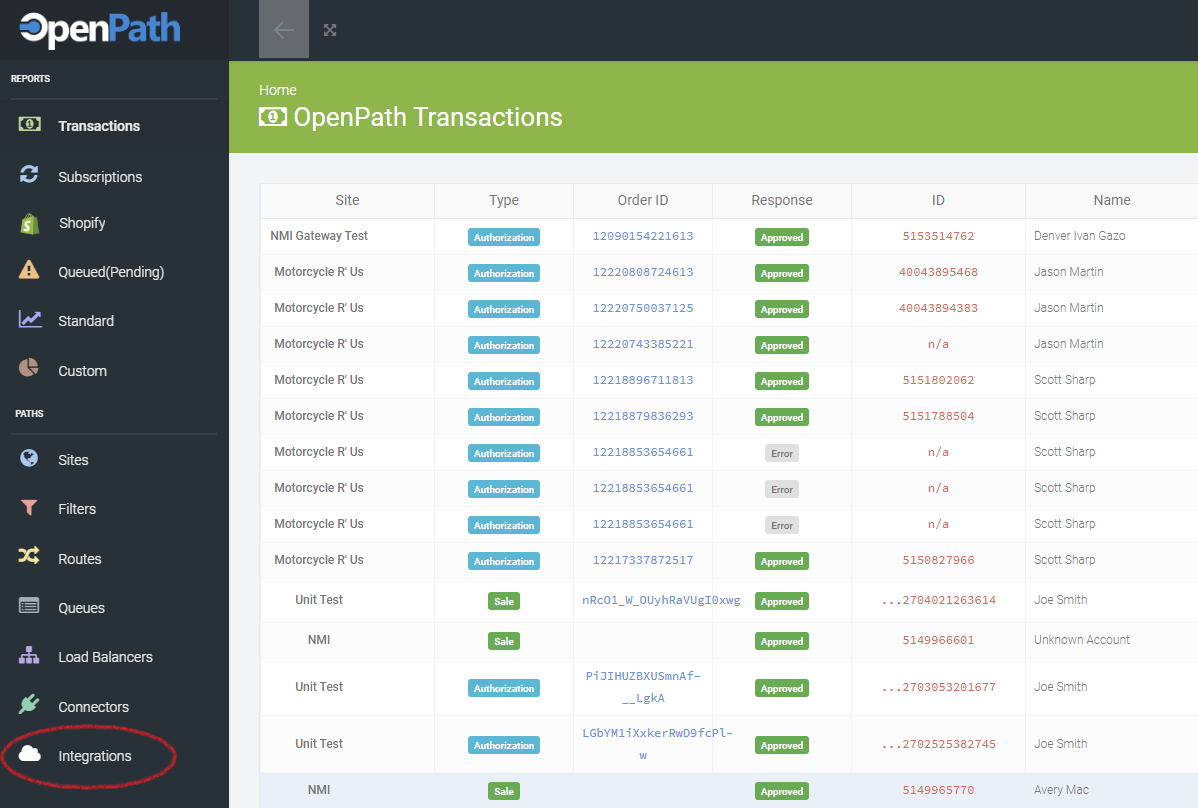
- Login to your OpenPath account and from the main screen, select Integrations from the menu on the left.
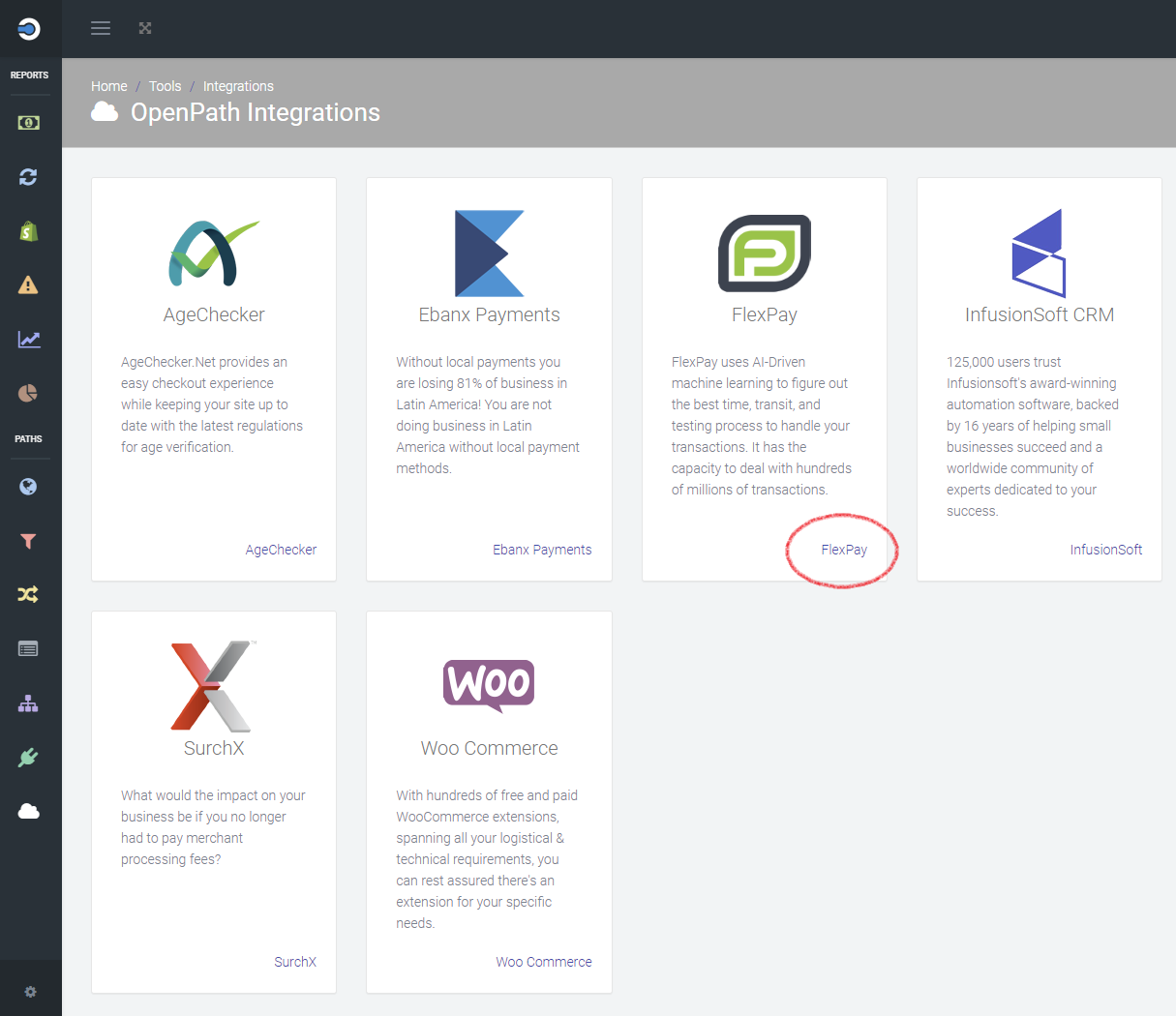
- From the Integrations screen click on FlexPay
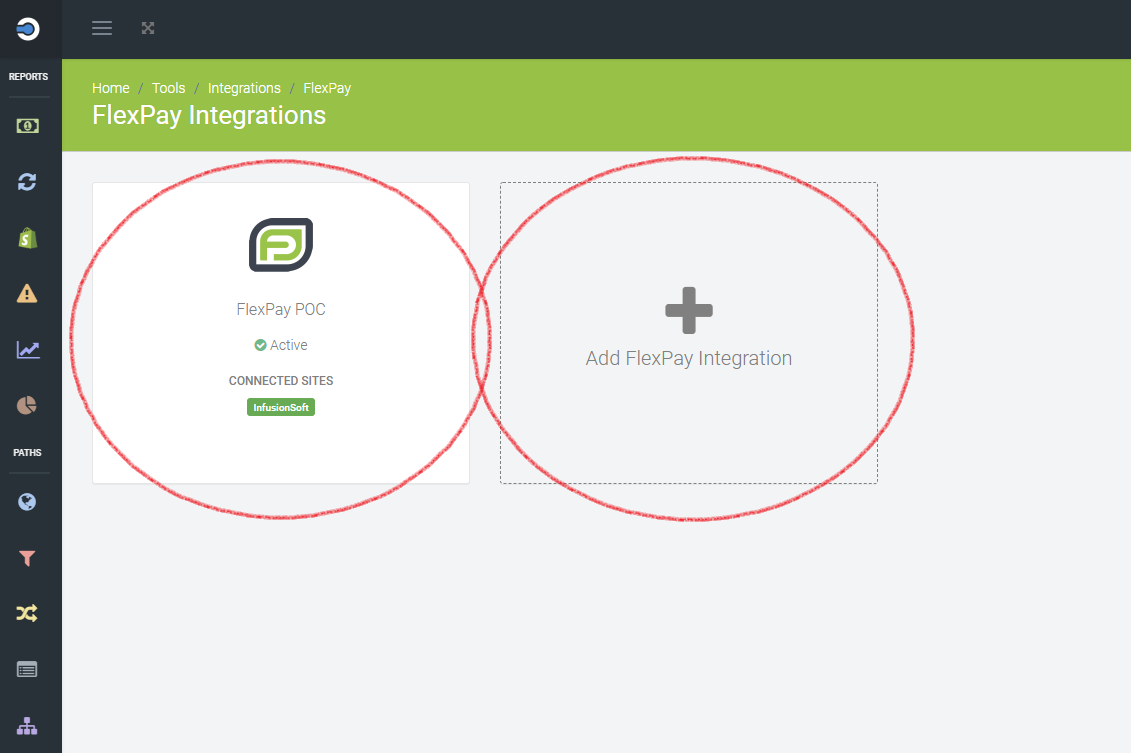
- If you want to edit an existing FlexPay integration, click on the FlexPay integration you want to edit, or if you are creating a new FlexPay integration, click on the Add FlexPay Integration box.
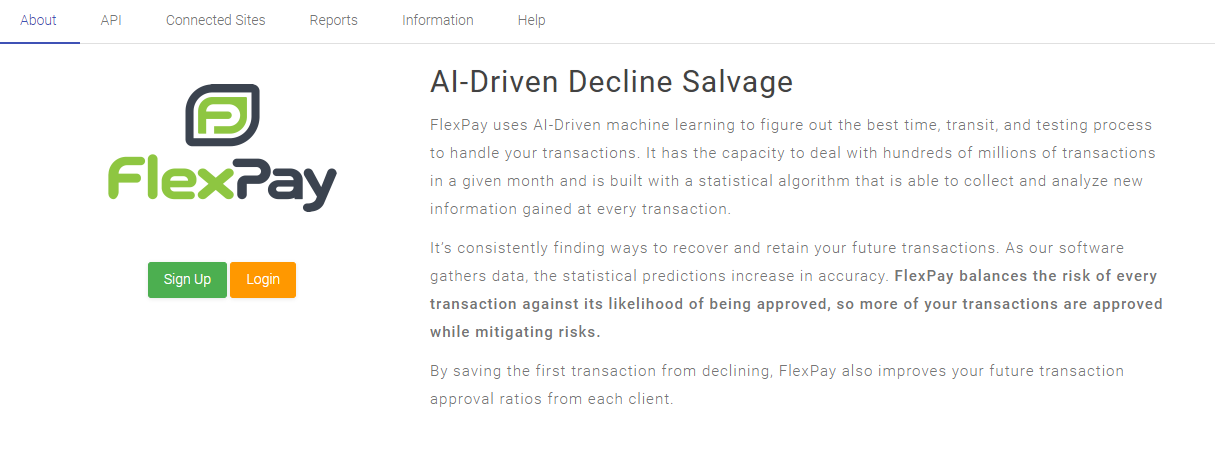
About
If you do not know about FlexPay or have a FlexPay account, this screen give you more information about FlexPay and how to sign up for a FlexPay account
API
The API tab is used to setup the connection between OpenPath and FlexPay and customize that integration to any specific point of sale system you are using.
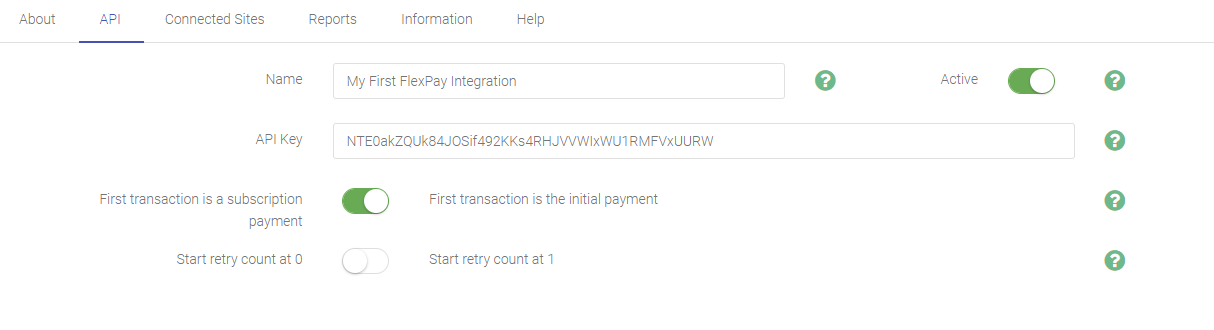
Name
The name is for your reference only in the system and can be anything you would like to reference this FlexPay API integration.
Active
You can deactivate this integration by turn this switch off, which will disconnect FlexPay from any sites you have associated with it. Turning back on will reactive everything.
API Key
This is the key that either FlexPay gave you, or you generated in the FlexPay back office which is used to connect OpenPath to FlexPay.
For more information on how to get a FlexPay API, please see the following document: Getting your FlexPay API Key.
First transaction
If the first transaction from your point of sale is the customer purchasing, then you want to select First transaction is the initial payment, if the first transaction from your point of sale is the recurring transaction then select First transaction is a subscription payment.
Start Retry At
In some point of sale configurations, FlexPay may ask you to set this to Start retry count at 1; however, it is recommended you keep the default setting of Start retry count at 0.
Connected Sites
Once you have all your configurations setup, you need to select what sites you want to connect this FlexPay integration to, you can select one or more sites to connected to.
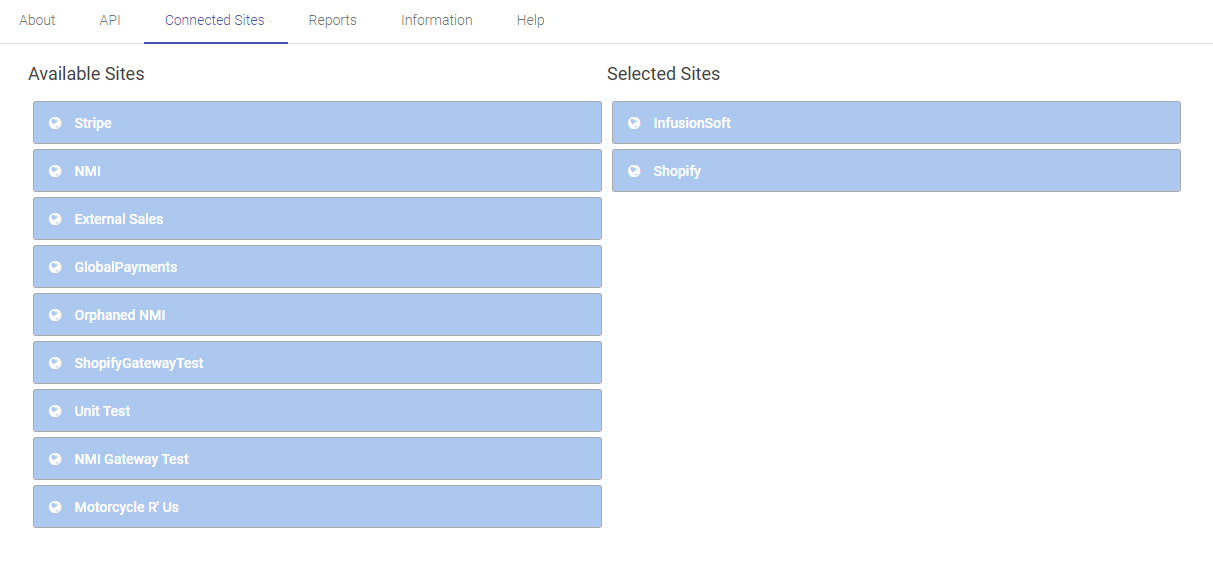
Available Sites
Available sites are all the sites you've configured in OpenPath and are not connected to this FlexPay integration. To make an available site connected to the FlexPay integration click and drag the site you want connected to the Selected Sites on the right.
Selected Sites
Selected sites are the sites that are connected to this FlexPay integration, to remove a Selected Site, drag the site from the right Selected Sites section over to the Available Sites sections on the left.
Reports
The reports show you all the scheduled retries from the beginning of the month to the end of the month and the outcome of those scheduled retries.
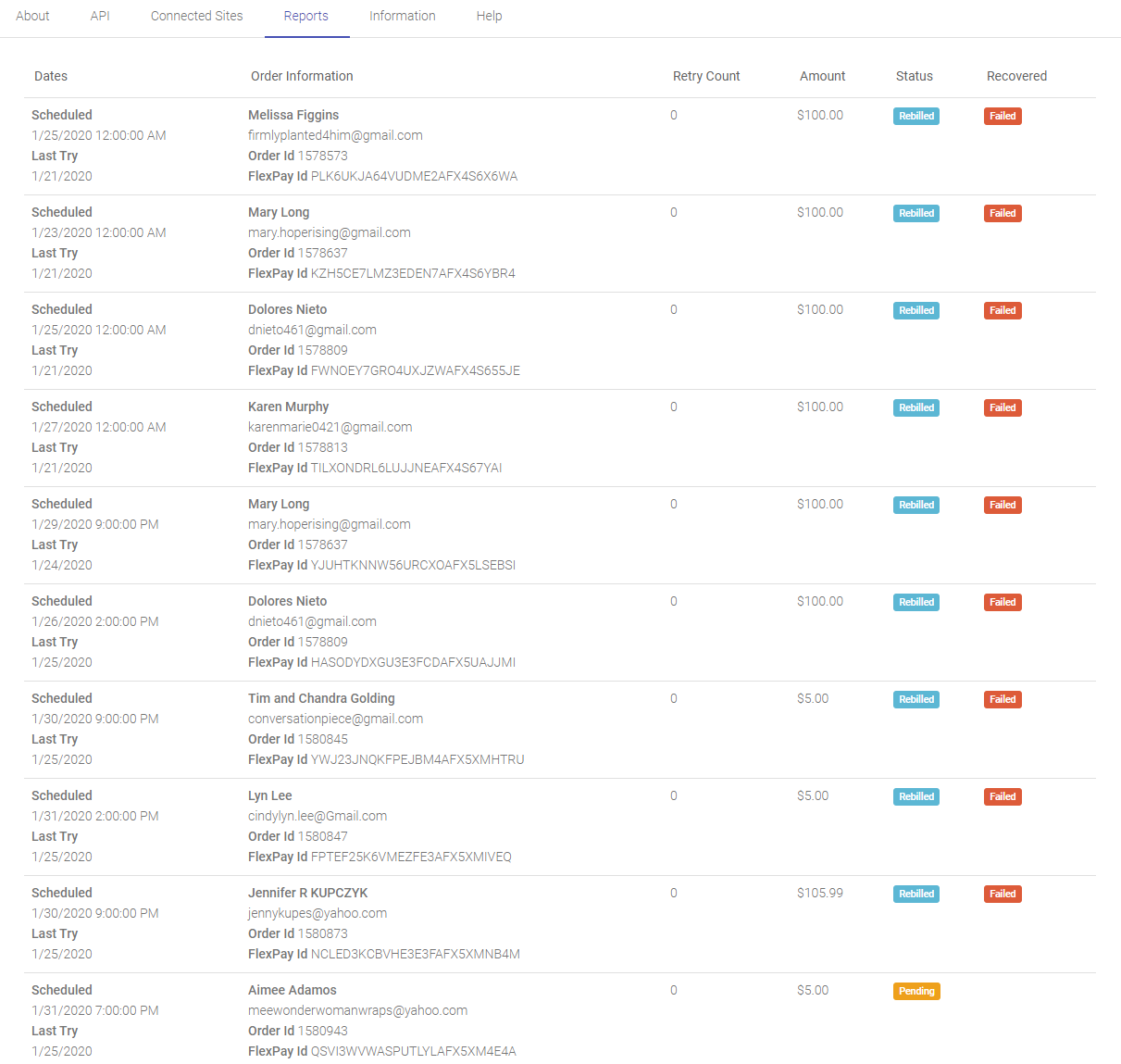
Date Last Try
Is the date a subscription transaction failed and was sent to FlexPay.
Date Scheduled
Is the date FlexPay recommended to retry this failed subscription transaction.
Order Information
Is the name and email of the customer scheduled to retry.
Order Information Order ID
Is the Order ID OpenPath received from your Point of Sale system.
Order Information FlexPay ID
Is the Transaction ID we received from FlexPay which will match up with the FlexPay Transaction ID in the FlexPay back office.
Retry Count
Is what the retry count was set to on the Transactions Last Try.
Amount
The total amount the system will try to bill on the retry.
Status
Pending
Means the transaction is scheduled to rebill, but has no reached it's Scheduled time to rebill yet.
Rebilled
Means the transaction tried to rebill.
Recovered
Recovered
Means the transaction was rebilled and a successful payment was received.
Failed
Means the transaction failed again on the retry date.
Information
All the Information tabs in OpenPath are for your own internal use. These value can be anything you would like for internal tracking or reference.
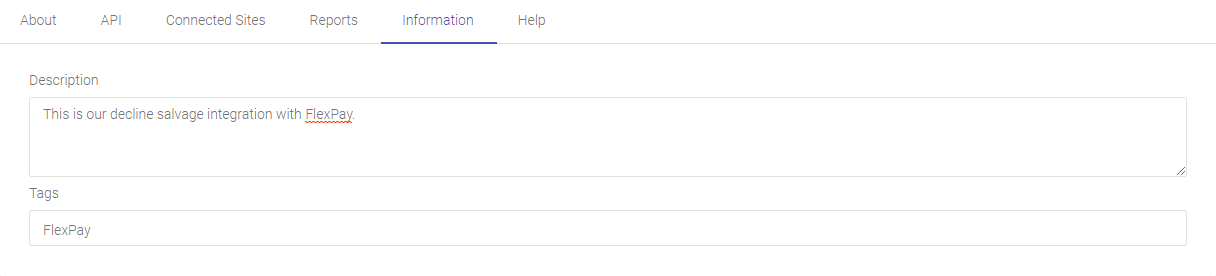
Description
Any description you would like to associate with the integration.
Tags
Any tags you would like to associate to this integration.
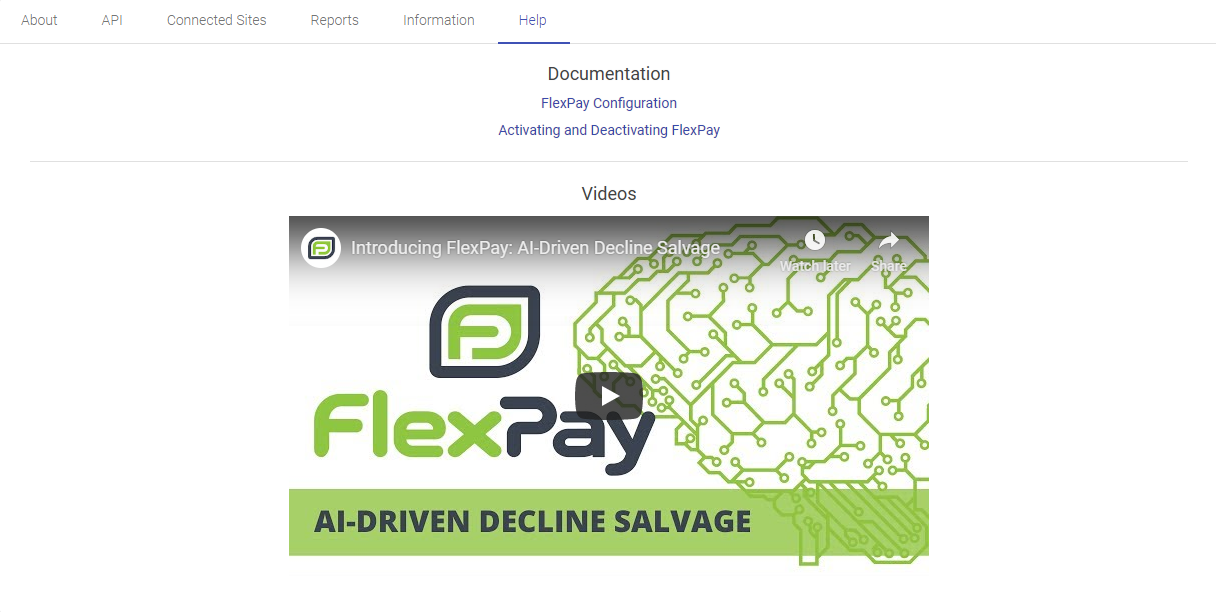
Help
This section will periodically change when support documents and videos are updated. Please refer to this tab for support articles related to FlexPay.
Was this article helpful?
That’s Great!
Thank you for your feedback
Sorry! We couldn't be helpful
Thank you for your feedback
Feedback sent
We appreciate your effort and will try to fix the article