Summary
Since InfusionSoft will no longer support many payment gateways, including OpenPath, if you wish to continue using some of OpenPath's features, reporting and connectivity, you can switch your configuration to transaction pulling. This feature allows you to connect directly to your payment gateway and OpenPath will pull the transactions from your gateway.
OpenPath currently supports transaction pulling on the following payment gateways:
- Authorize.Net
- NMI (Network Merchants)
- Stripe
- Global Payments
- Heartland
In order to switch your configuration, please follow the directions below.
Switch to Transaction Pulling
Switching InfusionSoft
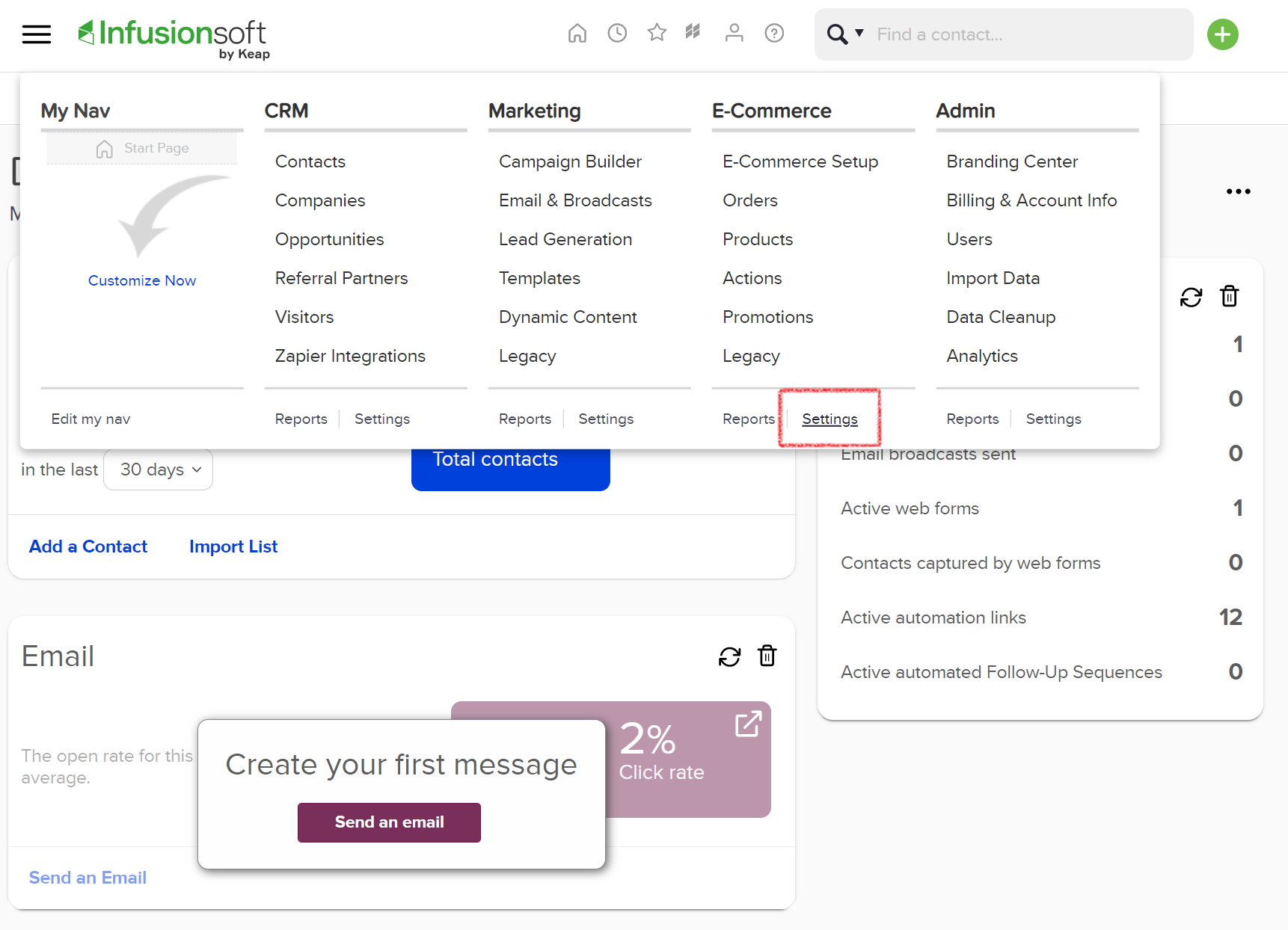
- Login to your InfusionSoft Account and navigate to your InfusionSoft main menu. From the main menu, go to E-Commerce and select settings.
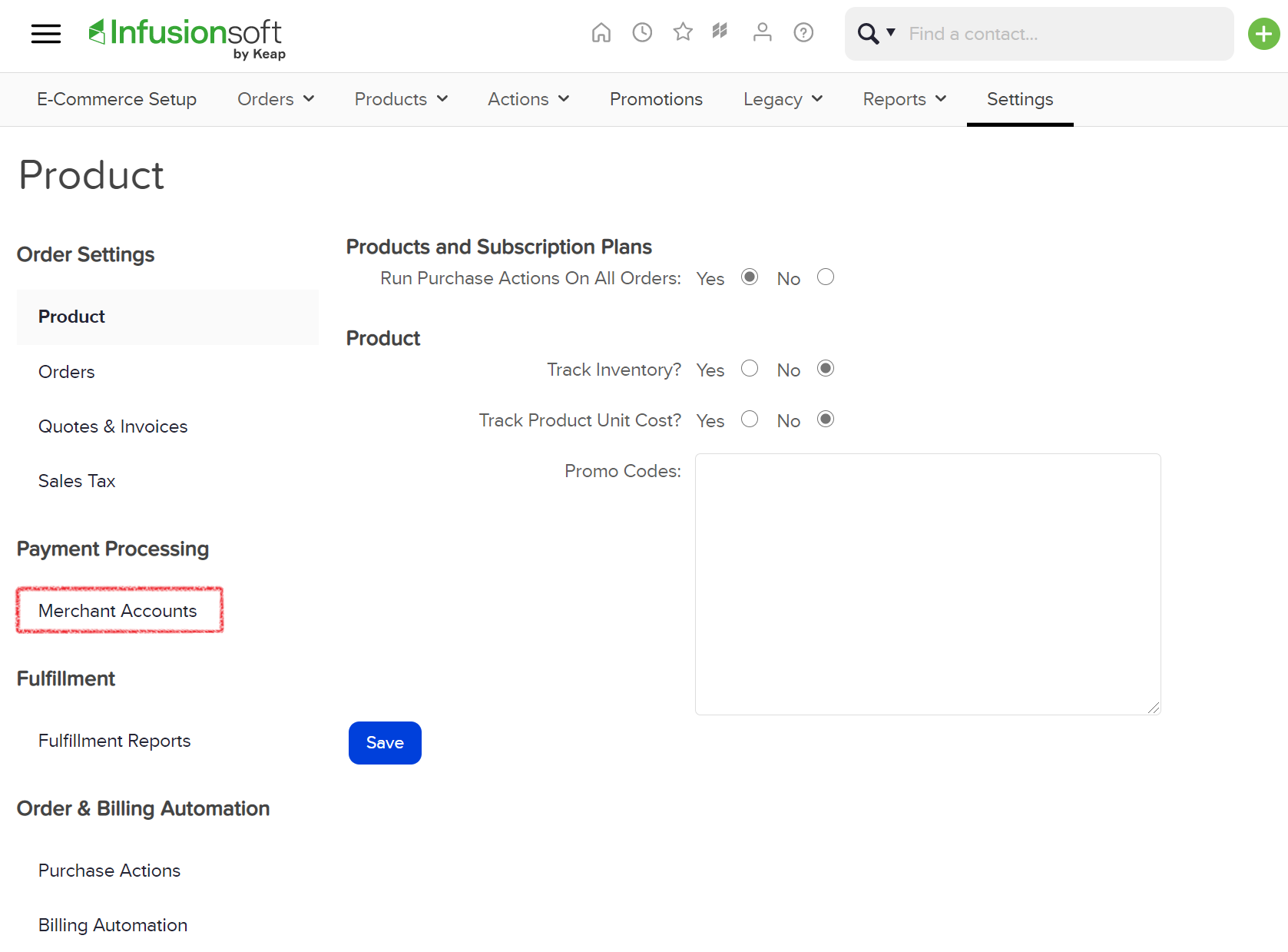
- From your E-Commerce settings section select Merchant Accounts.
- Once you have selected the Merchant Accounts settings, under the Other Credit Card Processors, change the Merchant account to use from OpenPath, to your direct payment gateway.
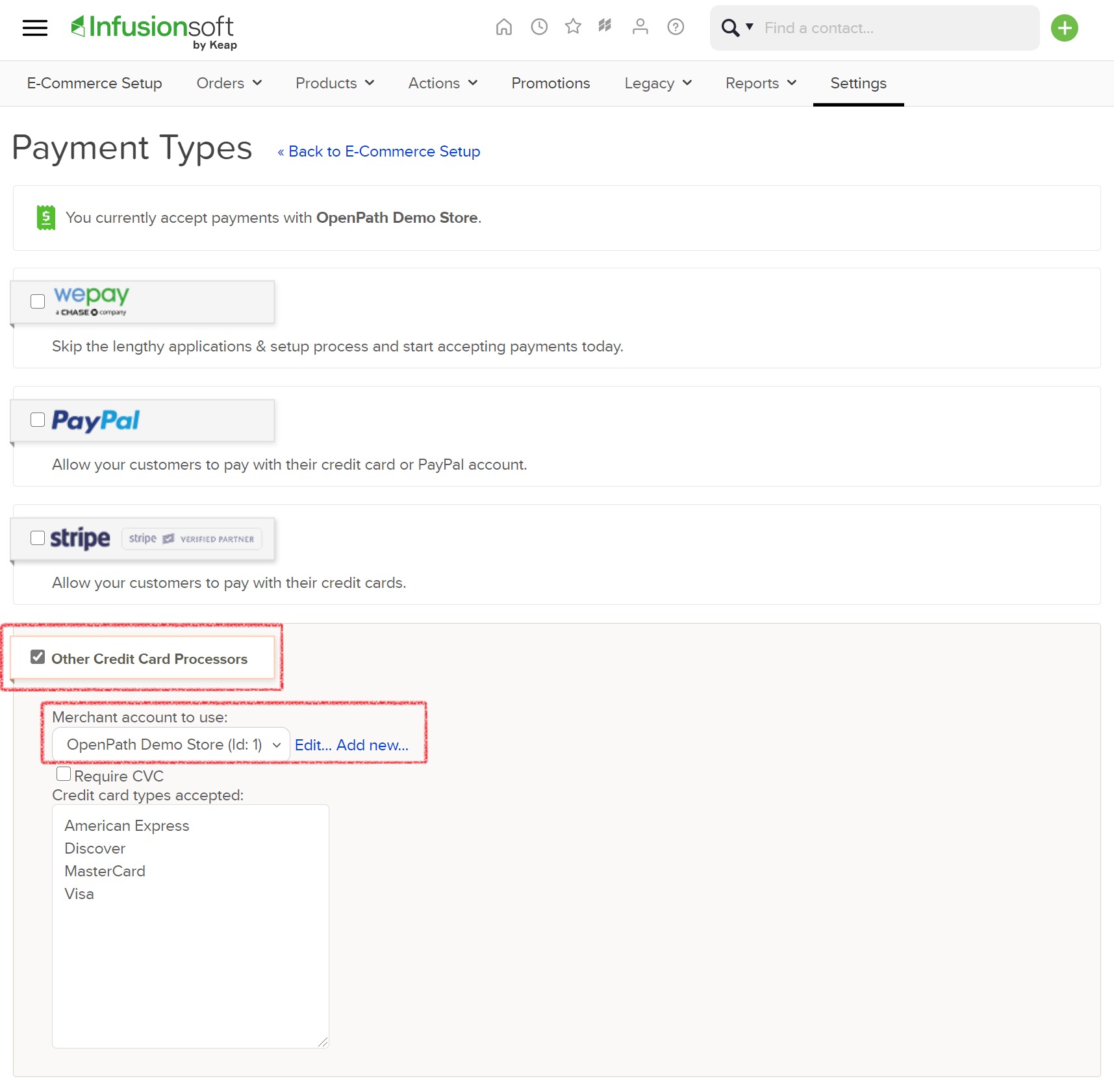 NOTE 1: If you removed your payment gateway, you may need to set it up again and then select the newly created gateway.
NOTE 2: If you are using FlexPay, please take note of the Id: number, which will need to be added in the OpenPath portal under the FlexPay integration.
Switching OpenPath
- Login to your OpenPath portal and in the left menu select Connectors.
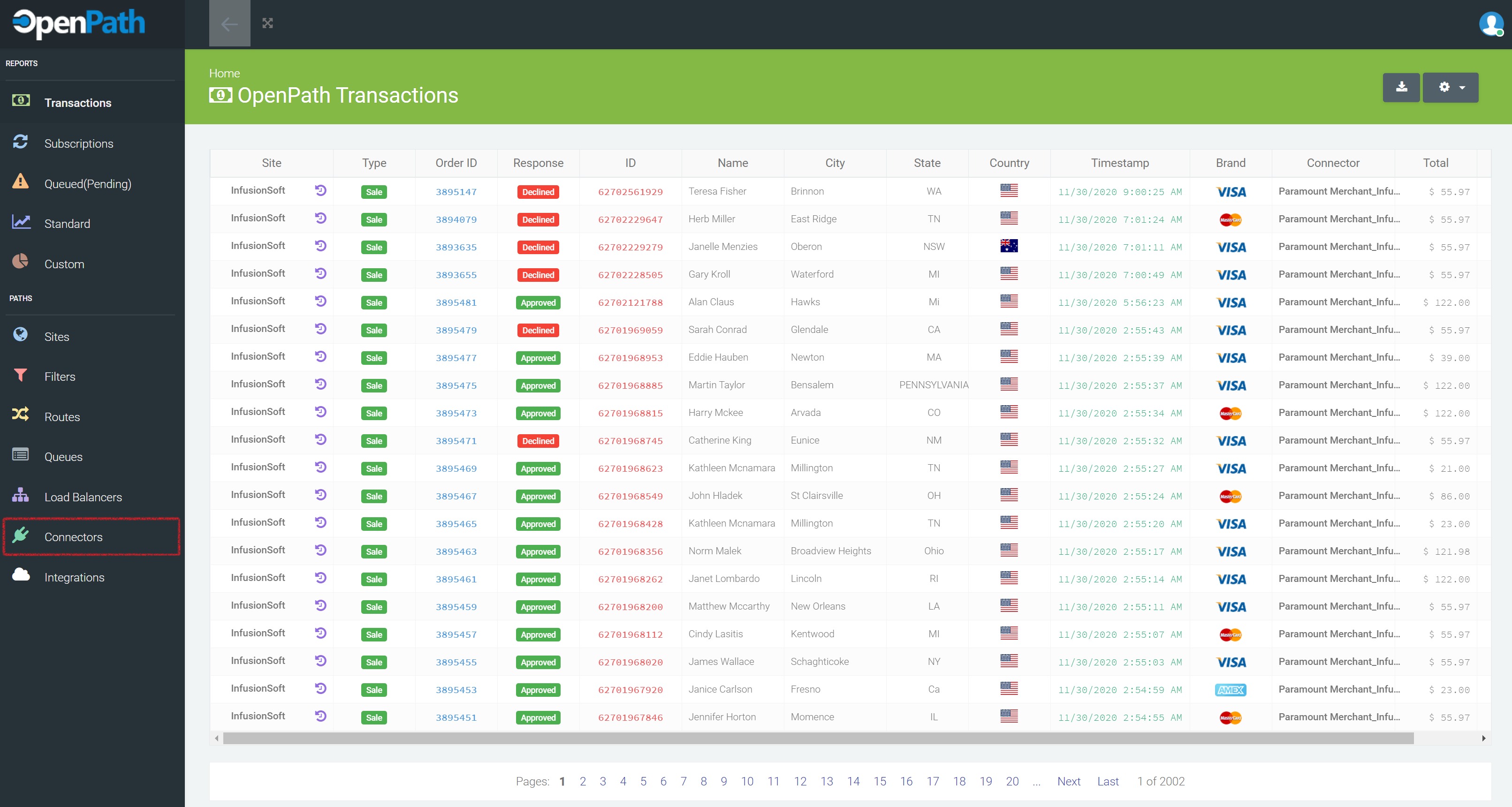
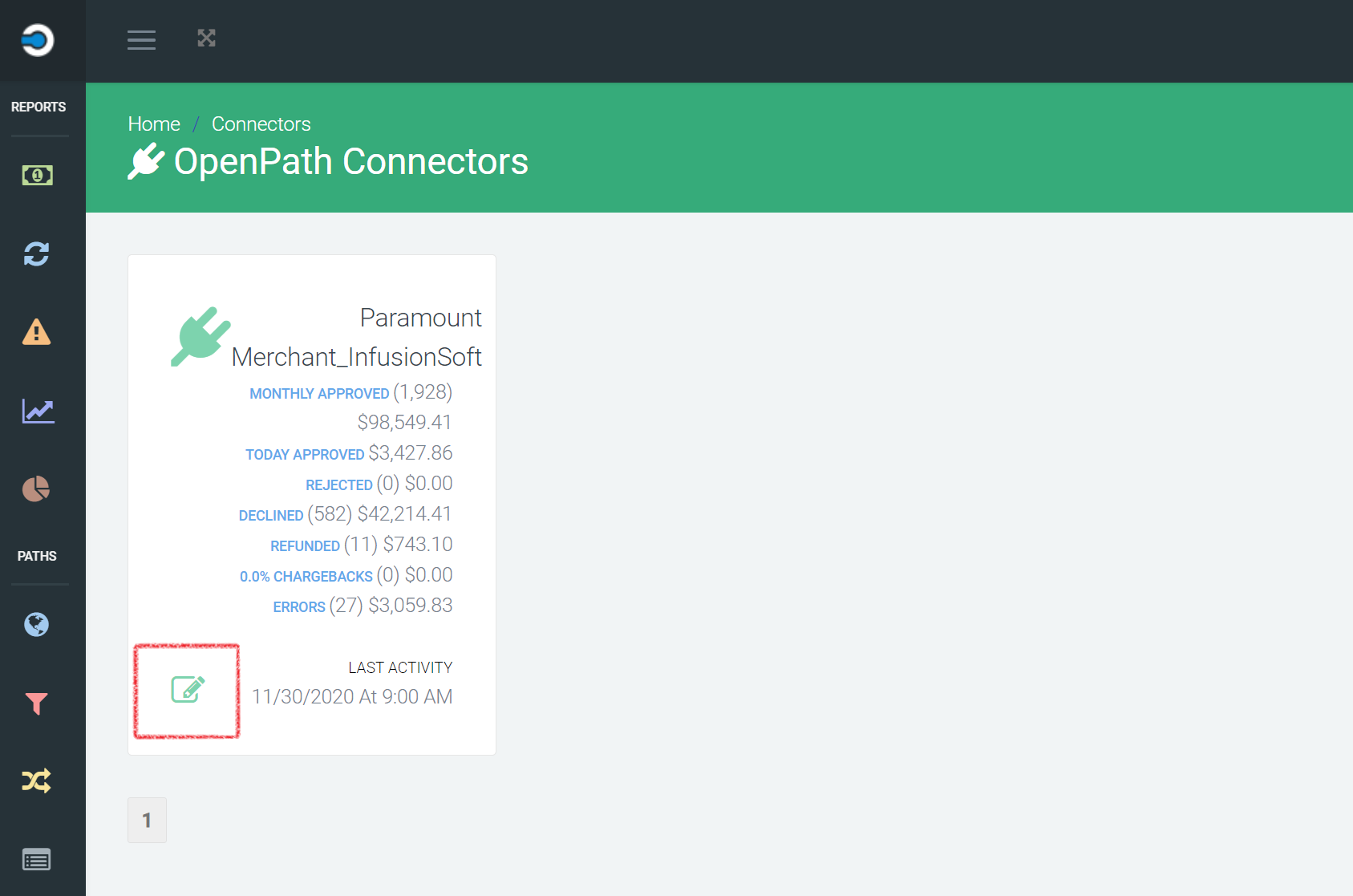
- In your Connectors view, click on the edit icon of your current payment gateway.
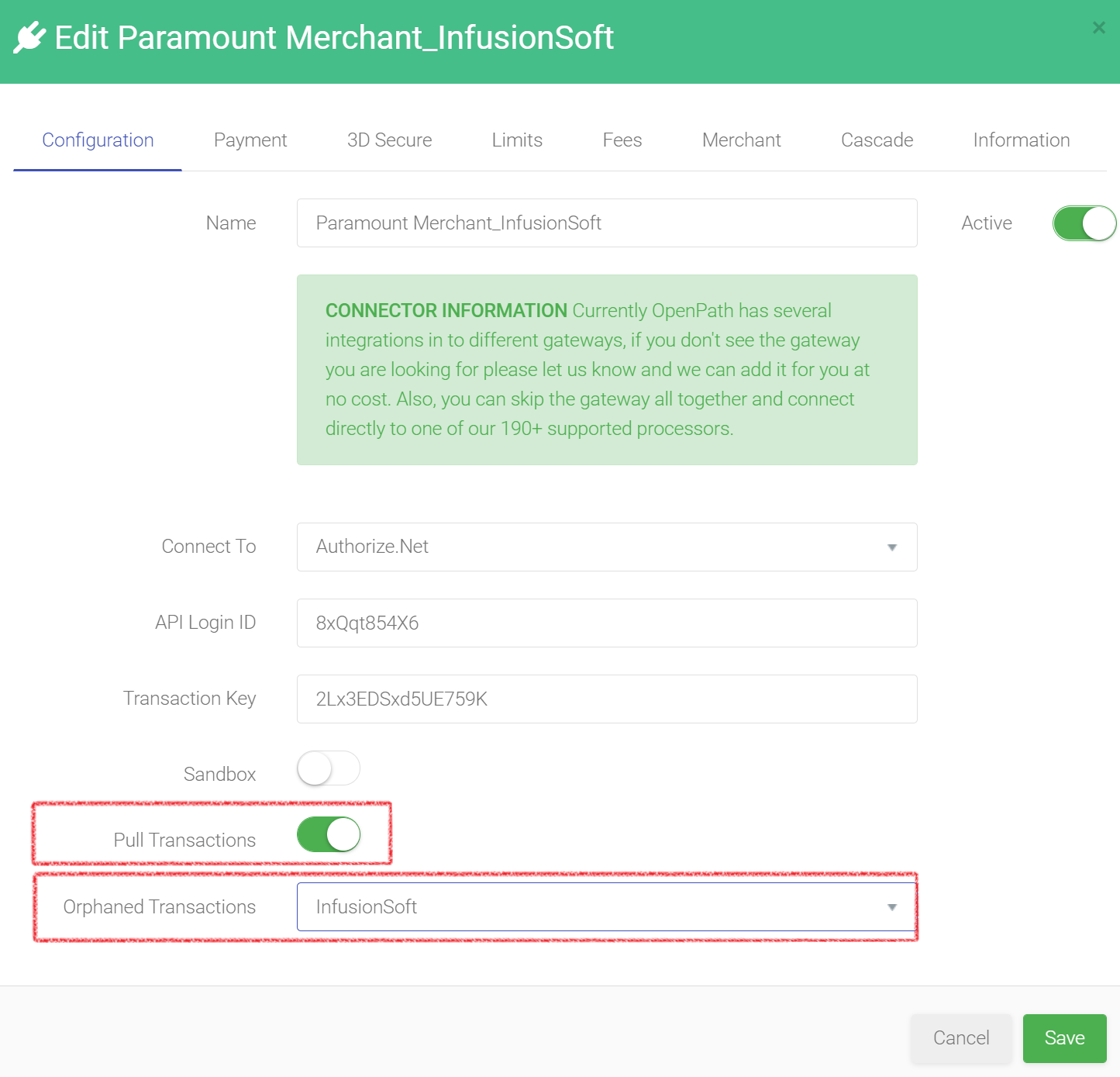
- In your Gateway Configuration menu, turn on Pull Transactions and select the site you would like to associate the pulled transactions to and click the save button.
At this point you have successfully switched your InfusionSoft configuration over to transaction pulling. If you are using FlexPay with OpenPath, please follow the additional step below; otherwise you are complete.
Adding the Merchant ID to FlexPay
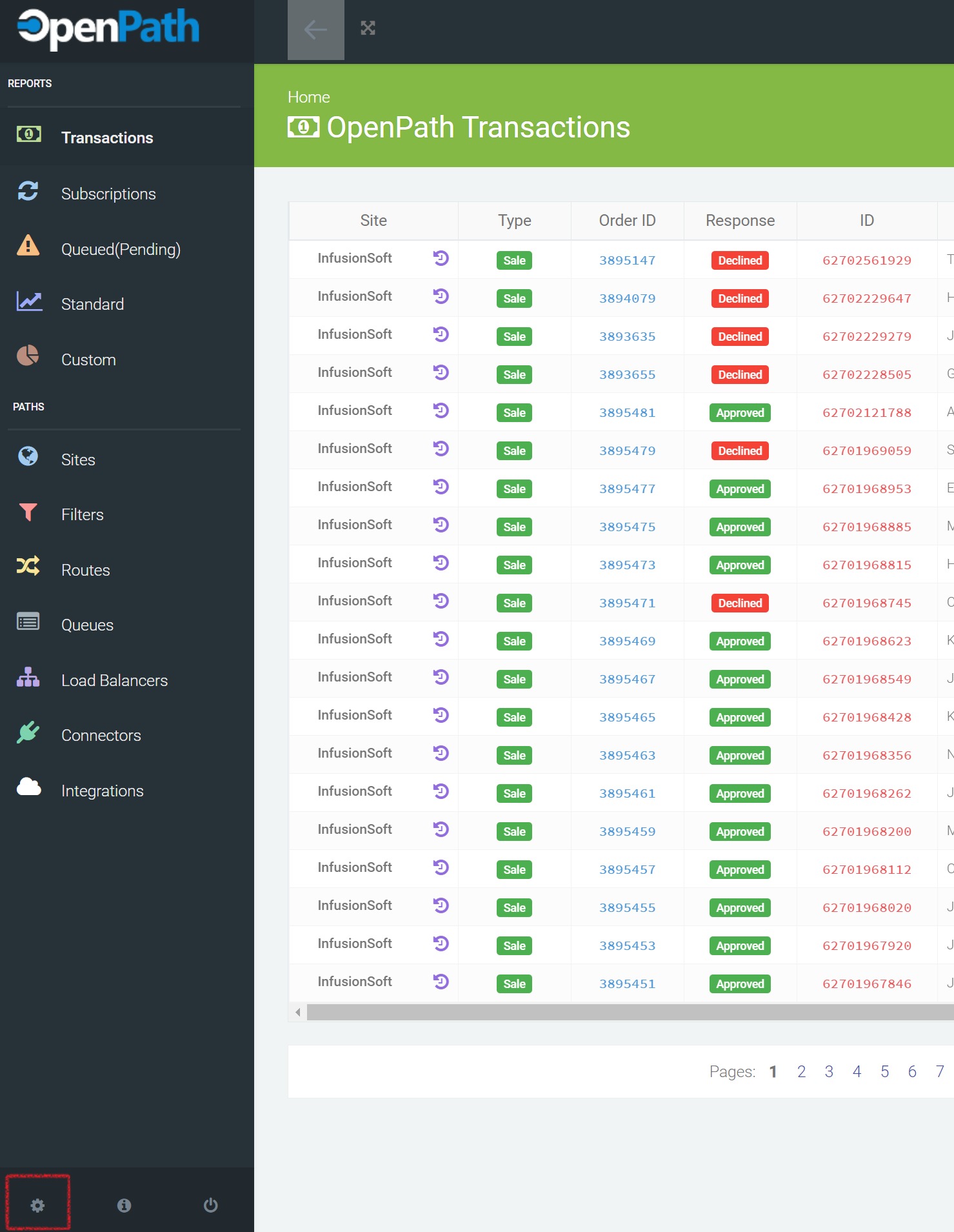
- In the left main menu, select the gear icon "Settings & Tools" located at the button of the menu.
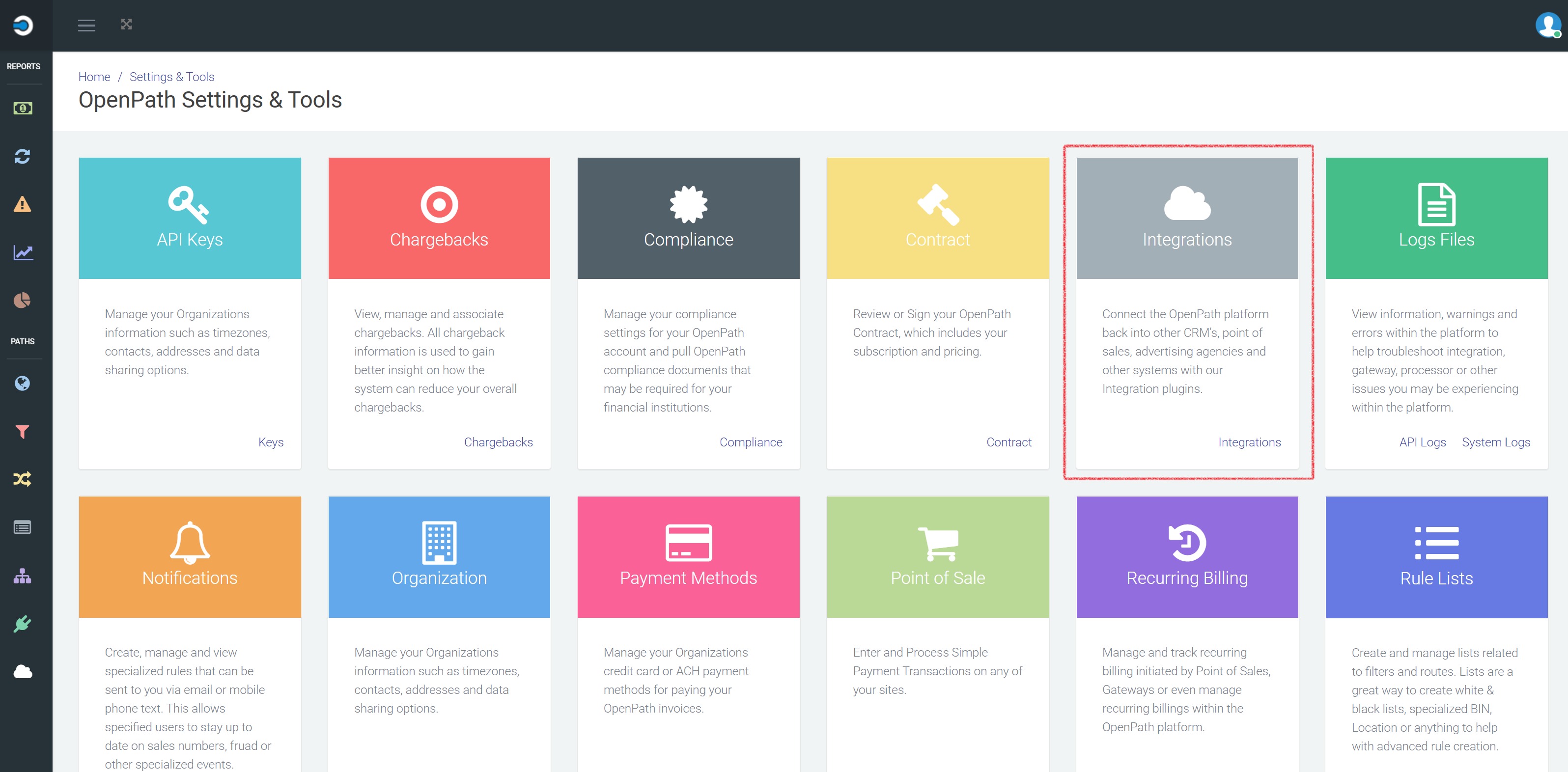
- Then click on the Integrations card.
- Select the InfusionSoft Integration.
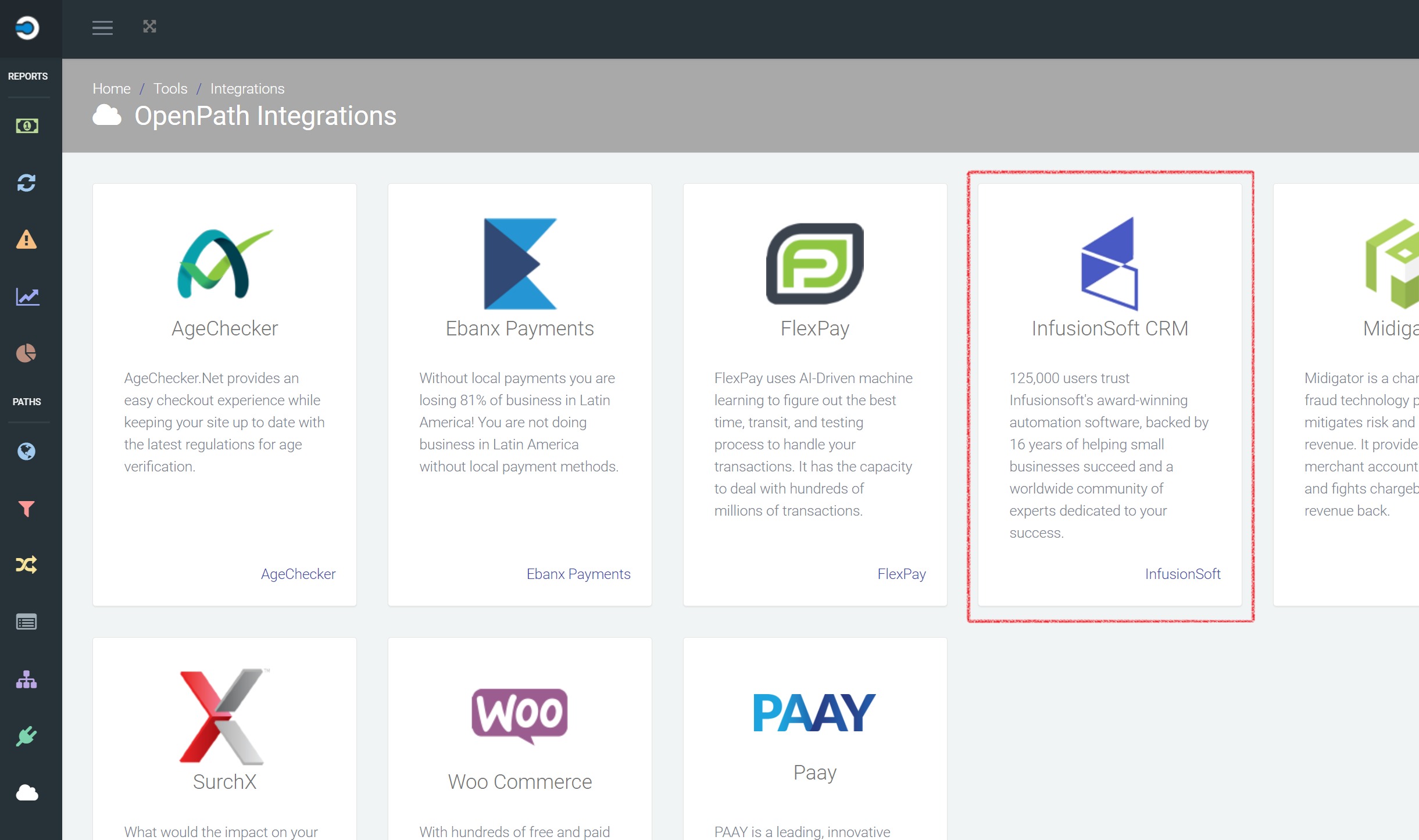
- Then click on your configured InfusionSoft integration.
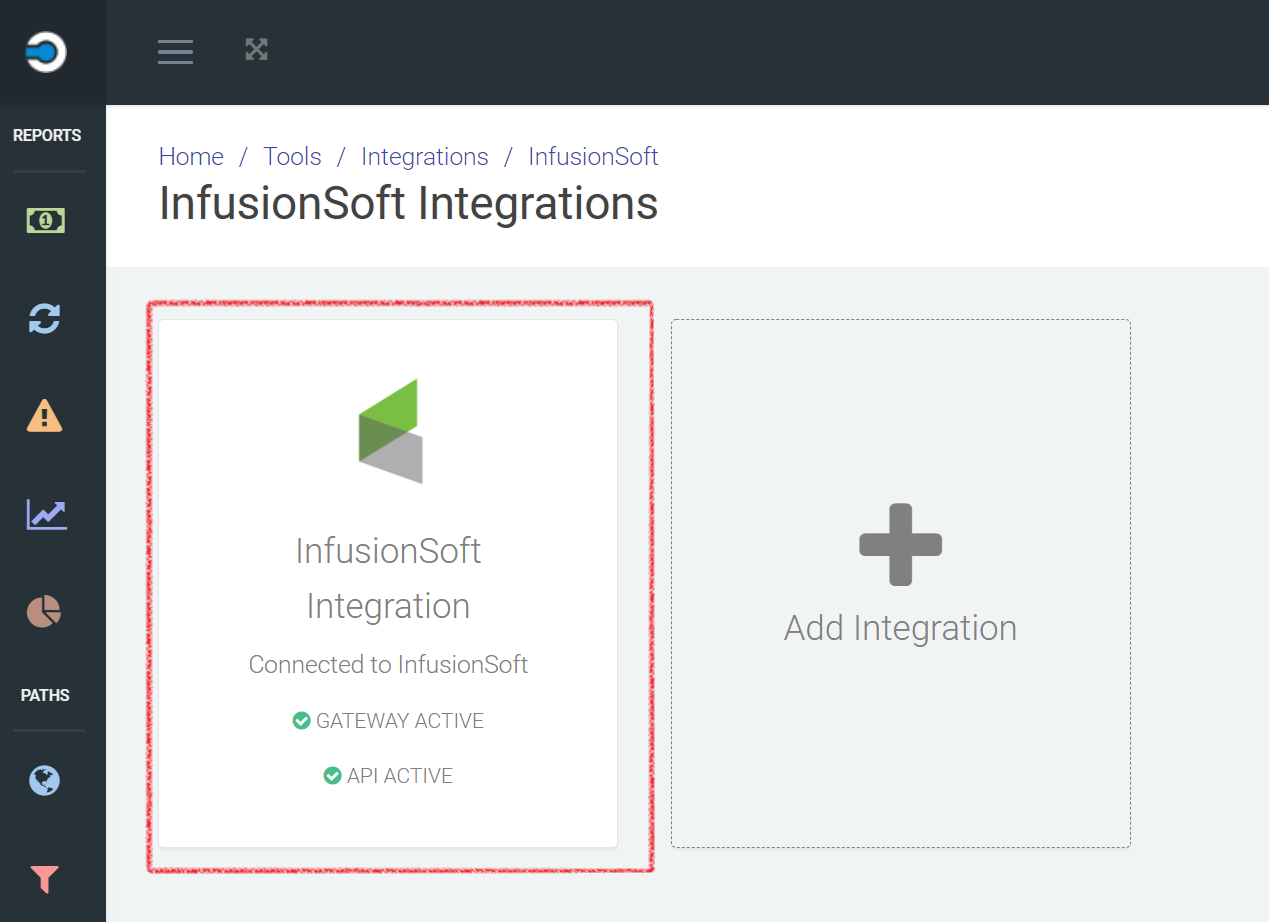
- In your InfusionSoft integration, click on the Gateway tab and enter the Merchant Id from InfusionSoft you recorded in the first section in step 3 and click save.
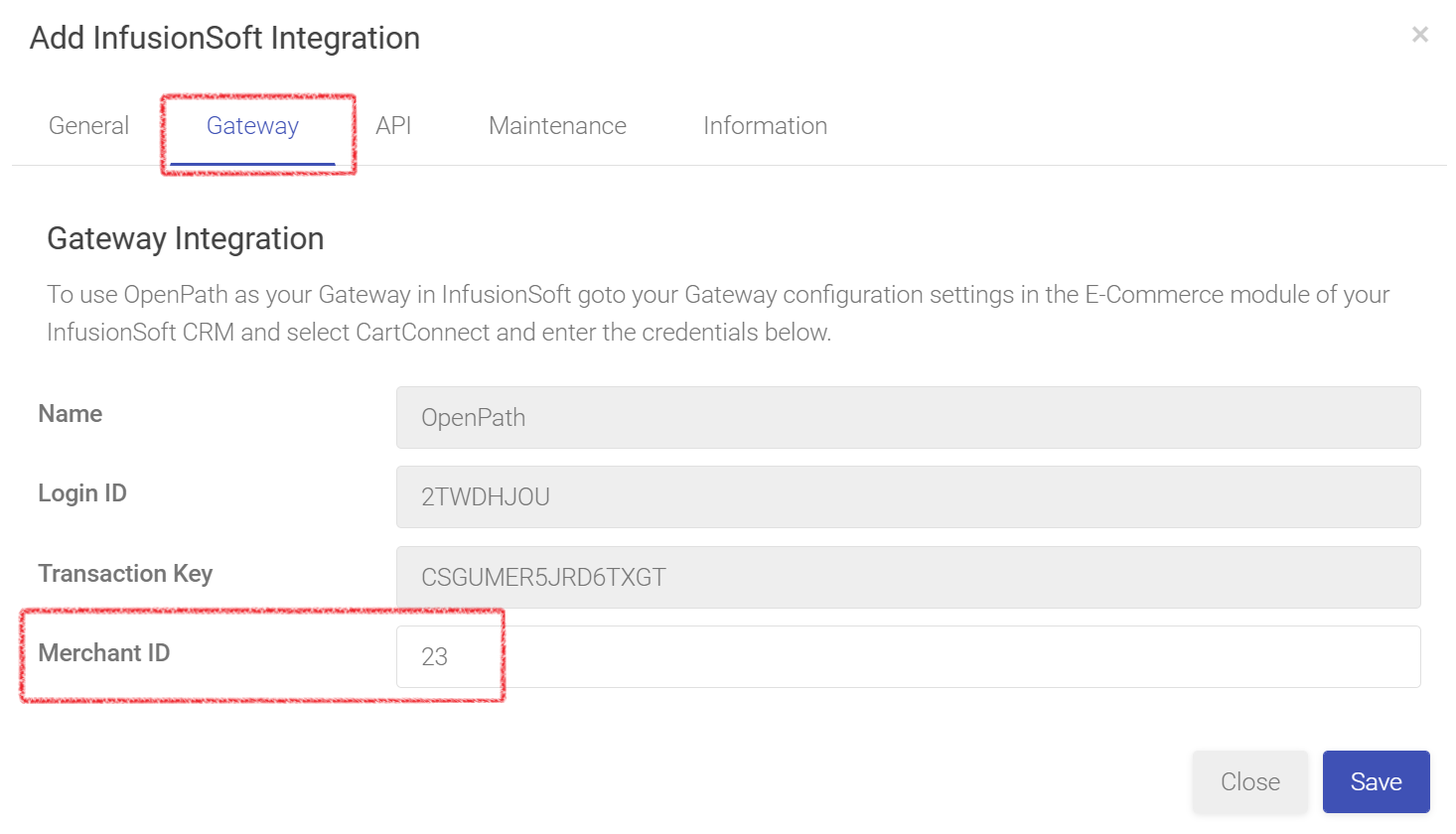
You have now successfully converted your InfusionSoft OpenPath configuration over to transaction pulling.
Was this article helpful?
That’s Great!
Thank you for your feedback
Sorry! We couldn't be helpful
Thank you for your feedback
Feedback sent
We appreciate your effort and will try to fix the article