The OpenPath POS allows us to enter and process simple Payment Transactions to any of your sites. All you need to do is to login to your OpenPath portal and navigate to Settings and Tools > Point of Sale and you're good to go. Just enter the basic customer information and you're ready to process. If you have multiple Sites, you can choose which one you'd like to process a transaction to by choosing from the drop down menu.
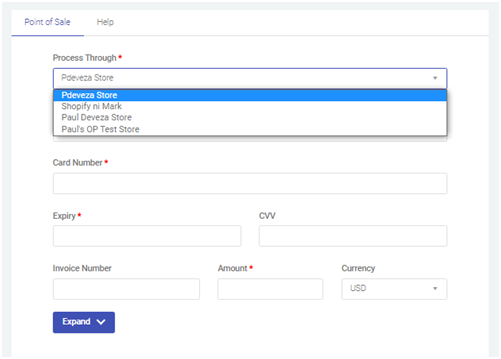
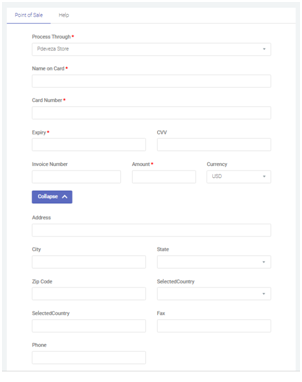
We can click on the Expand button if you wish to add additional information on a particular transaction.
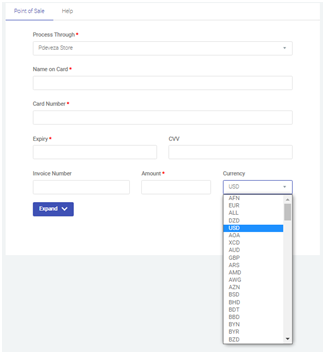
If your Payment Processor supports multiple currencies, you can click on the currency dropdown and process a transaction on a currency you need.
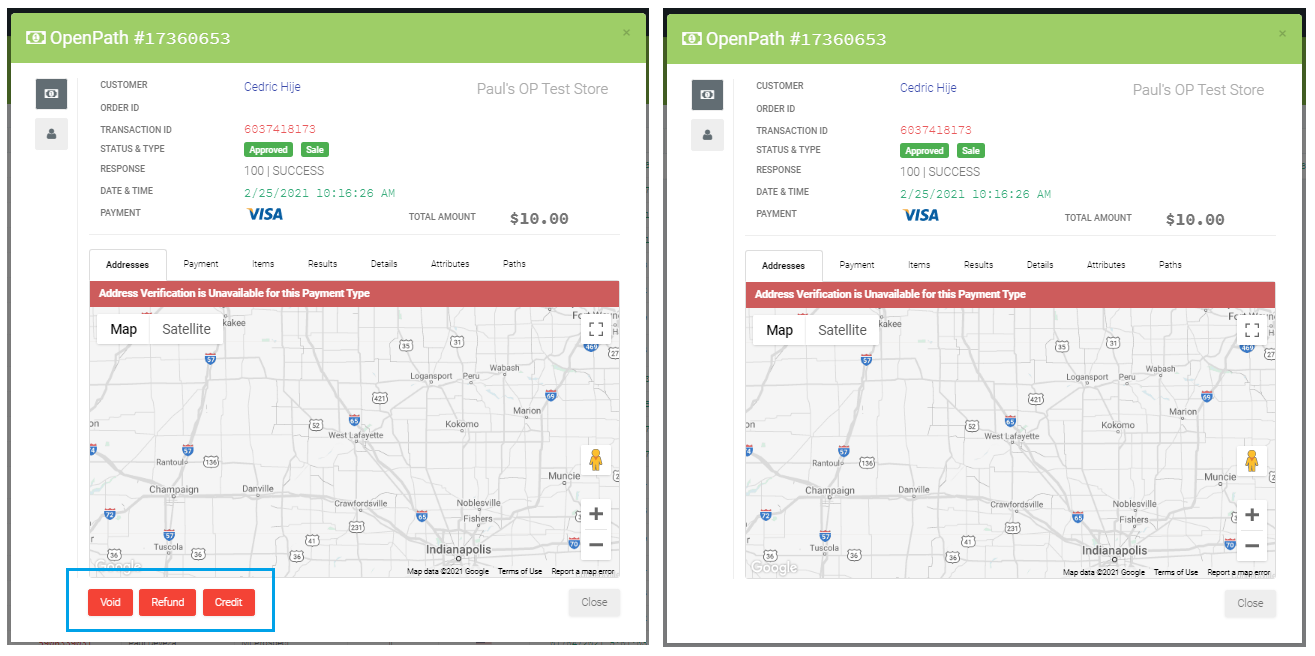
We've added a few upgrades on our POS platform to help customers manage their POS needs better. In our previous version, you can only assign a user to a site. The new version allows the user to manage only their own transactions. Other users' transactions are only visible to the Admin user. You can also Enable or Disable the Refund, Void or Credit buttons on a User's profile.
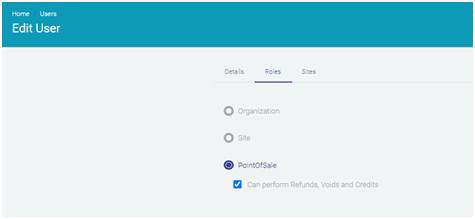
The user who has the Refund, Void or Credits Disabled wont be able to see those buttons on their Profile. Here's the comparison between the two user roles:
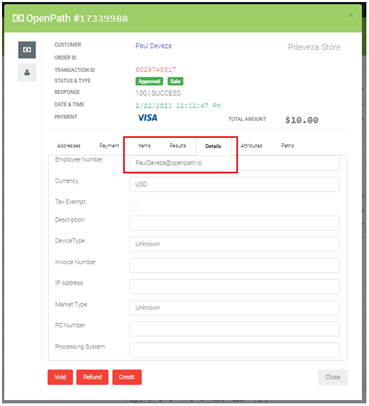
The Details tab also displays the name of the employee who did the transaction.
Was this article helpful?
That’s Great!
Thank you for your feedback
Sorry! We couldn't be helpful
Thank you for your feedback
Feedback sent
We appreciate your effort and will try to fix the article