This Walkthrough will guide you in setting up a Connector in the OpenPath Admin Portal.
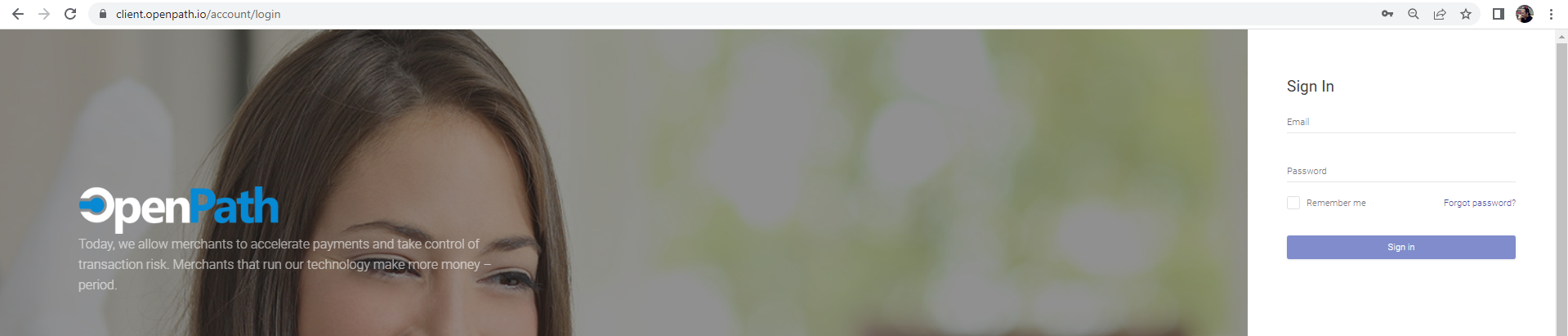
1. Login to the OpenPath Admin Portal at https://client.openpath.io/ and input your username and password and click Sign In.
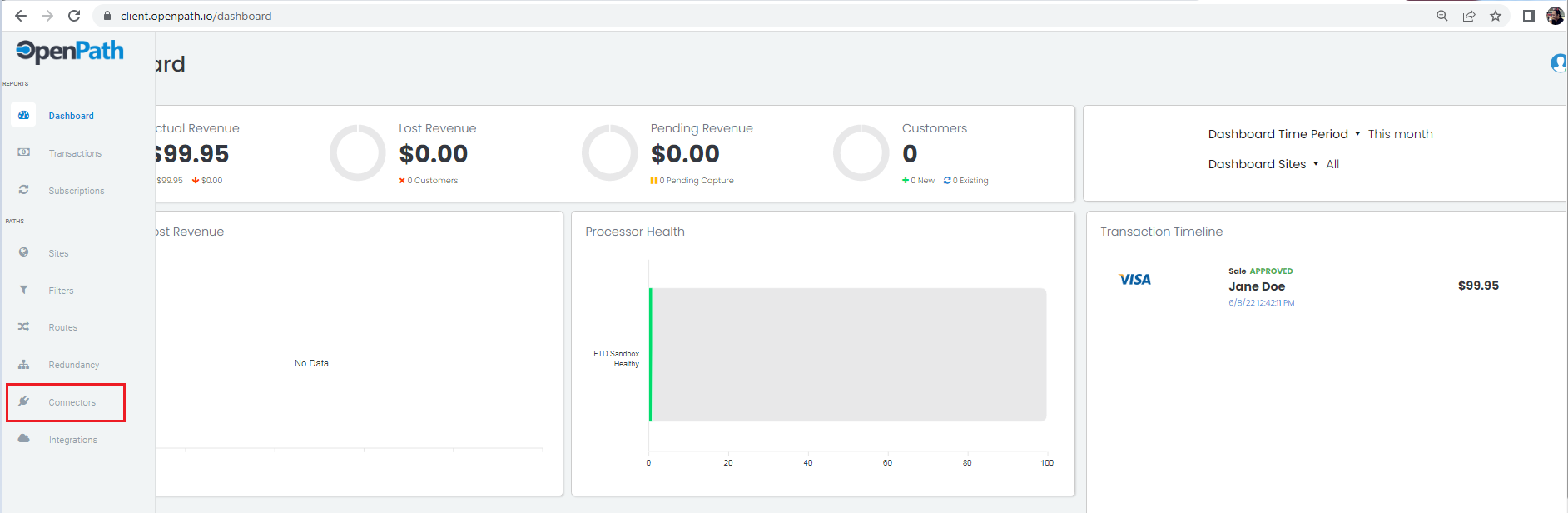
2. Navigate to the Left Menu and choose Connector.
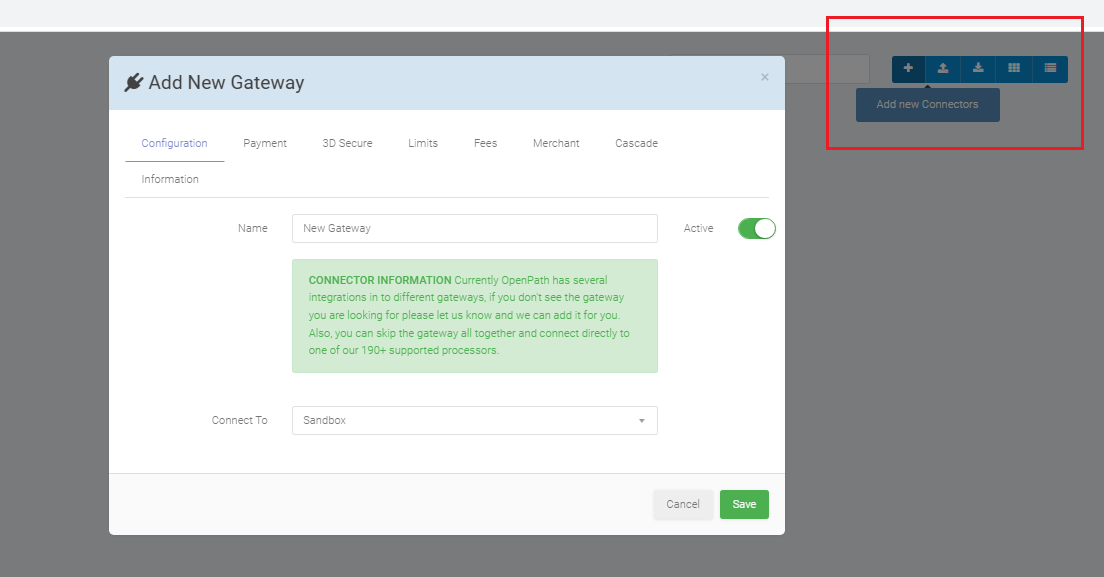
3. Click on the Plus "+" sign to Add a new Connector. The Add New Gateway window will popup.
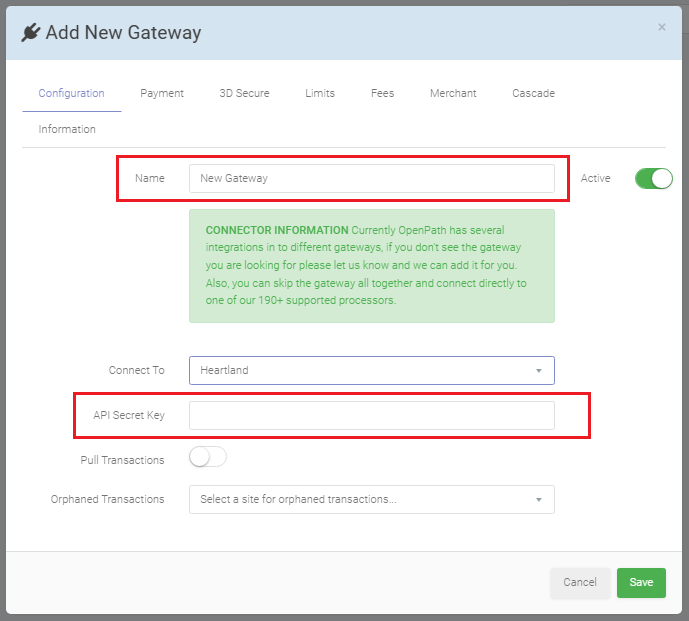
4. On the Configurations tab, you can change the name of the Connector. You can choose the Payment Gateway to connect to in the dropdown menu. In this example, Heartland is selected. Paste the API Secret Key in the box.
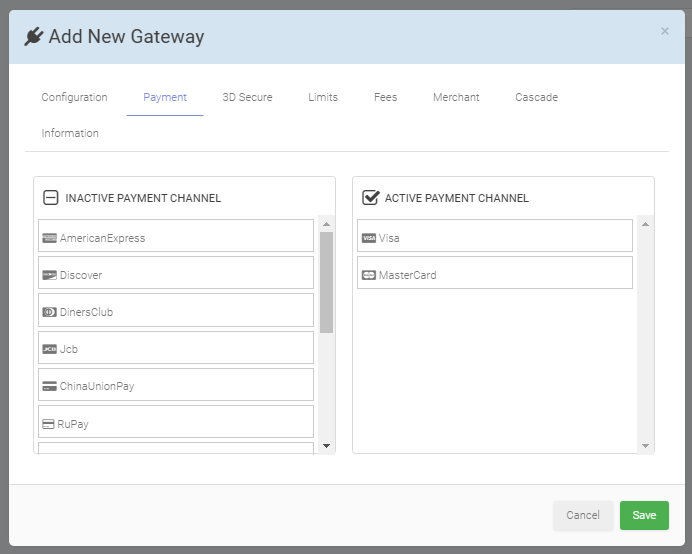
5. On the Payments tab, drag and drop the Payment Channel that you will use. This example has Visa and Mastercard.
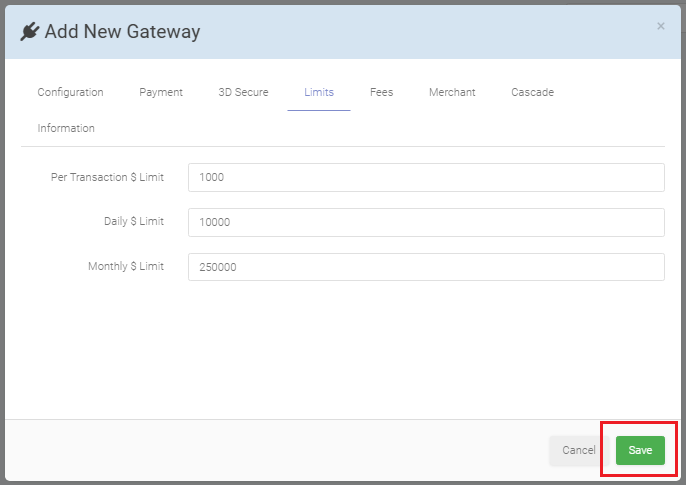
6. The Limits tab will set the Ticket Limits. The default values are already placed. Change the limits as you need. Click Save after you've completed the setup.
Congratulations! You have now created a New Connector.
Was this article helpful?
That’s Great!
Thank you for your feedback
Sorry! We couldn't be helpful
Thank you for your feedback
Feedback sent
We appreciate your effort and will try to fix the article