Professional Level Installation
The professional level installation gives you more control of the Encrypted Checkout payment page, but is not required for processing payments. Before continue with the Professional Level Installation, make sure you've already completed the Basic Level installation. If you haven't completed that step yet, please do so by clicking the link below, then returning to this article.
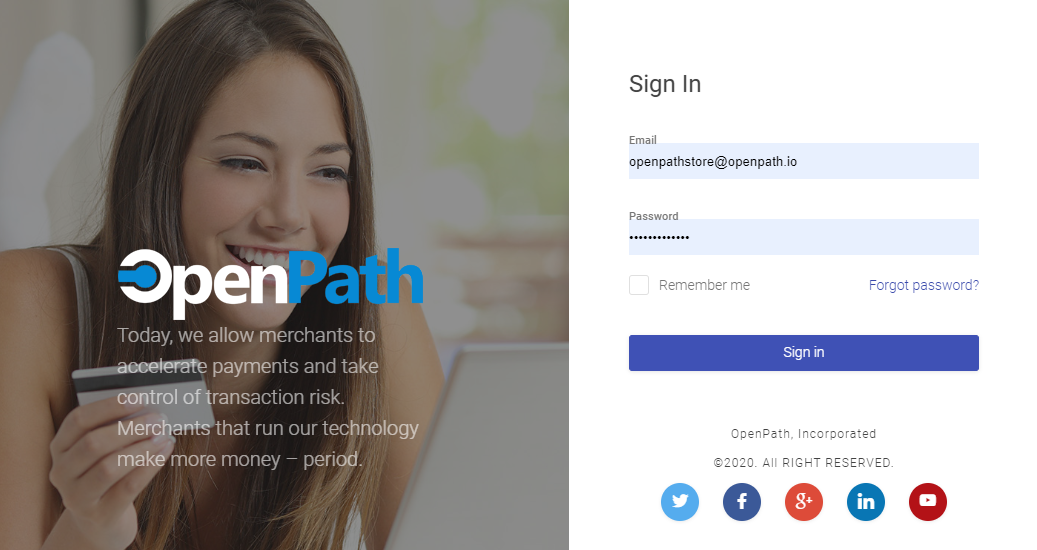
| Go to your Encrypted Checkout Portal | In a web browser go to https://client.openpath.io and enter your email address and password. |
 | |
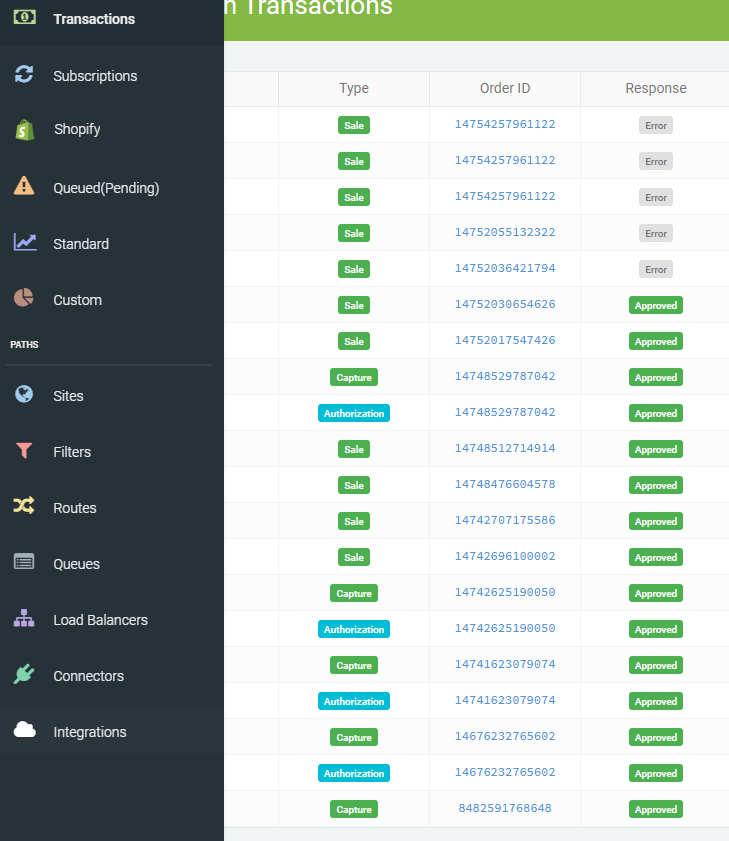
| Navigate to Integrations | On the left side navigation bar locate Integrations and click on that link. If you so not see that link, then find the gear icon at the bottom of the menu and click on that then click on Integrations. |
 | |
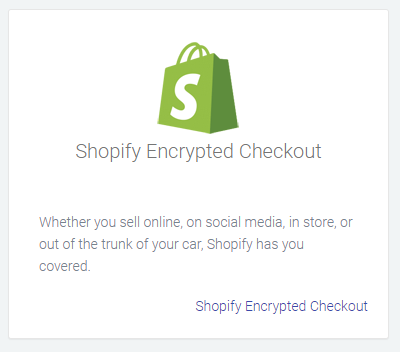
| Select Shopify Encrypted Checkout | In the Integrations screen find the Shopify Encrypted Checkout tile and click on that. |
 | |
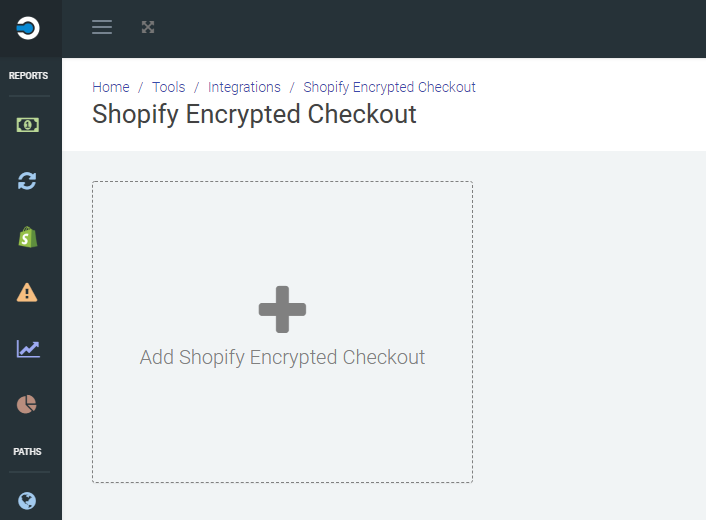
| Add New Encrypted Checkout | Click on the Add Shopify Encrypted Checkout title. |
 | |
| Attach your Shopify Site | After click the Add Shopify Encrypted Checkout, under Settings, enter your stores MyShopify domain without the https:// as seen below. |
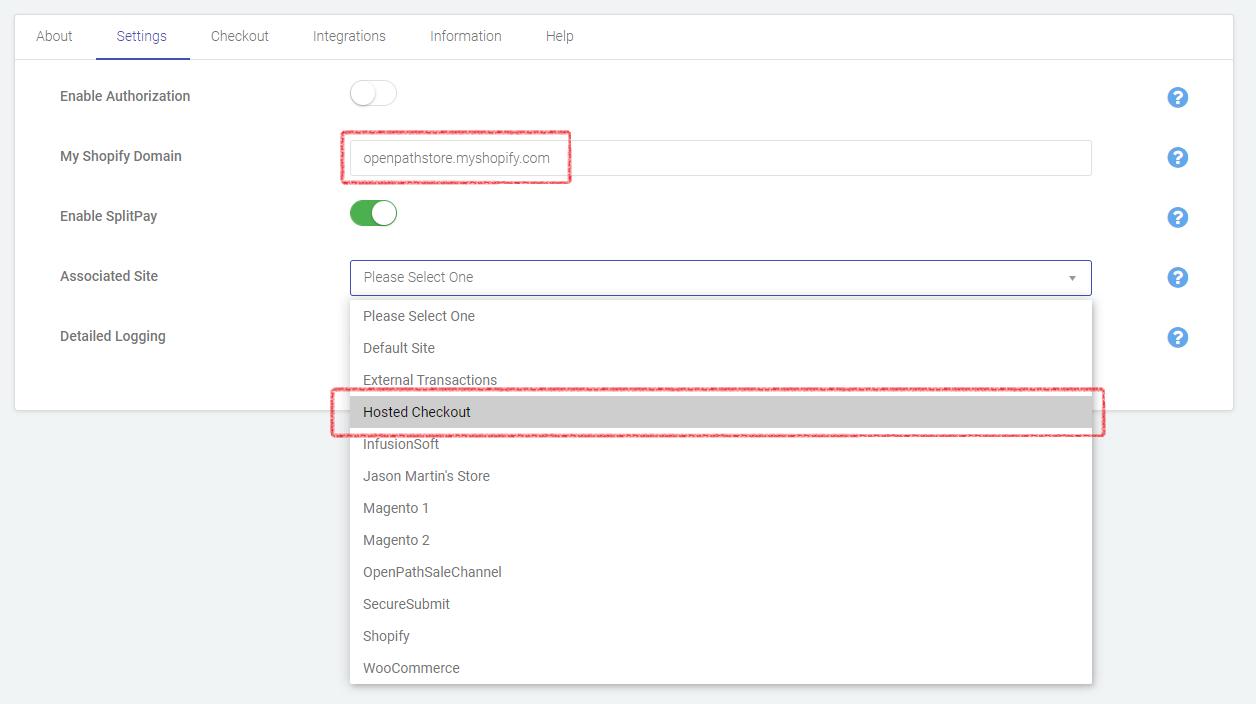 | |
| Then select the drop down menu in Associated Site and select your Shopify Site and click save. | |
| Customize your Checkout | That's it you have now upgraded your Encrypted Checkout with a bunch of new customizable features. To learn more about these features, checkout the following article: |
Was this article helpful?
That’s Great!
Thank you for your feedback
Sorry! We couldn't be helpful
Thank you for your feedback
Feedback sent
We appreciate your effort and will try to fix the article
